
ContentCraft
Open Appi-Resonate Help Center
ContentCraft Help
BrandVoice
Content Campaigns
Scheduling
Team Management / WorkFlows
ProofLex Help
MindWrite Help
Import images in ContentCraft calender
Images play a crucial role in social media content. They capture instant attention of the audience.
Visuals make social media posts more memorable and increase the chances of likes, shares and comments.
ContentCraft makes image planning easy by letting you upload and organize multiple images directly within your content calendar.
How to Import Images in the ContentCraft Calendar:
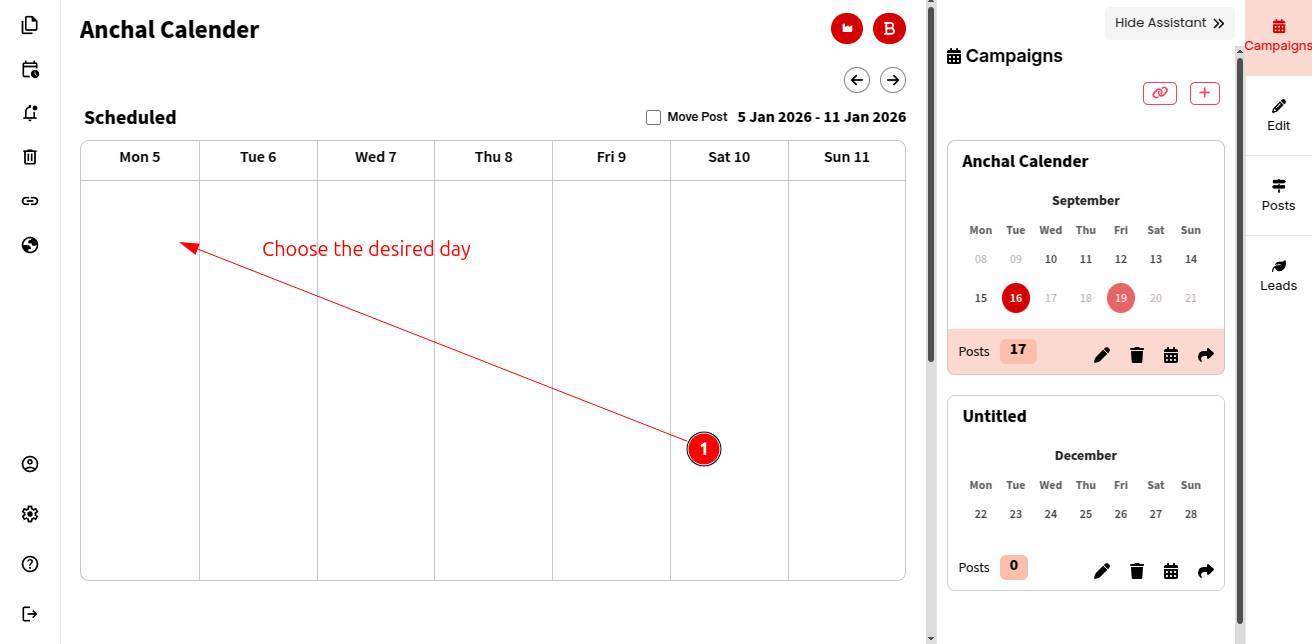
STEP 1: Open your Content Calendar and choose the desired day where you want to plan your content.
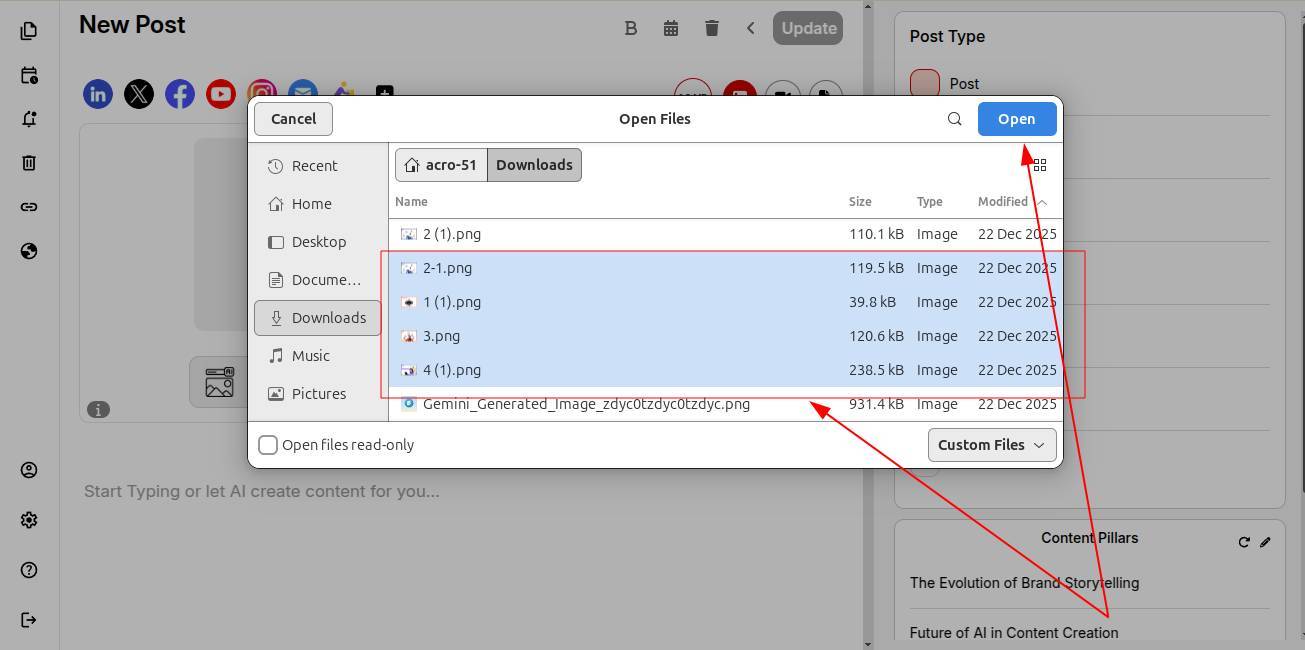
STEP 2: Import and select images from your device.
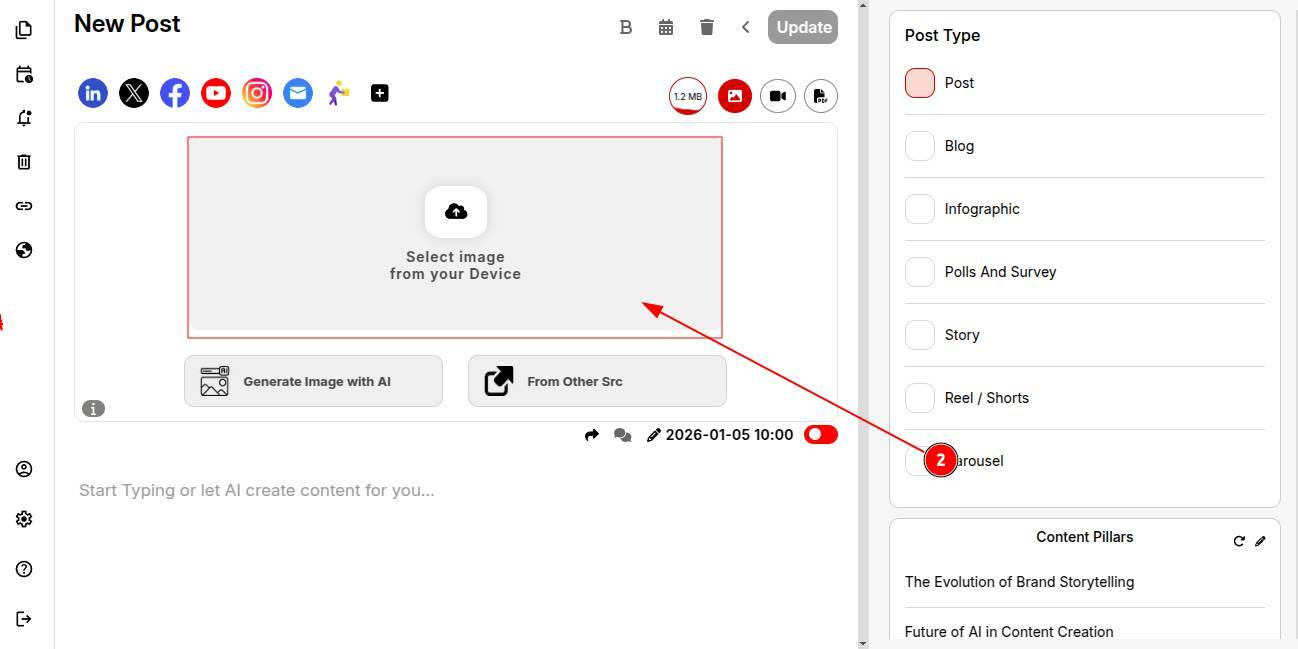
Note: You can also connect your Canva and Pexels accounts with ContentCraft to import images directly into the calender, no manual downloads required.
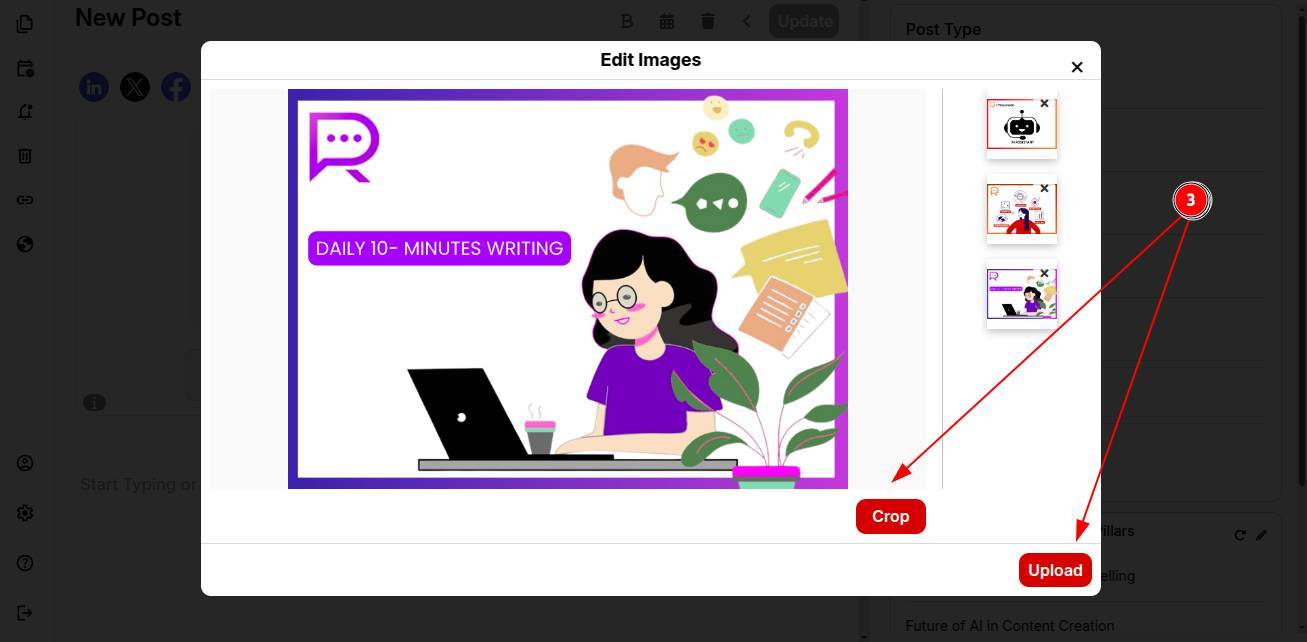
STEP 3: Crop the images if needed, then upload them to the ContentCraft media library.
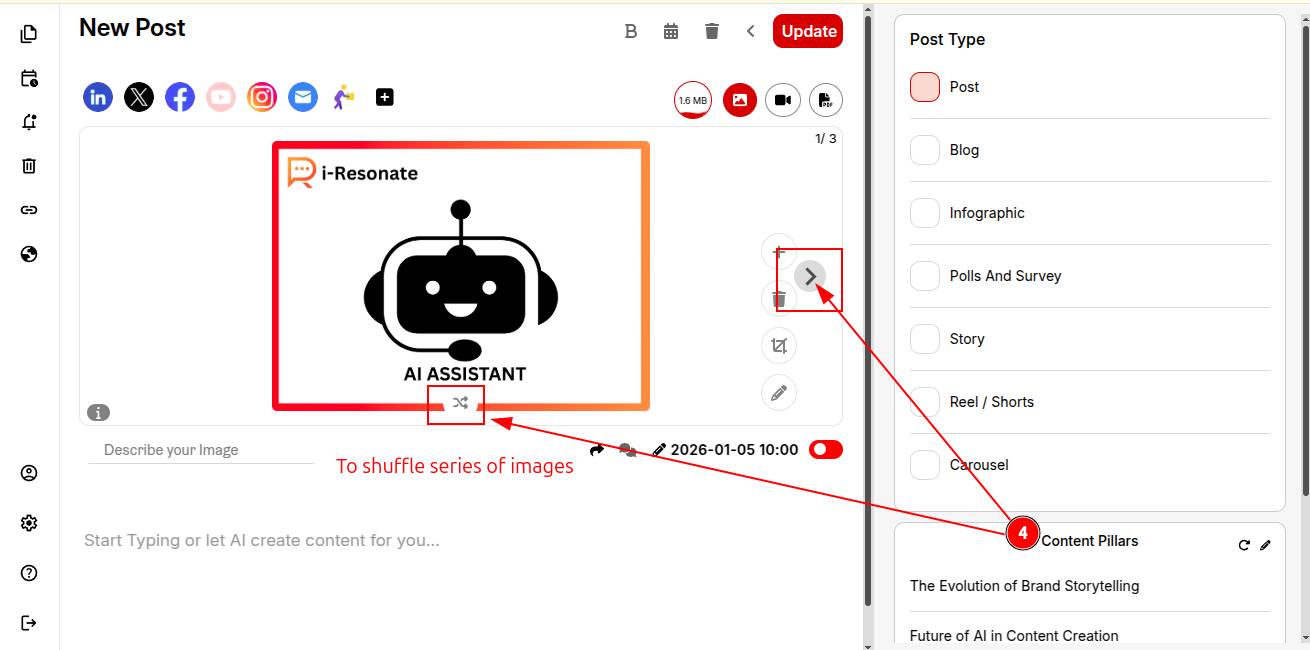
STEP 4: Your images will appear in the calendar. You can easily reorder or shuffle the image sequence as needed.
You’re all set! Go ahead and schedule your posts for publishing.