
ContentCraft
Open Appi-Resonate Help Center
ContentCraft Help
BrandVoice
Content Campaigns
Scheduling
Team Management / WorkFlows
ProofLex Help
MindWrite Help
Import PDF in ContentCraft Calender
On social media, PDFs are often used to share structured, swipe-through content such as guides and presentations.
Unlike single-image or text posts, PDFs let you tell a complete story across multiple pages.
They perform well because they encourage users to spend more time engaging with a post, making them ideal for educational or in-depth content.
ContentCraft makes it easy to include PDF in your content calender and allow you to preview it before publishing.
Steps to Upload a PDF in ContentCraft -:
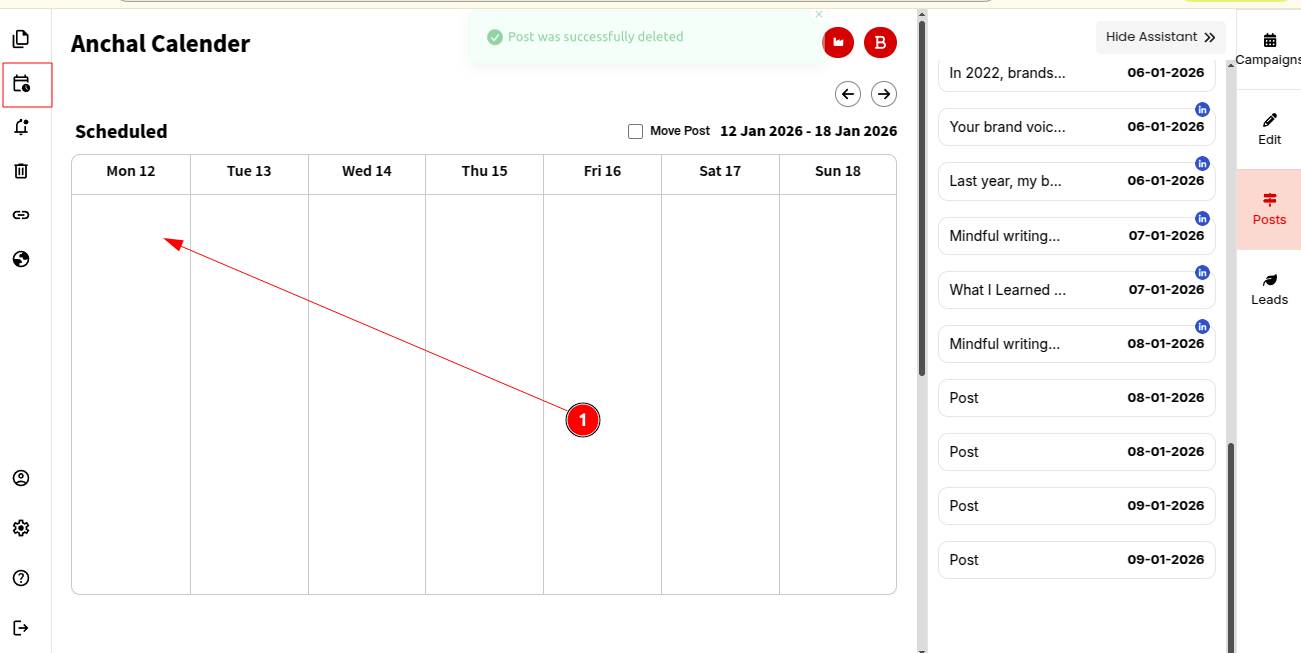
Step 1: Open your Content Calendar and choose the day where you want to plan your content.
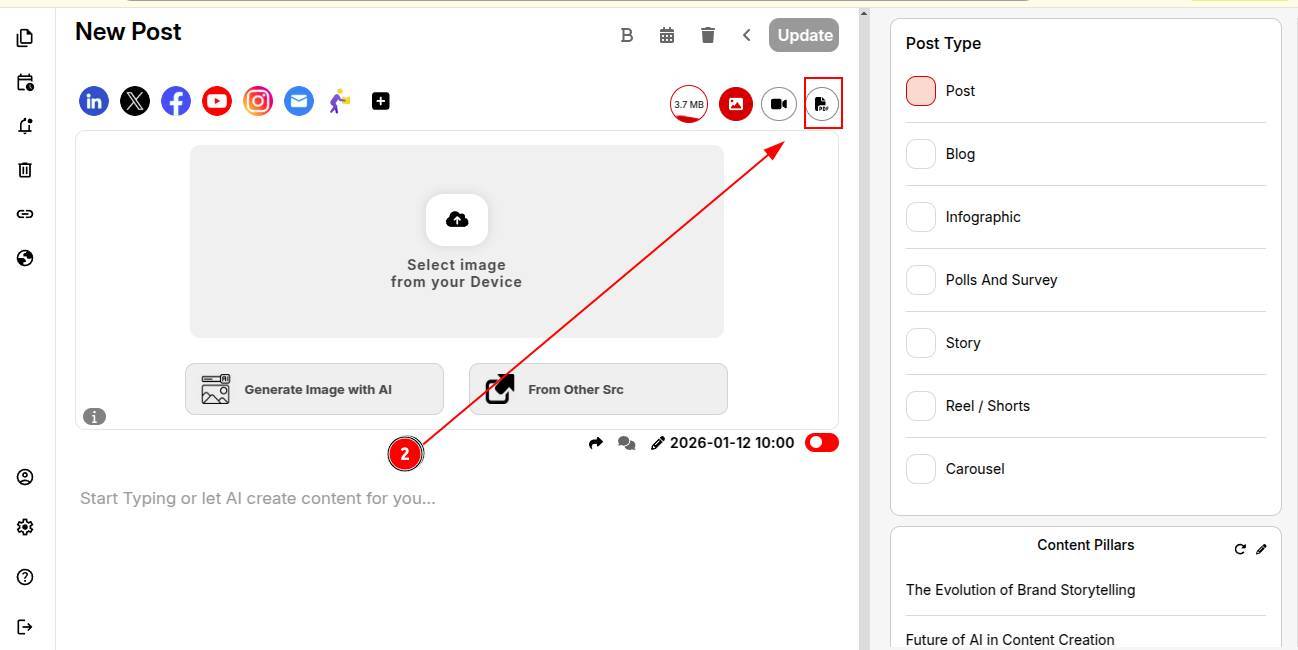
Step 2: Click on the “Add PDF” icon.
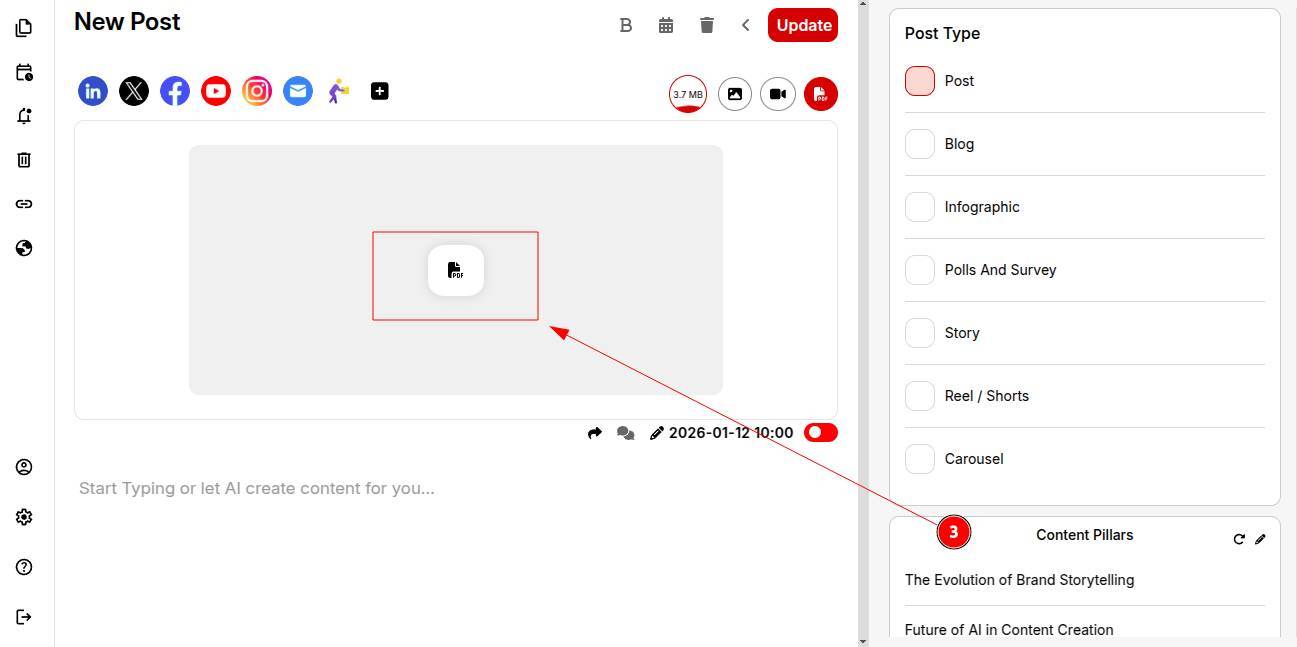
Step 3: Upload the PDF from your desktop.
Step 4: Once uploded, your PDF will be successfully uploaded. You can preview it by clicking on the preview icon shown.
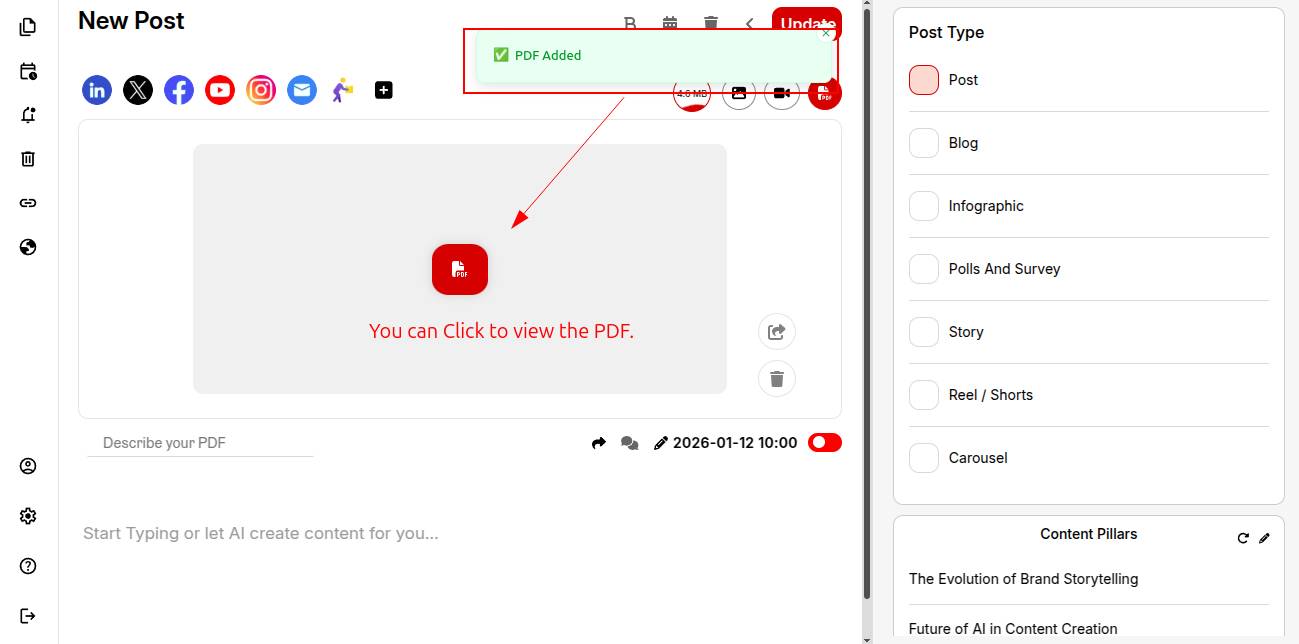
Once your PDF is uploaded, the next step is to create the post content that will go live with it.
You can then tailor the post context for different social media channels based on your pdf uploaded.