
ContentCraft
Open Appi-Resonate Help Center
ContentCraft Help
BrandVoice
Content Campaigns
Scheduling
Team Management / WorkFlows
ProofLex Help
MindWrite Help
Link Canva Account with ContentCraft
Linking your Canva account allows you to use your designs directly while creating posts, without downloading files to your device and uploading them again.
For professionals who create content regularly, this connection helps maintain speed by keeping all the designs in one place.
Once Canva is linked, you can access your recent designs inside the ContentCraft editor. This makes it easier to add visuals to posts and schedule content without switching platforms.
Steps to link your Canva Account:
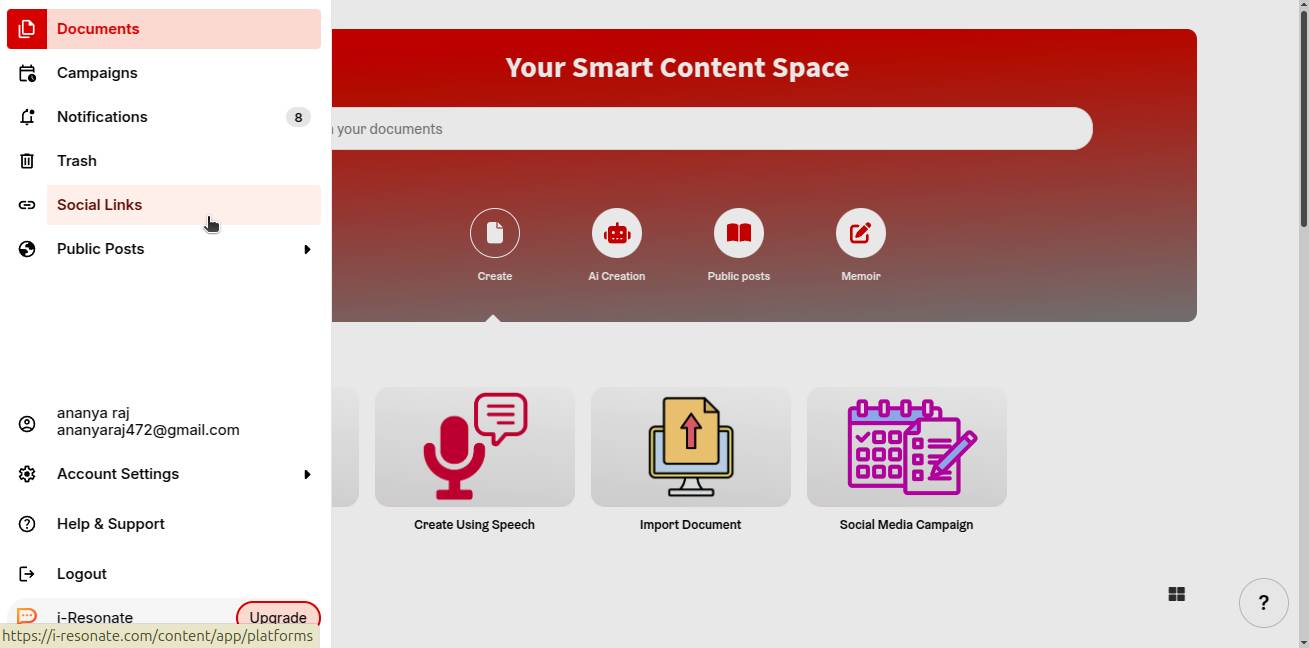
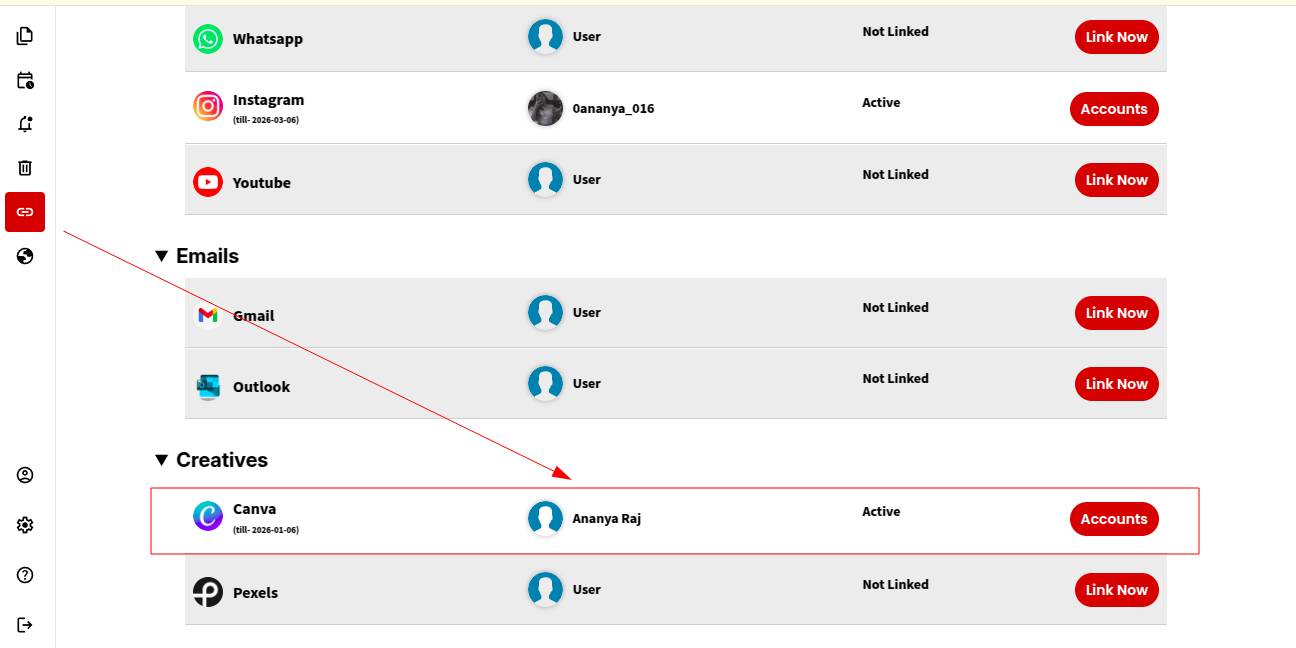
Step 1: Click on “Social Links” from the left navigation bar on the ContentCraft dashboard.
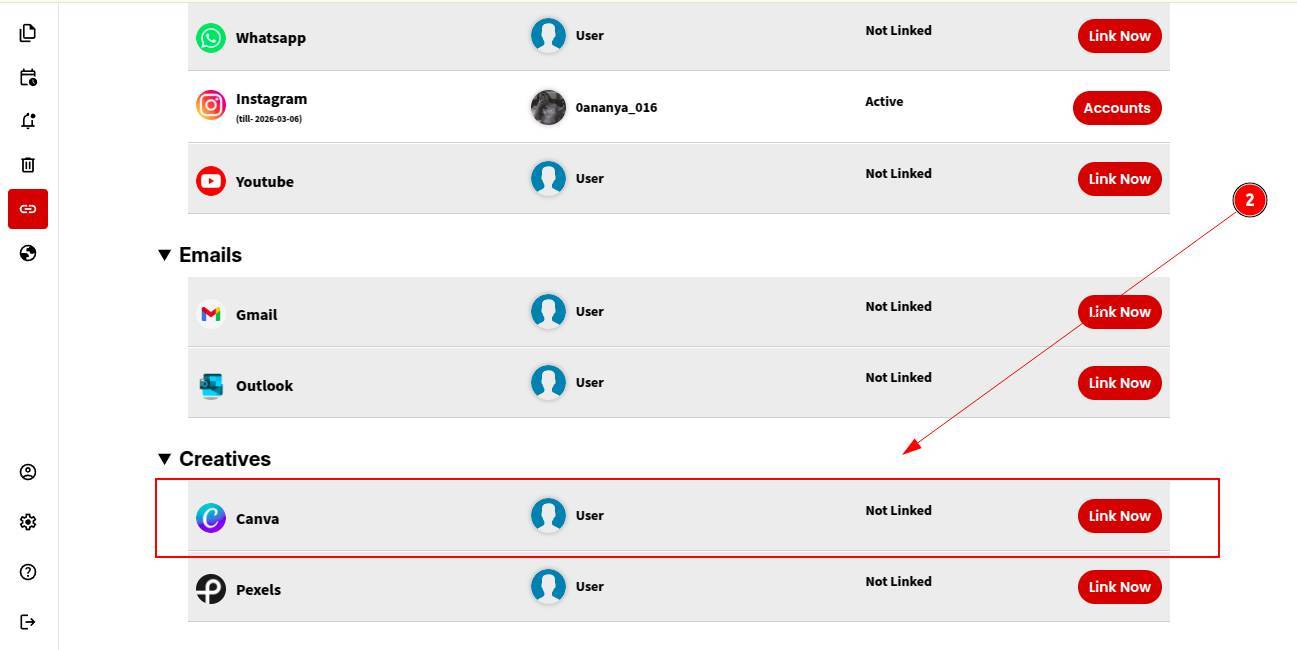
Step 2: Choose Canva from the list of available platforms and click “Link Now.”
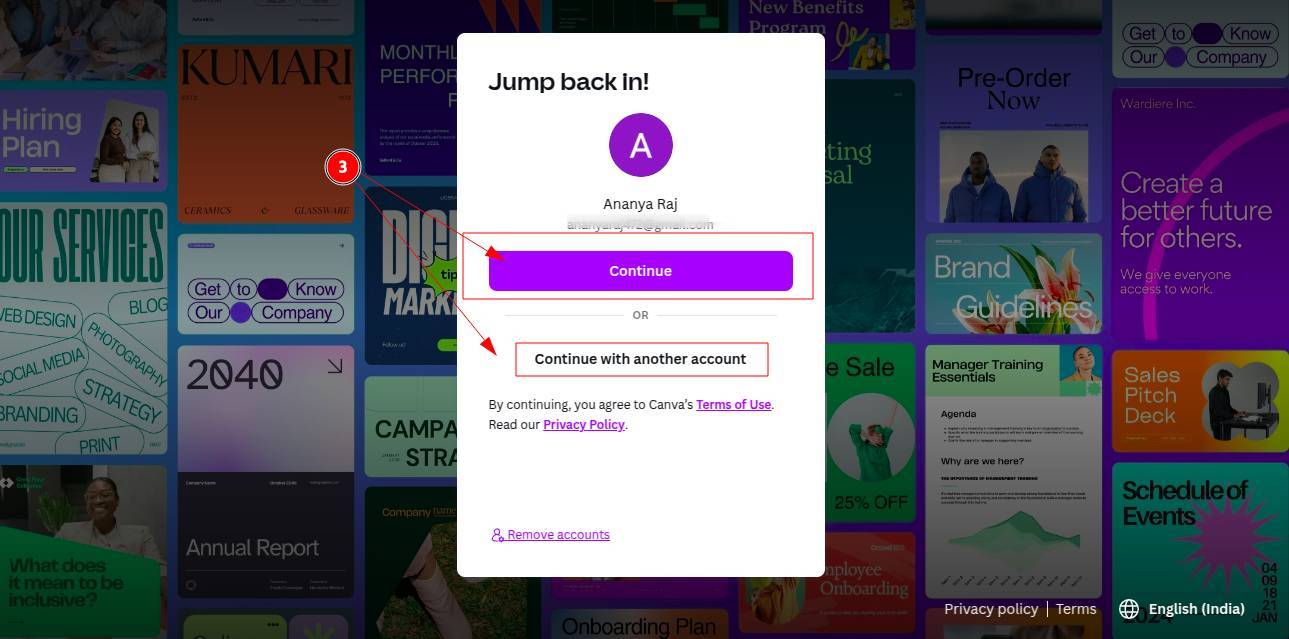
Step 3: Log in to your Canva account using your credentials.
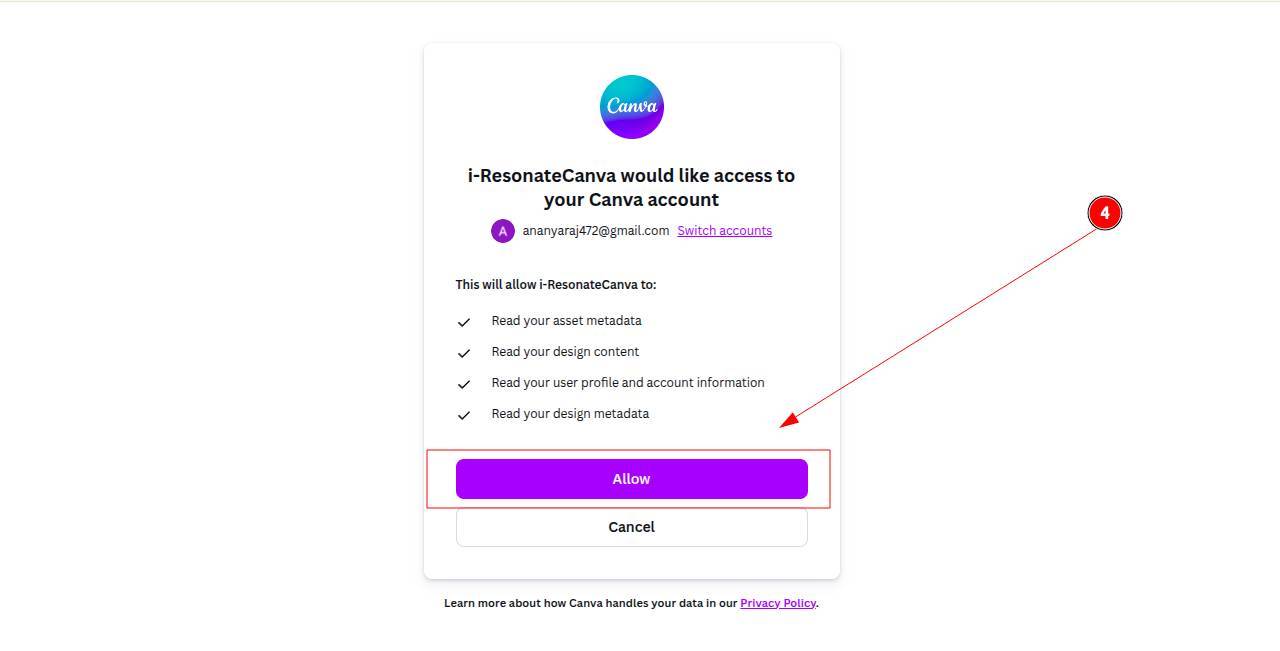
Step 4: After logging in, allow access so your recent Canva designs can be displayed.
That’s it. Your Canva account is now linked, and you can use your designs directly while creating and scheduling social media posts.
You should also explore pexels integration in ContentCraft to streamline your social media images.