
ContentCraft
Open Appi-Resonate Help Center
ContentCraft Help
BrandVoice
Content Campaigns
Scheduling
Team Management / WorkFlows
ProofLex Help
MindWrite Help
Link Facebook Account with ContentCraft
Linking your Facebook account allows ContentCraft to publish and schedule posts or reels directly on your behalf, without switching between platforms.
Once connected, you can manage content and plan posts from one dashboard.
ContentCraft makes this process simple by guiding you through secure account linking and giving you the flexibility to connect multiple Facebook accounts if you manage more than one page or team.
Follow this Step-by-Step Guide to Link Facebook with ContentCraft- :
Step 1: Click on “Social Links” from the left navigation bar on the ContentCraft dashboard.
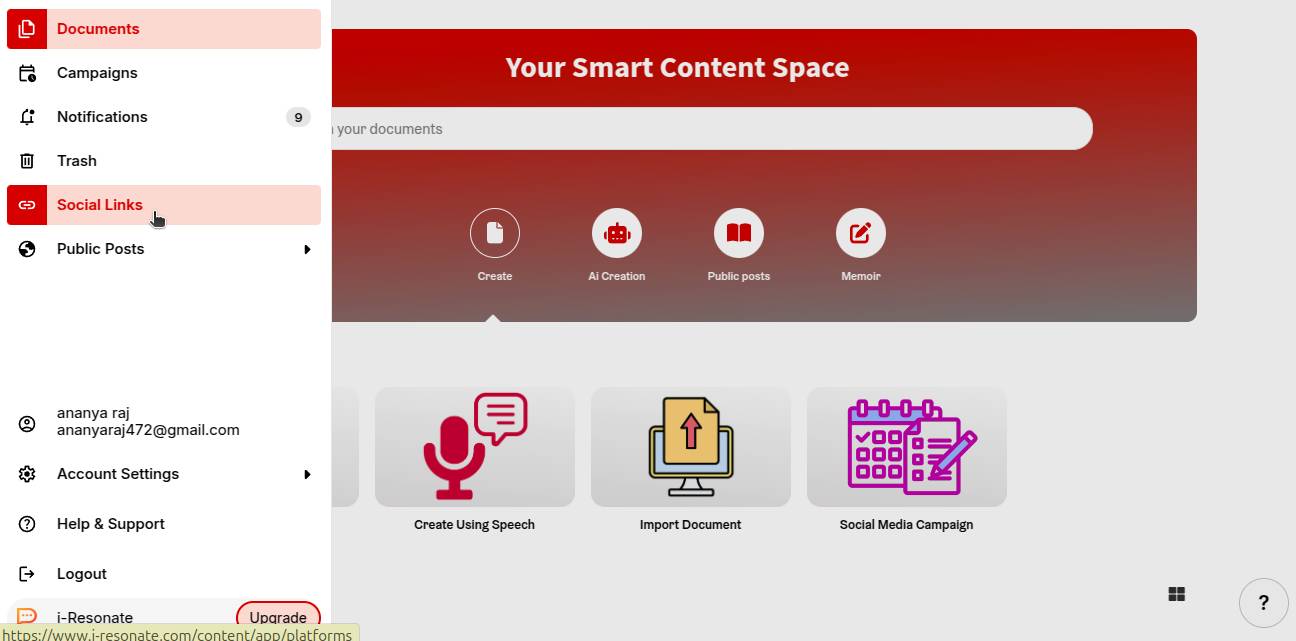
Step 2: Choose Facebook from the list of available platforms and click “Link Now.”
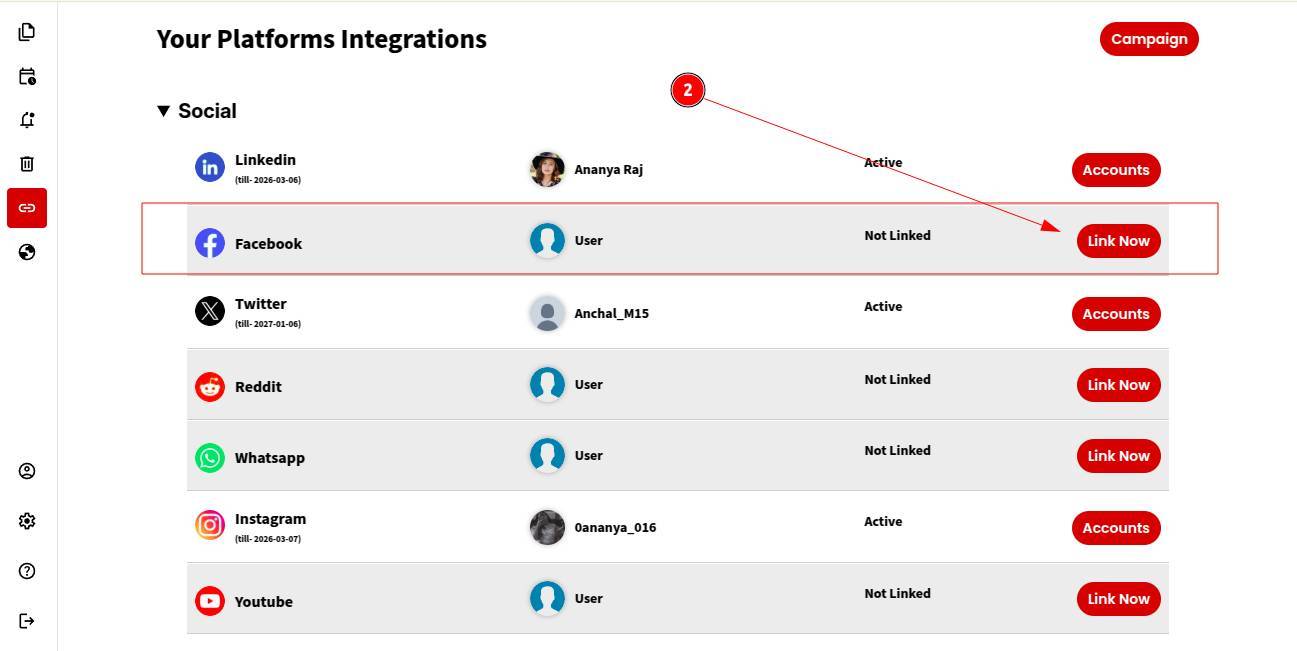
Step 3: If you want an integrated experience, you can link your Instagram Professional account via Facebook using the steps mentioned, or
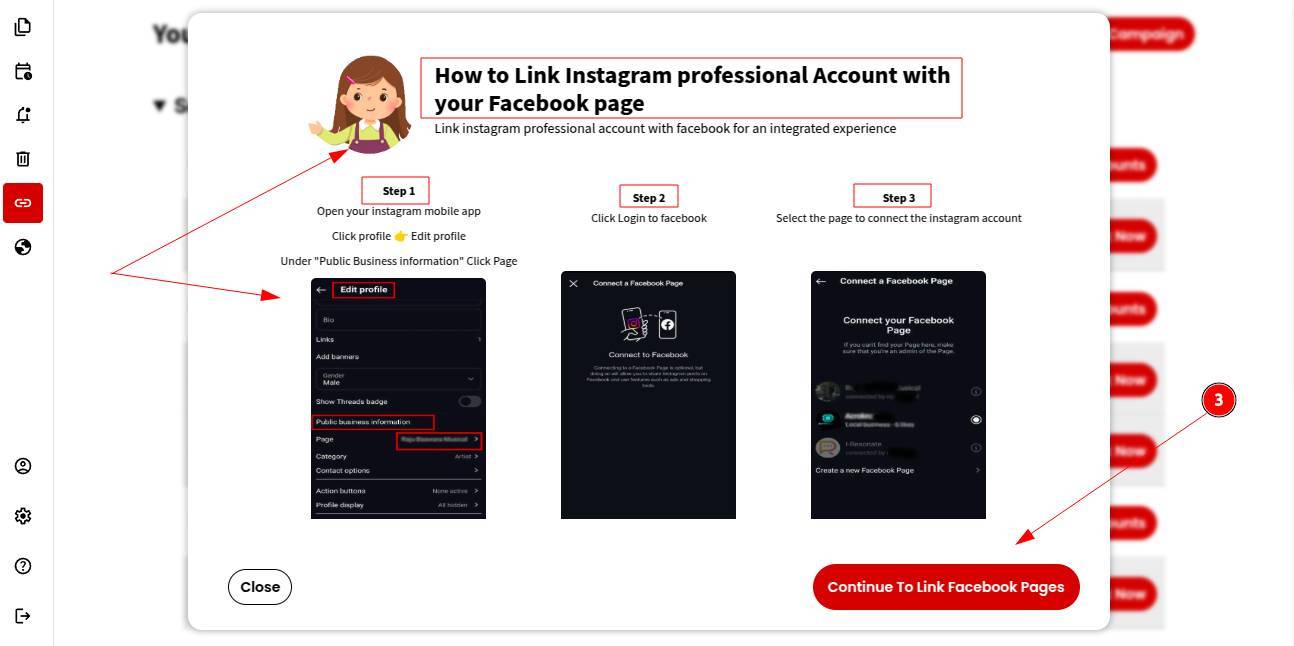
You can "continue" to link a specific Facebook account directly with ContentCraft.
Step 4: Log in using your Facebook credentials.
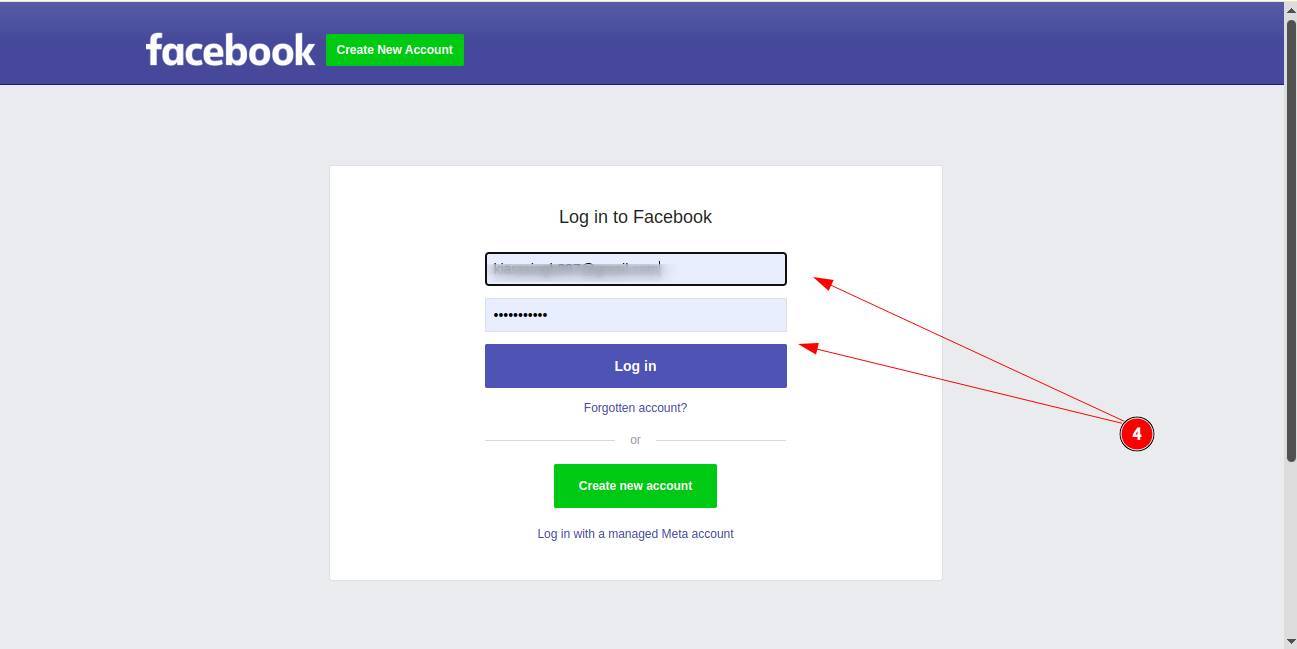
Step 5: To connect your account with ContentCraft, click “Reconnect” to confirm.
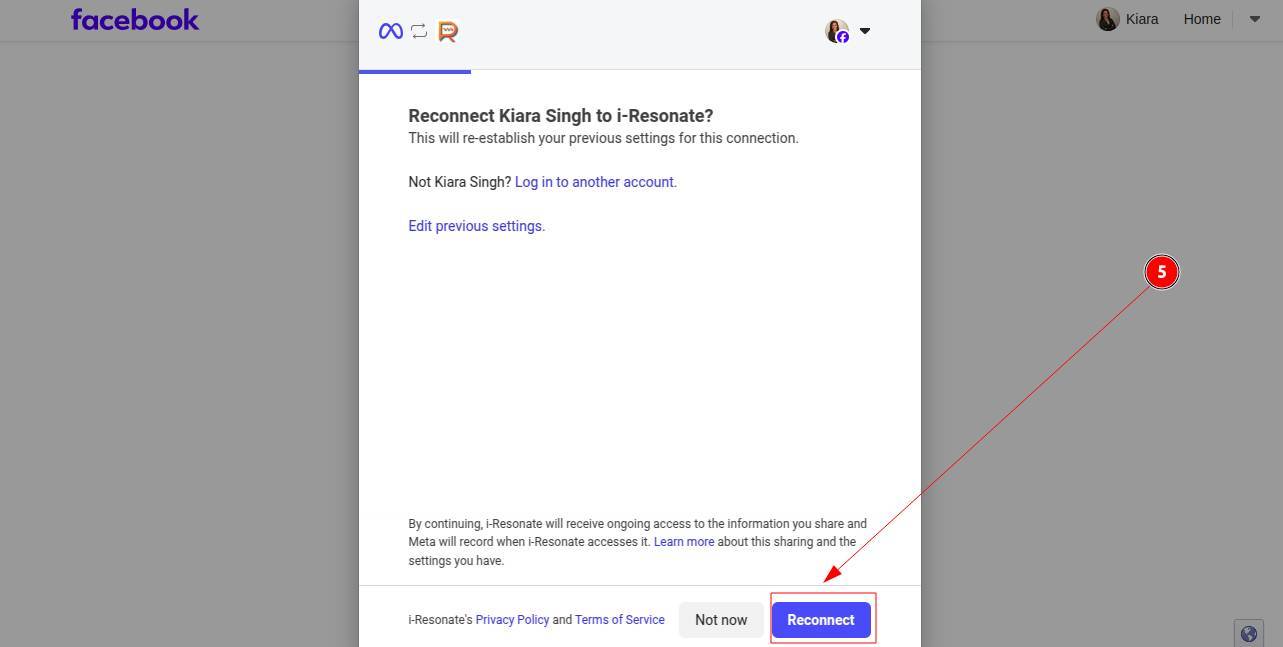
Step 6: That’s it! Your Facebook account is now successfully linked.
Note: You can link multiple Facebook accounts in ContentCraft to manage content across different pages, brands or teams.
You can further explore pexel integration in ContentCraft to streamline your social media workflow.