
ProofLex
Open Appi-Resonate Help Center
ProofLex Help
Document Creation
Proofreading
Doc Insights
Team Management / WorkFlows
Microsoft Word Plugin
Microsoft Outlook Plugin
ContentCraft Help
MindWrite Help
Detect and Redact Personally Identifiable Information (PII) with ProofLex
Personally Identifiable Information (PII) includes any data that can identify an individual, such as names, addresses, phone numbers, email IDs, government IDs or financial details.
Legal documents often contain sensitive information. Detecting and redacting PII is crucial to protect privacy and prevent unauthorized access.
ProofLex helps you protect sensitive information by automatically detecting and categorizing Personally Identifiable Information (PII) across your document.
Instead of manually searching for what needs to be hidden, ProofLex highlights PII based on five key sensitivity factors and allows you to redact it instantly
-
Law Enforcement: Identifies sensitive details related to criminal records, investigations or data accessible only to legal authorities.
-
Caregivers: Flags information involving medical and emotional care that should remain confidential.
-
Parents/Legal Guardians: Detects personal data linking minors to their parents or guardians, such as names and contact details.
-
School Officials: Identifies education-related information like student records, IDs or any staff details.
-
Public Disclosure: Flags any sensitive data such as financial and health that should not be shared publicly.
NOTE : PII detector is a premium feature. You can use it only if your ProofLex plan includes compliance tools.
Here are the steps to detect PII in your document:
STEP 1: Open your document in the editor and select "Privacy" tool under the compliance AI tools.
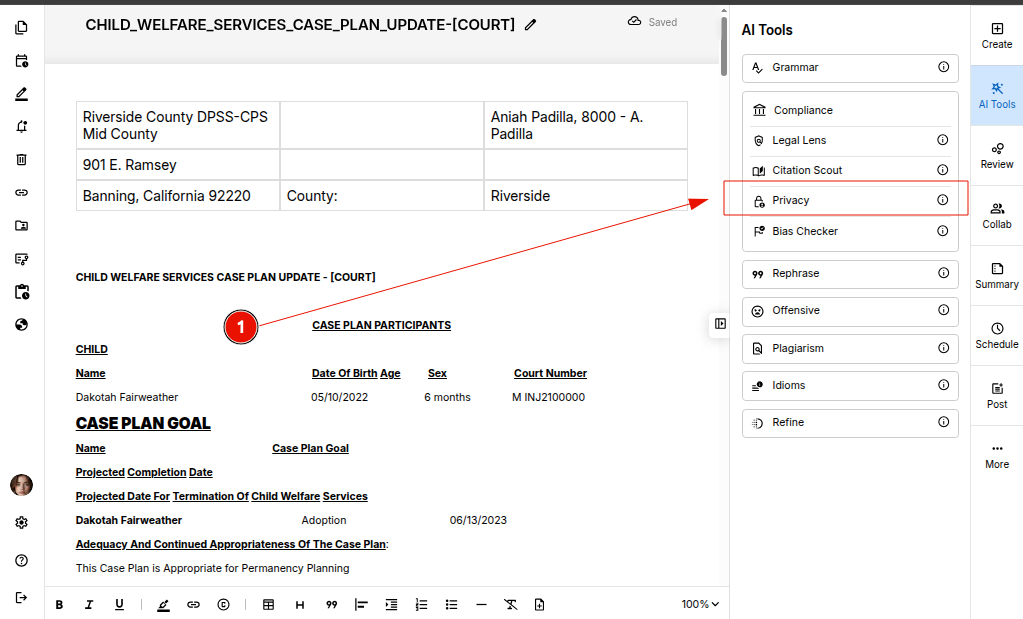
STEP 2: You’ll see detected PII highlighted with comments and sensitivity classifications. Click on any item to navigate directly to it.
IMPORTANT: PII Analysis is performed one page at a time. Make sure you select the page you want to analyze before starting the check.
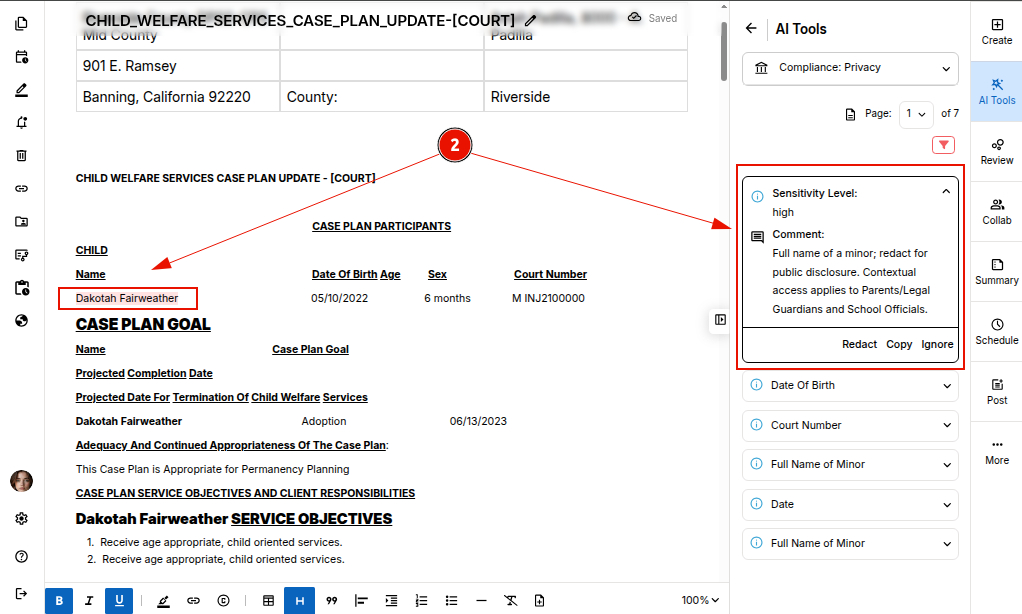
STEP 3: Decide whether to redact the information or ignore the suggestion based on your sharing requirements.
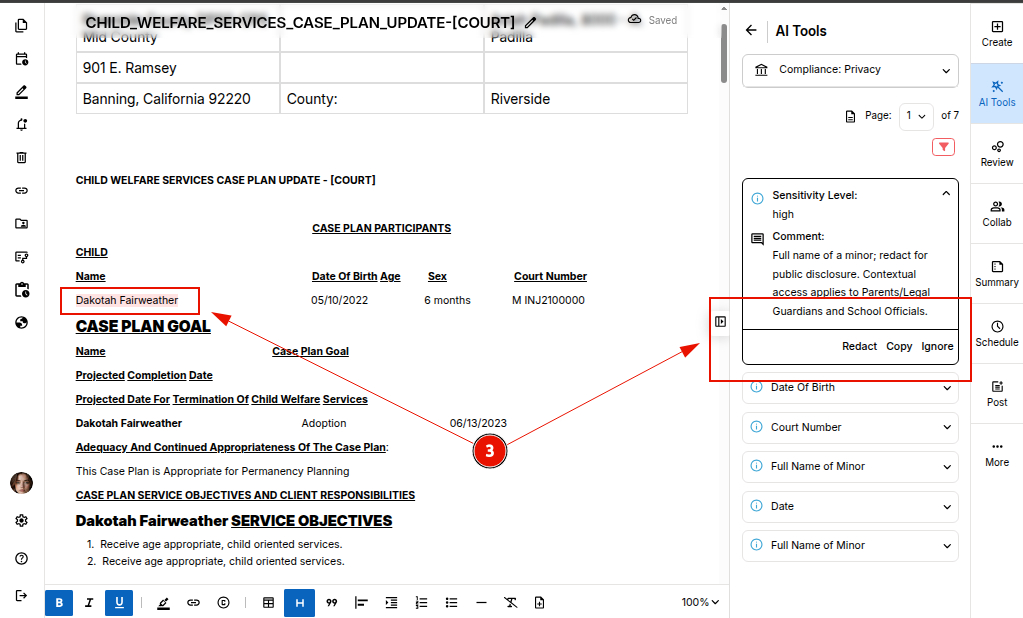
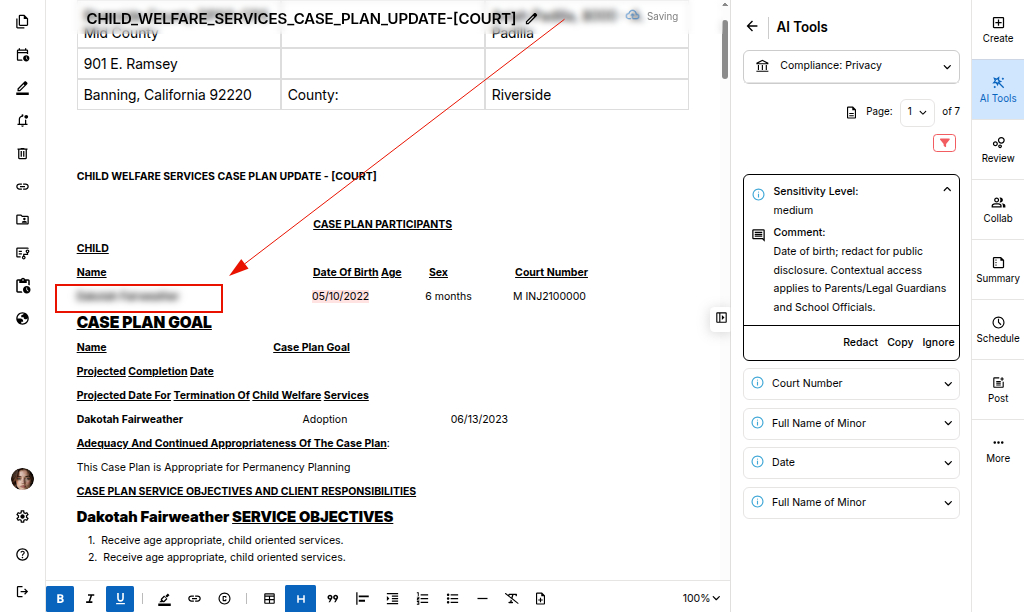
Once you select "Redact", the suggestion will be masked.
STEP 4: You may choose to redact all PII data for an access class in one go using the Filter icon ( as shown below).
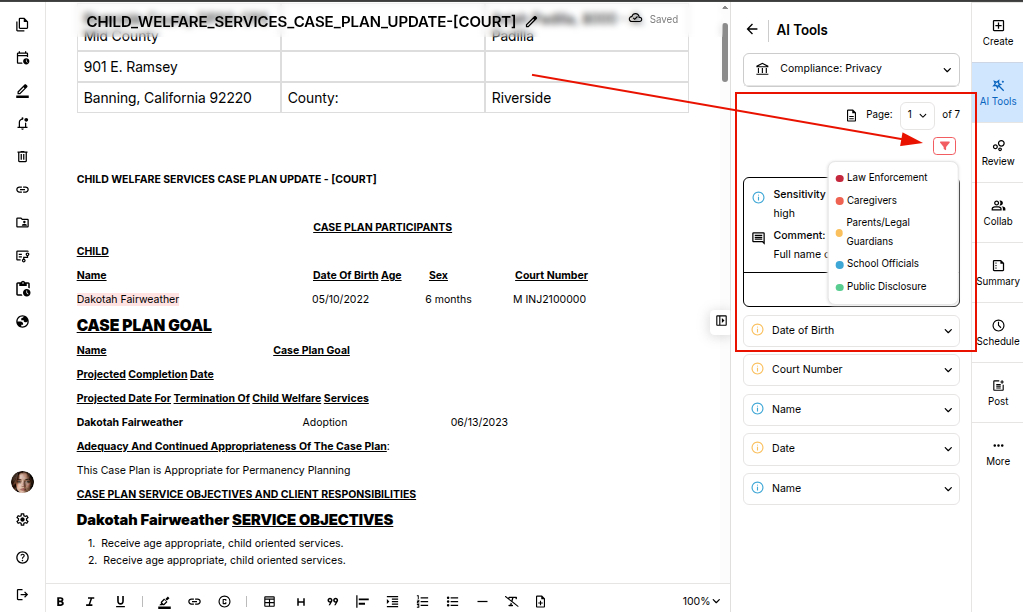
For example, if you are sharing the Document to school department, you may choose to Redact all information that the school officals are not allowed to read. Follow these steps:
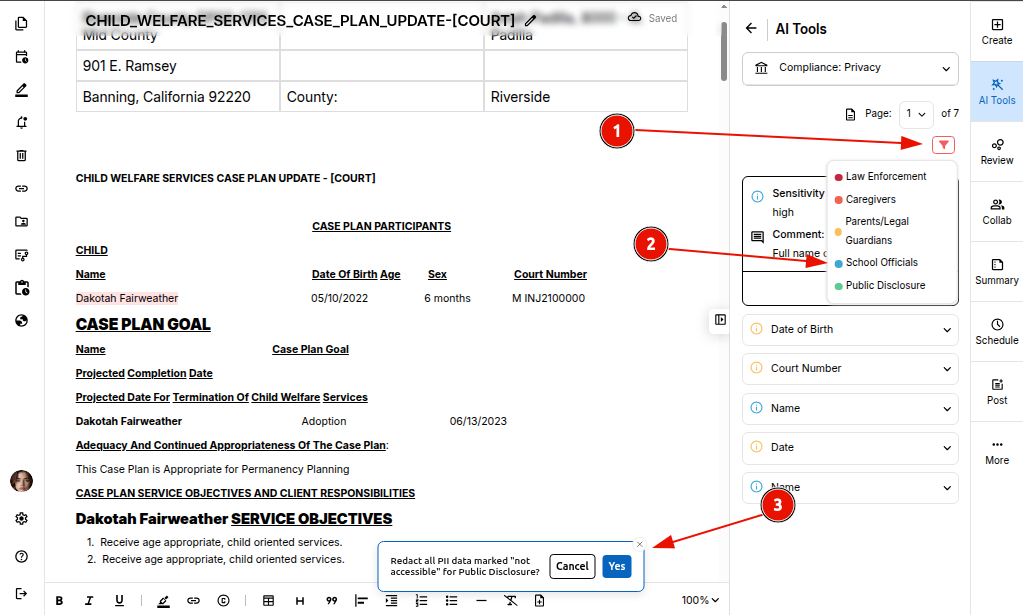
STEP 5: The result will appear redacted in the editor, all redacted data will be "Masked".
You can Undo the masking or select and mask any other data, anytime you want using the Formatting menu, visibility tools.
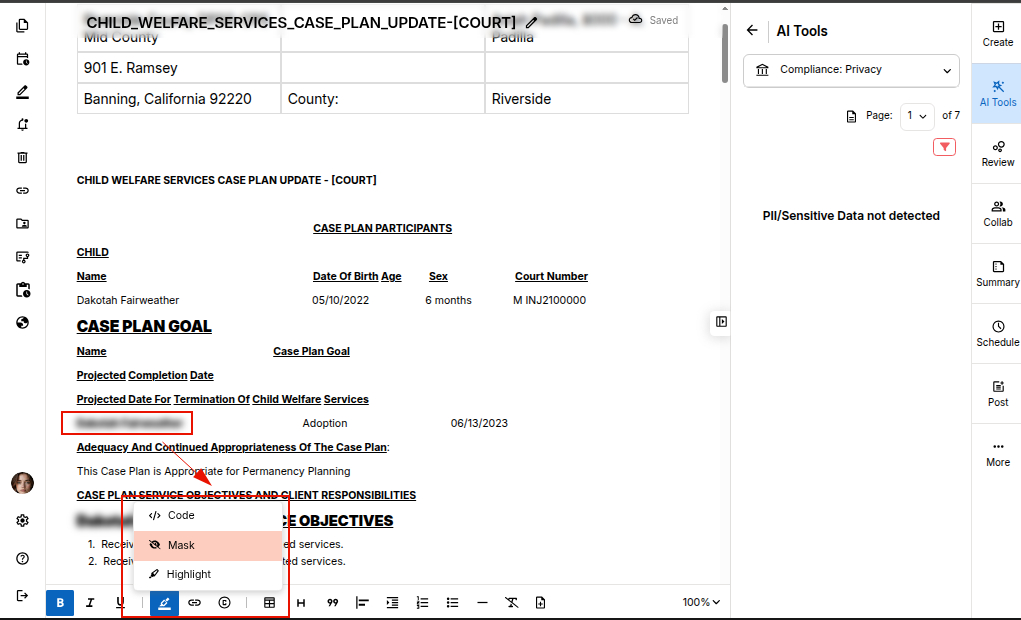
Now when you export your document, all the Redacted data will be actually masked.
You can also explore bias language checking tool of ProofLex.