
ProofLex
Open Appi-Resonate Help Center
ProofLex Help
Document Creation
Proofreading
Doc Insights
Team Management / WorkFlows
Microsoft Word Plugin
Microsoft Outlook Plugin
ContentCraft Help
MindWrite Help
How the “Generate Next” Feature Works in ProofLex?
When you’re unsure what to write next, just click Generate Next from the ProofLex's Gear Icon.
ProofLex will read your existing text and start generating the next paragraph, keeping the same tone and style of the document.. It’s a simple way to save time and keep your ideas move smoothly.
Here are the Steps to use the “Generate Next” Feature :
Once you load your document into the Editor, follow the following Steps:
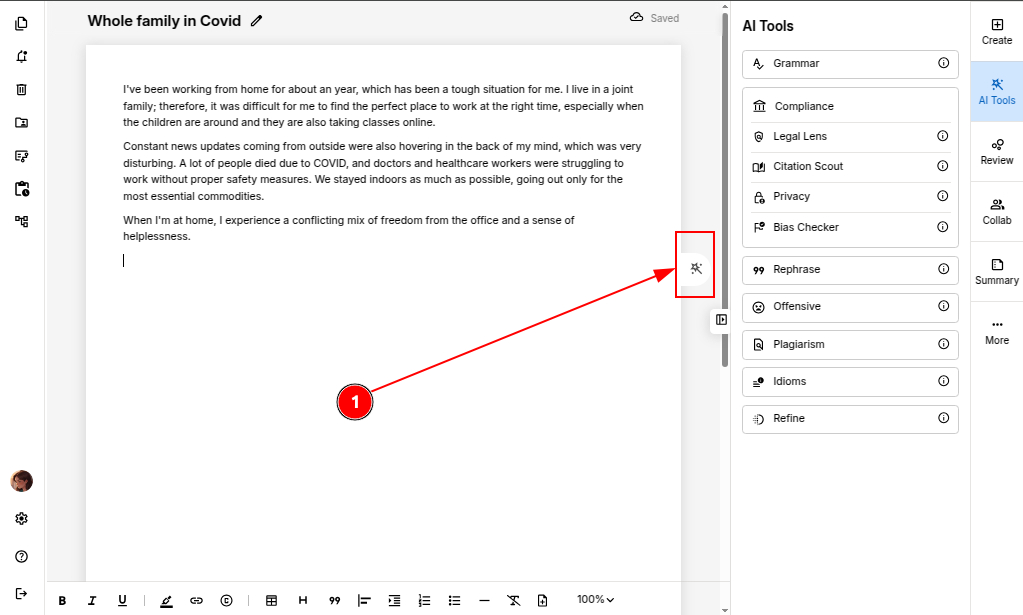
Step 1: Click the "Gear Icon" where you’d like ProofLex to continue your content.
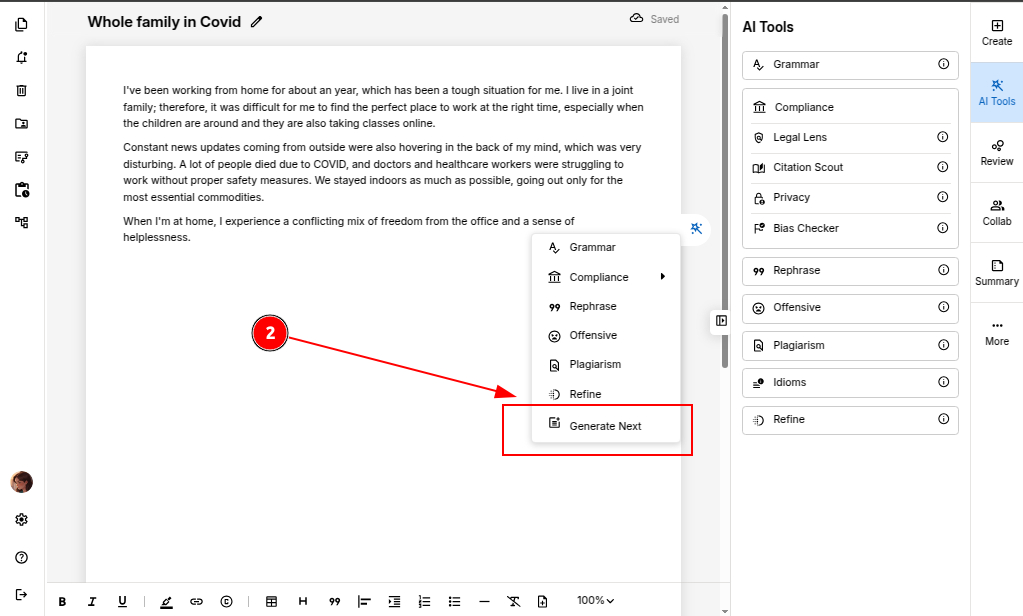
Step 2: From the dropdown menu, select “Generate Next.”
Step 3: ProofLex AI will instantly generate a new paragraph that aligns with your existing content’s flow and intent.
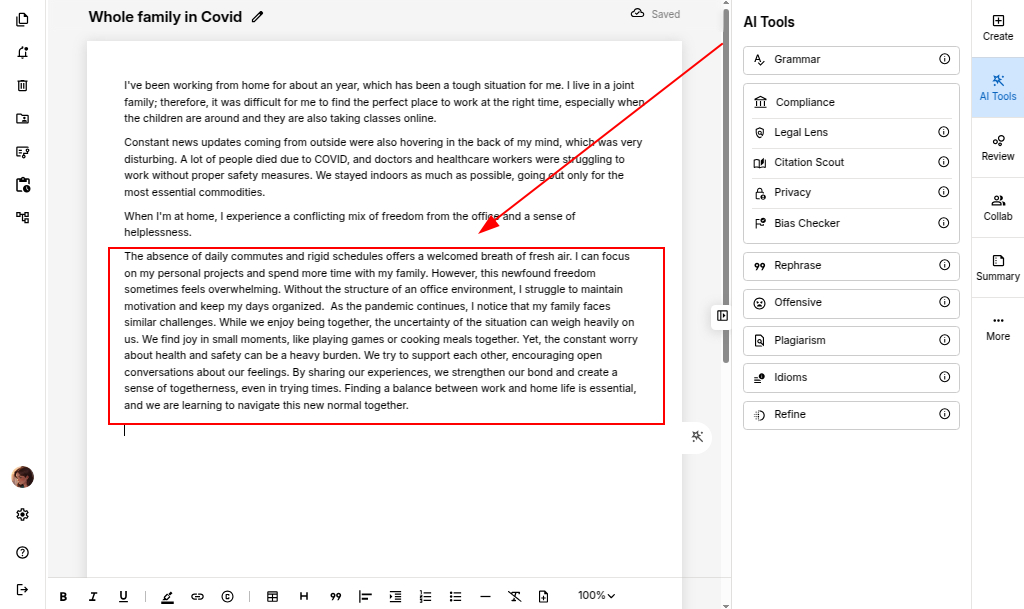
You can repeat the steps, if you wish to extent the document further.
You can also explore the Gear icon in ProofLex to manage quick modifications.