You can also explore to safely export your document with ProofLex.

ProofLex
Open Appi-Resonate Help Center
ProofLex Help
Document Creation
Proofreading
Doc Insights
Team Management / WorkFlows
Microsoft Word Plugin
Microsoft Outlook Plugin
ContentCraft Help
MindWrite Help
How to Import your existing documents from Desktop, Onedrive or Googledrive in ProofLex ?
Importing documents is essential when you want to continue working on existing files without starting from scratch.
ProofLex supports uploading PDF, DOCX, and TXT files up to 10MB, and lets you import from Word, OneDrive and Google Drive, making it easy to work from anywhere.
Once imported, you can instantly use ProofLex to proofread your document.
Here are the steps to import your document:
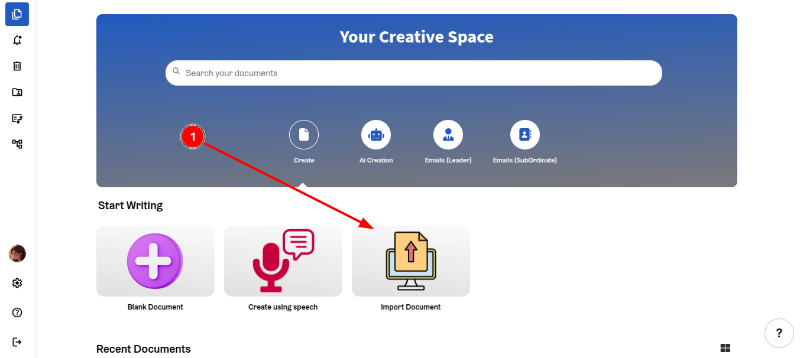
1. Click on the 'Import Document' option.
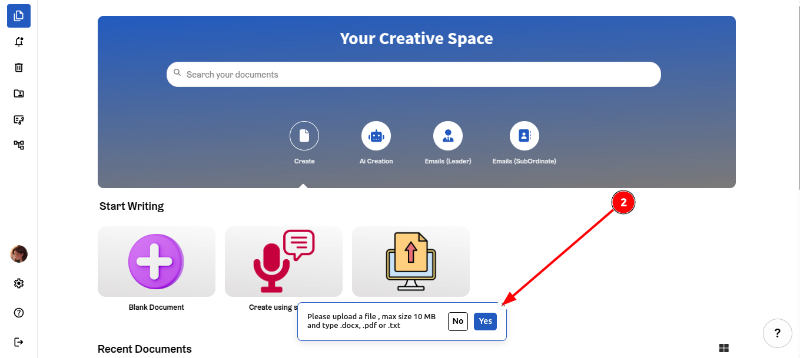
2. Click 'Yes'.
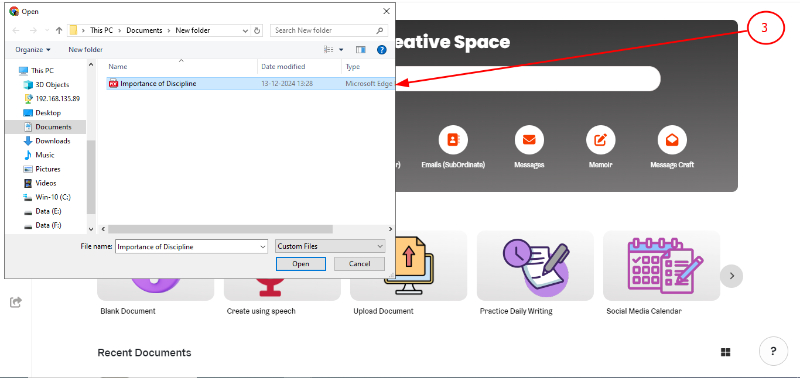
3. Select the document you want to upload.
NOTE : If you have mapped your Microsoft Office 365 account using OneDrive or GoogleDrive using its app on Windows or MacOS, you would be able to import documents directly from OneDrive or GoogleDrive.
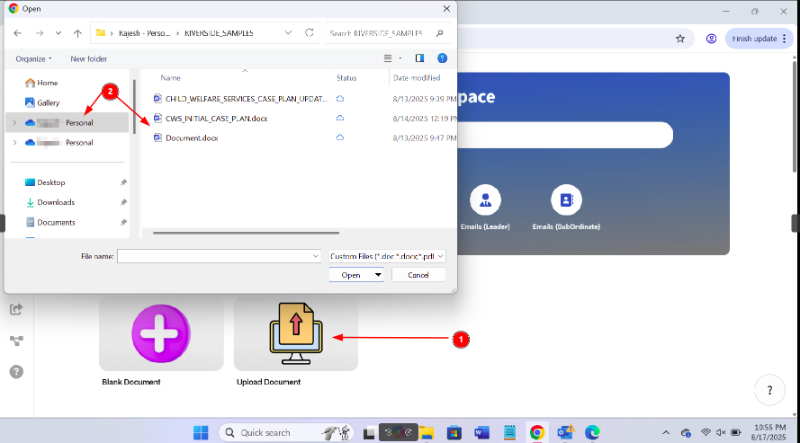
Uploading from Google Drive:
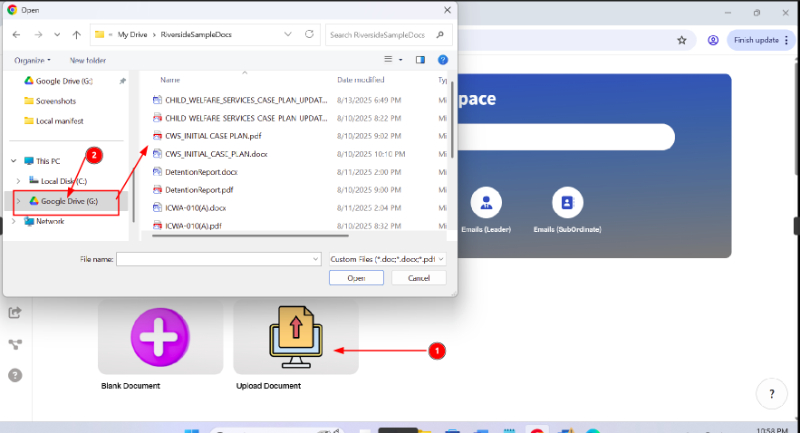
4. Once chosen, the file is imported and opens up directly in the ProofLex editor, allowing you to continue working on it smoothly.
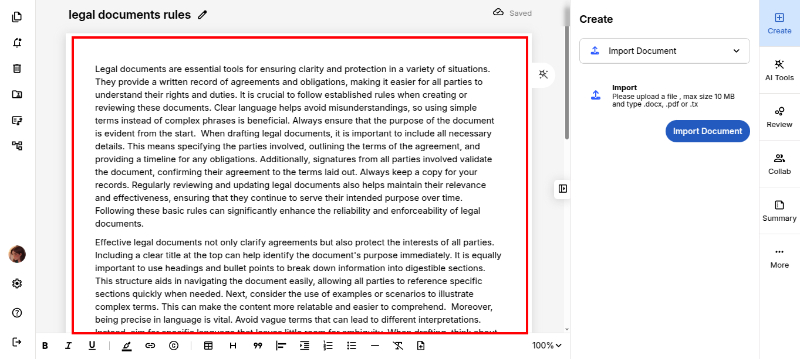
You can also add content anytime by copying and pasting from the clipboard for quick modification.