
ProofLex
Open Appi-Resonate Help Center
ProofLex Help
Document Creation
Proofreading
Doc Insights
Team Management / WorkFlows
Microsoft Word Plugin
Microsoft Outlook Plugin
ContentCraft Help
MindWrite Help
How to install ProofLex Add-in to Outlook desktop?
If you write important emails in Microsoft Outlook, the ProofLex plugin is a simple addition that makes a real difference.
Proofread your emails, improve clarity and check for compliance issues, all without leaving your inbox.
Please note: While the plugin covers all essential proofreading and compliance tools, certain advanced features are available exclusively within the ProofLex web application.
Steps to Install the ProofLex Plugin in Microsoft Outlook (Desktop App)
STEP 1: Download the ProofLex Outlook Manifest (XML) file using the link here.
Save it somewhere easy to find, your desktop is a good choice.
STEP 2: Launch Outlook and open a new email. A compose window will appear.
In the top menu of the compose window, locate the Apps icon, similar to the image shown below.
Click on it to continue.
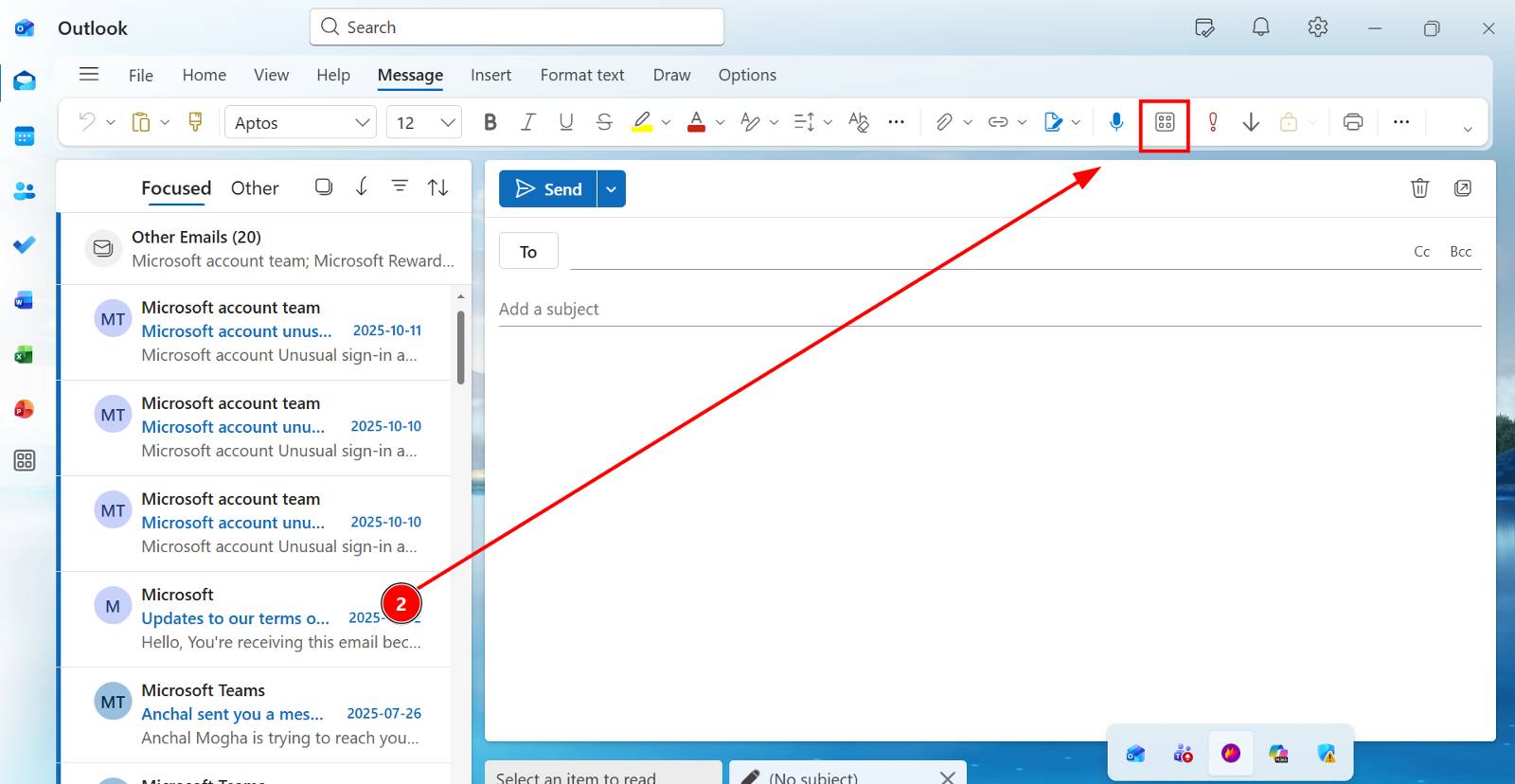
STEP 3: In the Apps section, select “Get Add-ins.”
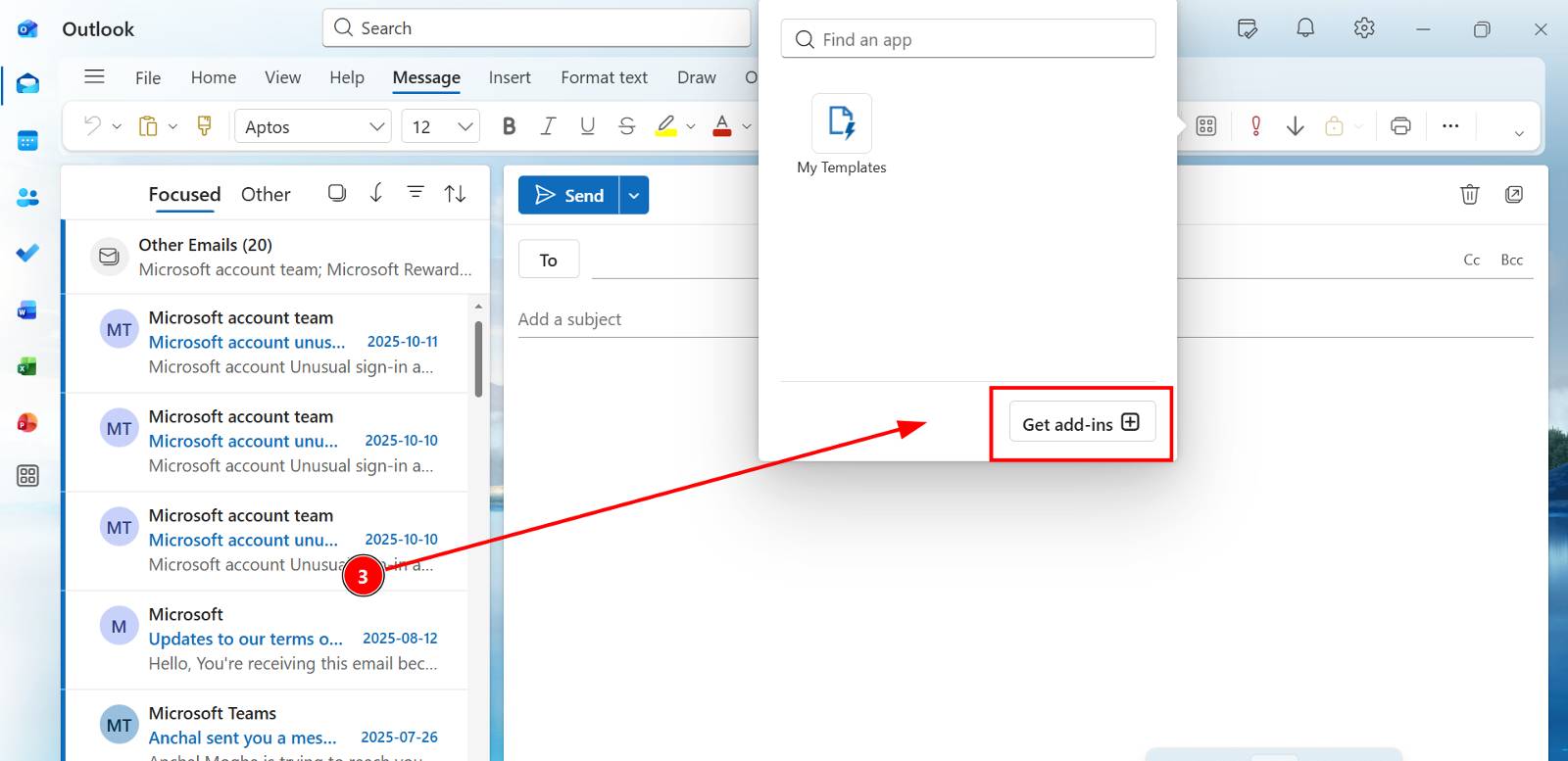
STEP 4: Inside the Add-ins window, click on “My Add-ins.”
STEP 5: Now, Click on “Add a custom add-in.”
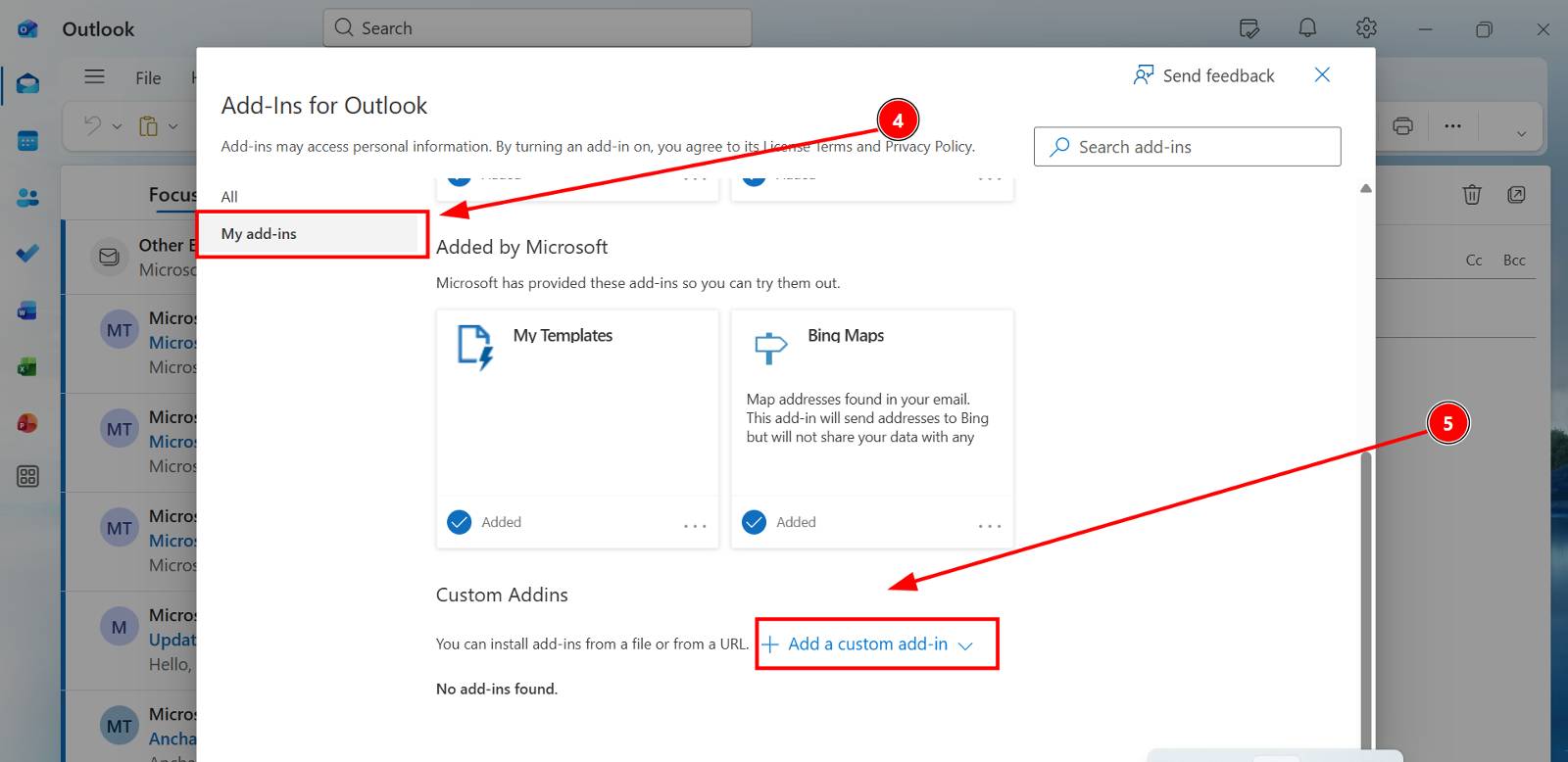
- Browse and select the downloaded ProofLex manifest file from your desktop.
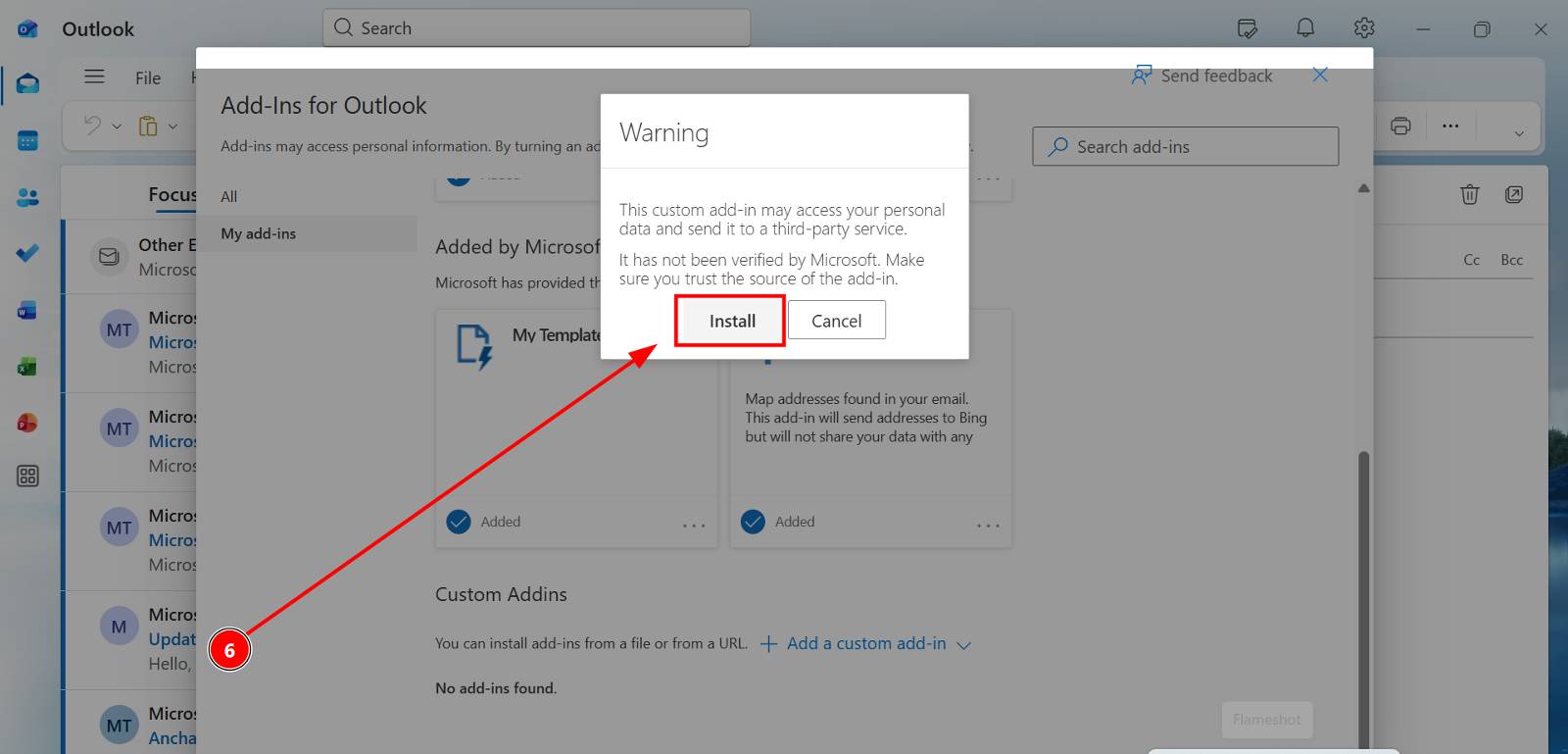
STEP 6: Once you click Install, ProofLex is now installed in your Outlook Online account.
STEP 7: You can now proceed to login your ProofLex account by clicking on the ProofLex icon, now visible inside "My add-ins".
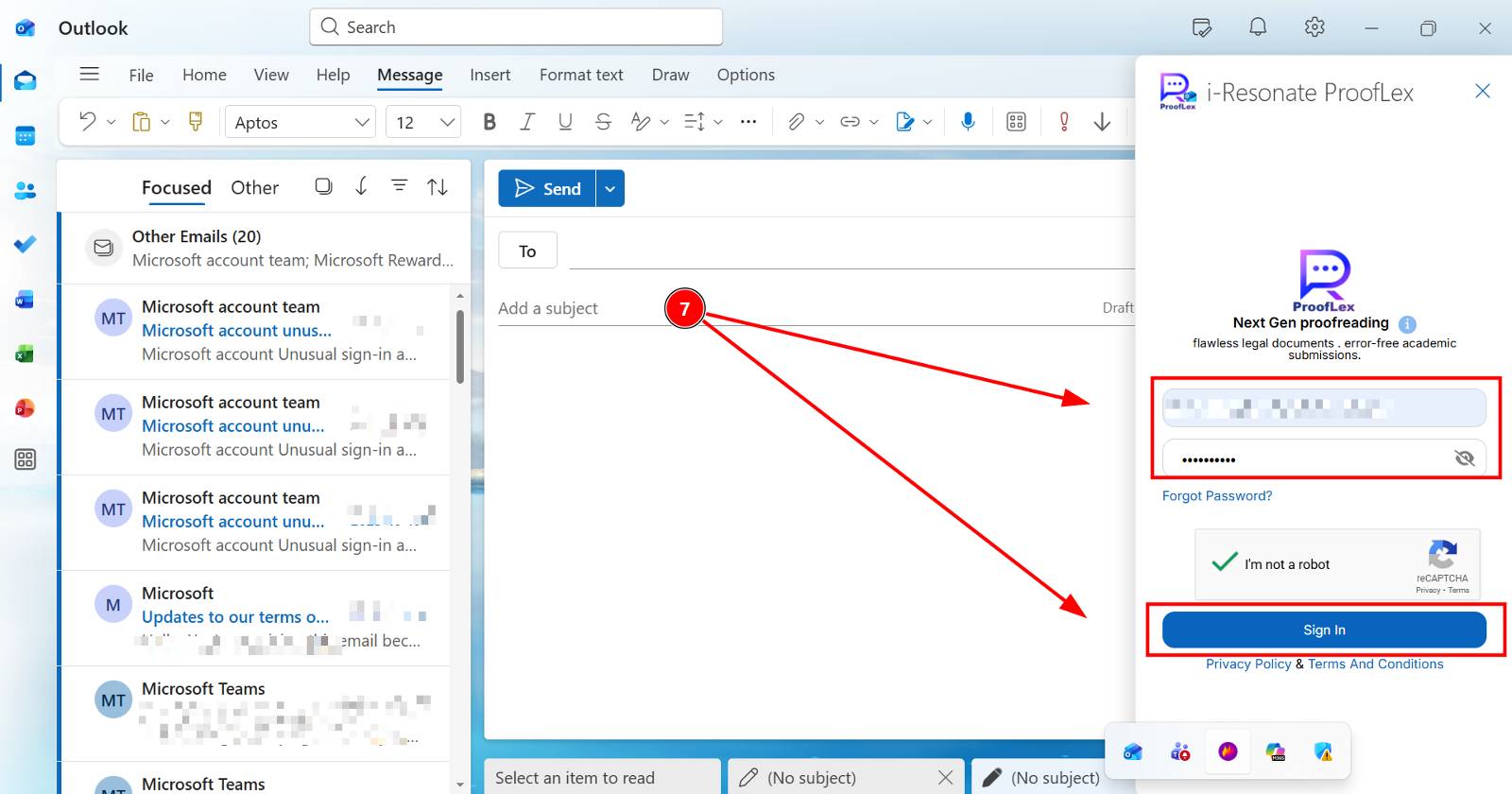
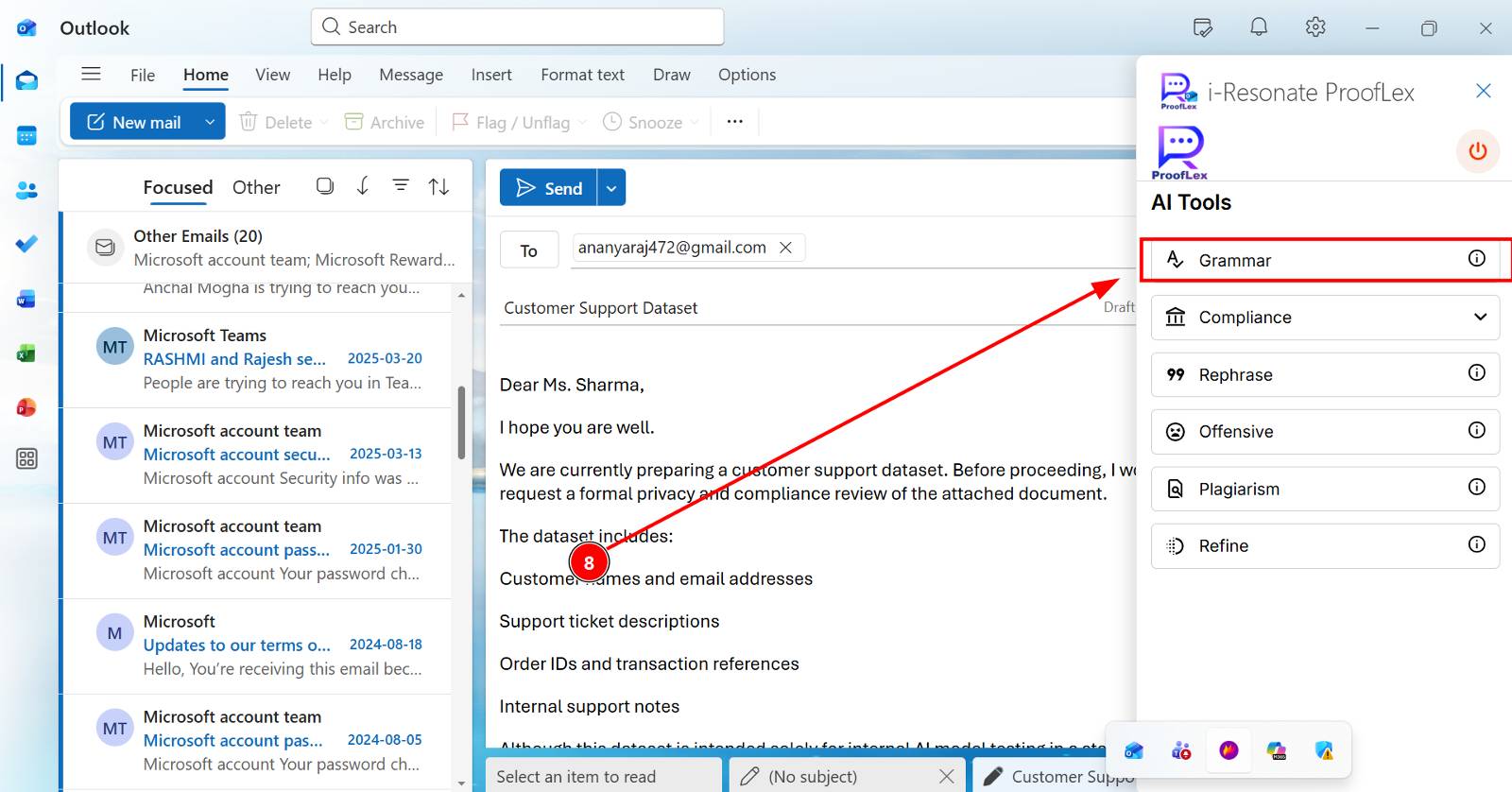
STEP 8: Once logged in, the ProofLex panel is ready to use inside Outlook.
Select the tool you need from the panel. For this example, select Grammar to check your email for language and writing improvements.
You can learn more about how Grammer Check works in ProofLex Read here.
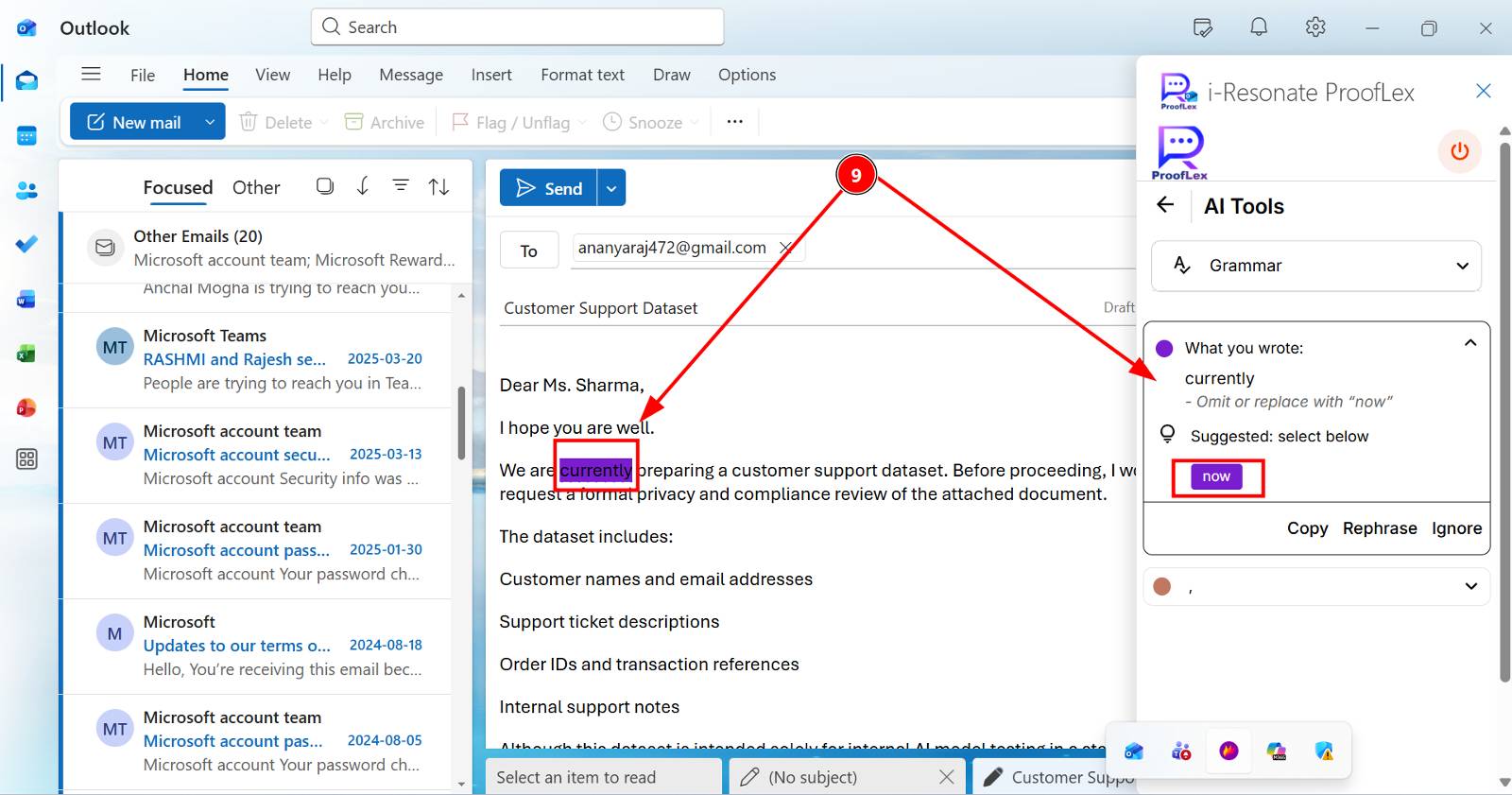
STEP 9: ProofLex scans your email and highlights any words or phrases that may need attention.
Click the suggestion that best fits your intent and ProofLex will replace the text automatically.
If your team uses ProofLex across multiple members, your admin can manage users, roles and workflows from within the application. You can explore how ProofLex supports team management.