
ProofLex
Open Appi-Resonate Help Center
ProofLex Help
Document Creation
Proofreading
Doc Insights
Team Management / WorkFlows
ContentCraft Help
MindWrite Help
Manage and Add Users in ProofLex Enterprise
In ProofLex Corporate, you can easily add team members to collaborate, review documents and manage compliance together.
In ProofLex, users are the members added to a specific team within your organization. Each user is assigned a role that defines their permissions and responsibilities.
You can create multiple users in your ProofLex Enterprise Account based on the headcount allocated in your Purchase Order (PO).
IMPORTANT : Only Super Admins and Team Admins can add users to a team. Users added to one team cannot be added to another team or another organization.
How to Add Users in ProofLex?
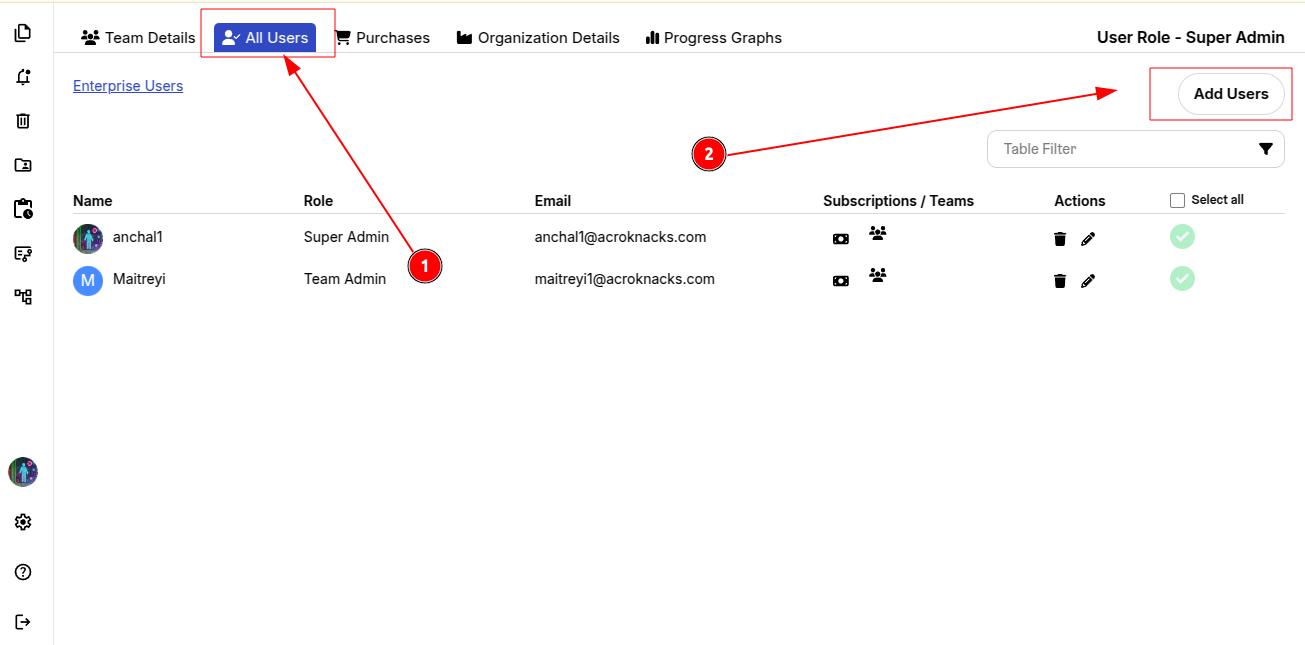
STEP 1: Click "All Users" from the top menu.
STEP 2: Select "Add Users".
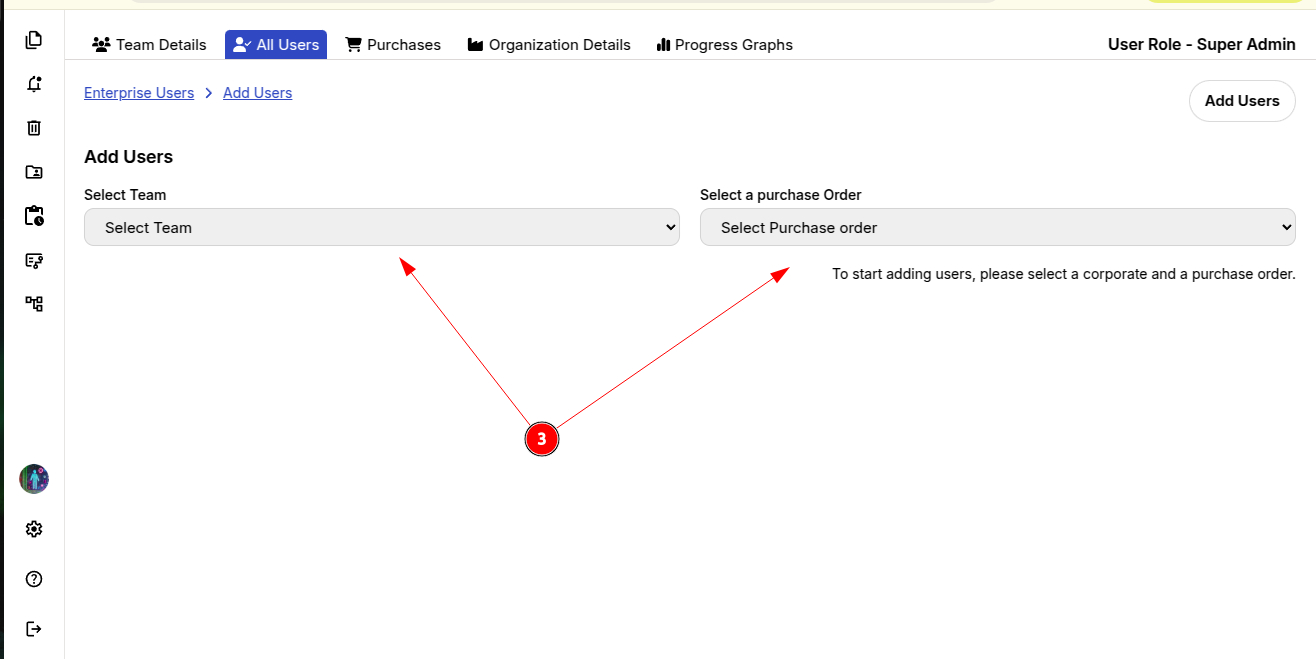
STEP 3. Choose the Team and the Purchase Order linked to that team.
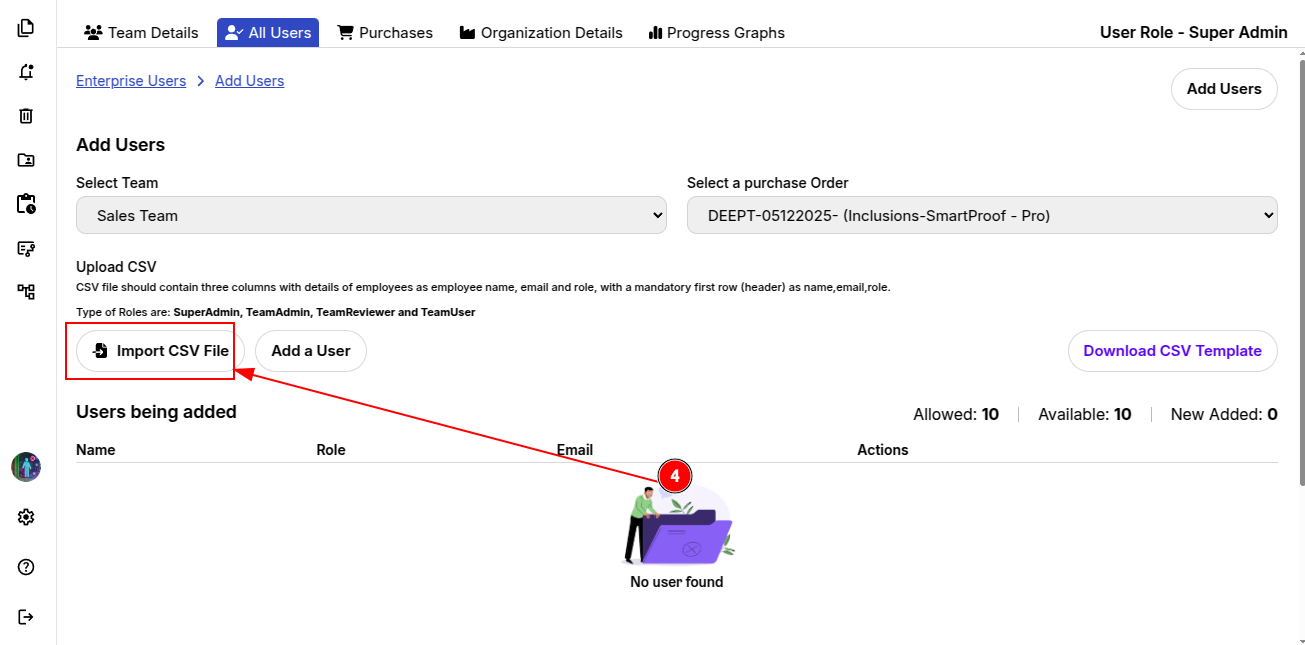
STEP 4: Import users via a CSV file (containing Name, Email ID's and their Role).
Roles Available in ProofLex:
-
Super Admin: The primary Super Admin (created by the i-Resonate admin) has full control of Prooflex Corporate Account, including the ability to create additional Super Admins for the organization.
-
Team Admin: Person who will lead a specific team and manages users, tasks and team-level settings.
-
Team Reviewer: Person who will reviews and evaluates the documents or tasks assigned within the team.
-
Team User: A standard team members who can create, edit and submit documents or tasks as permitted by the team’s workflow.
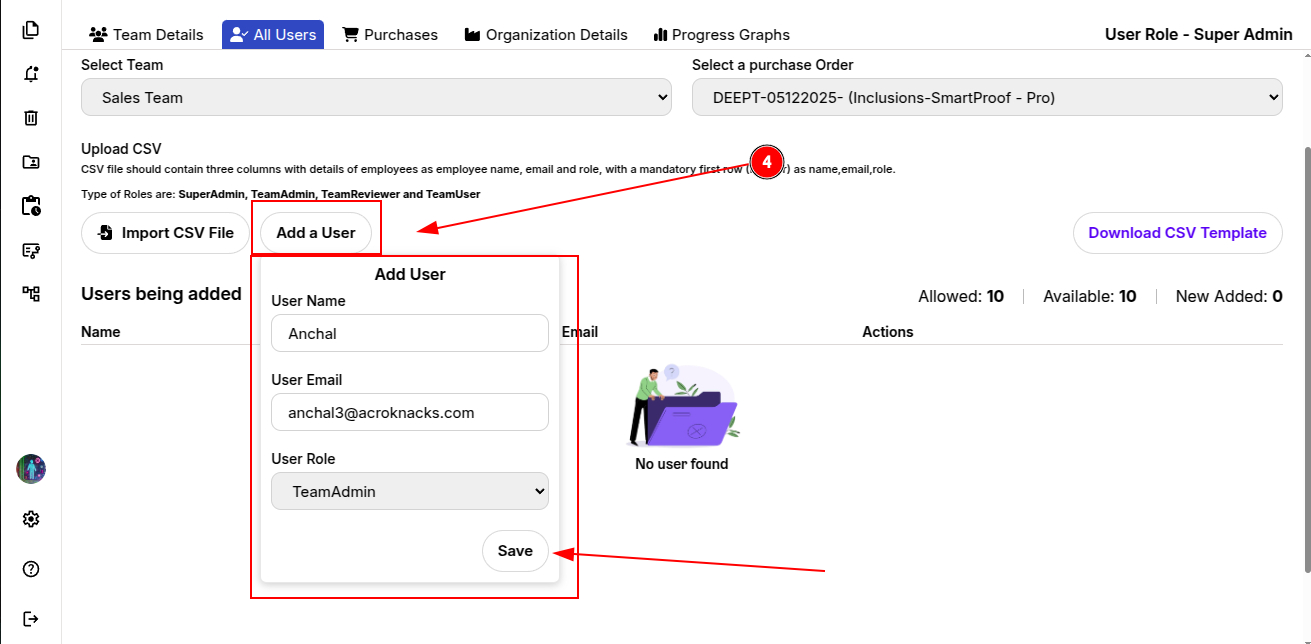
Alternatively, you can add users manually by clicking "Add a User".
Enter the User Name, Email and Role, then click Save and Confirm.
Once added, all the users will receive an email notification in their respective registered Account ID's.
You can now explore creating first workflow in Prooflex for your Enterprise team.