
ProofLex
Open Appi-Resonate Help Center
ProofLex Help
Document Creation
Proofreading
Doc Insights
Team Management / WorkFlows
Microsoft Word Plugin
Microsoft Outlook Plugin
ContentCraft Help
MindWrite Help
Refine using Enhancers and Decorators using ProofLex
Decorators and Enhancers are smart writing tools in ProofLex designed to improve your content without changing your original meaning.
Decorators add extra strength or context to your existing words, making sentences sound more impactful and expressive.
-
They decorate a word by adding a meaningful modifier.
-
Best used when you want to emphasize action or intent.
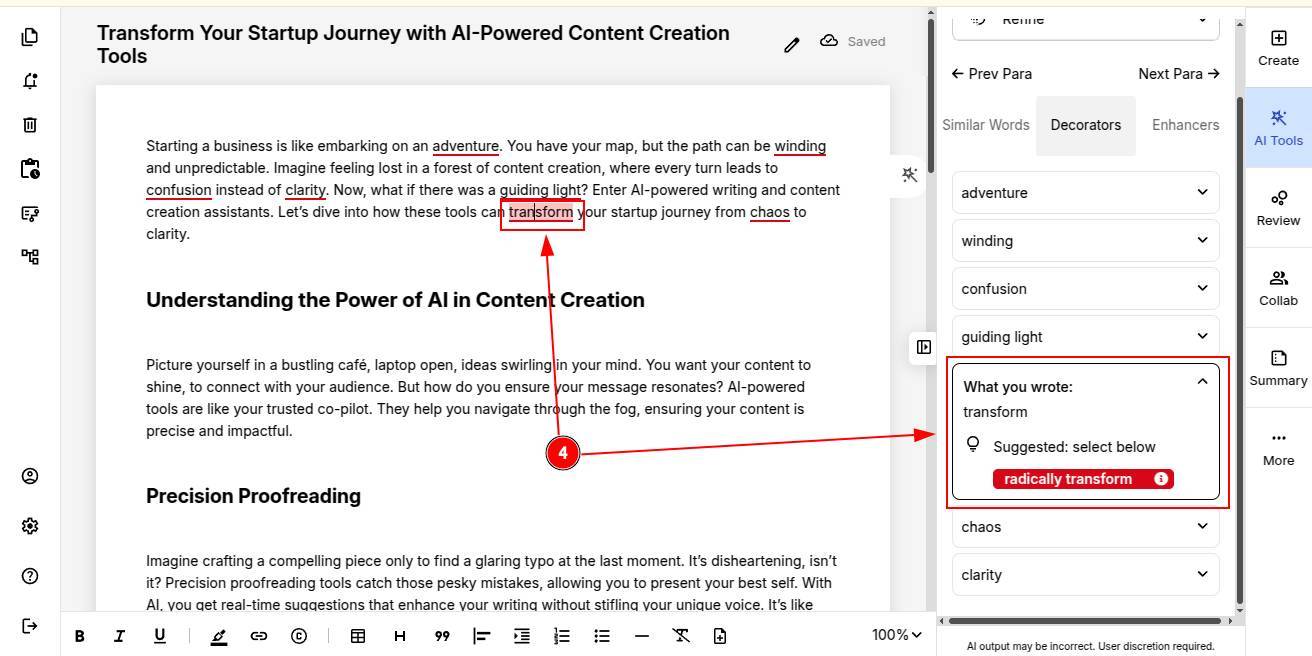
Example: transform - radically transform
Enhancers improve your word choice by suggesting more complete or value-driven alternatives.
-
They enhance clarity and depth.
-
Best used when a word feels too simple or generic.
Example: ideas - ideas and achievements
Use them together when you want your content to sound more professional, engaging and More persuasive without rewriting entire sentences.
How to Use Decorators in ProofLex
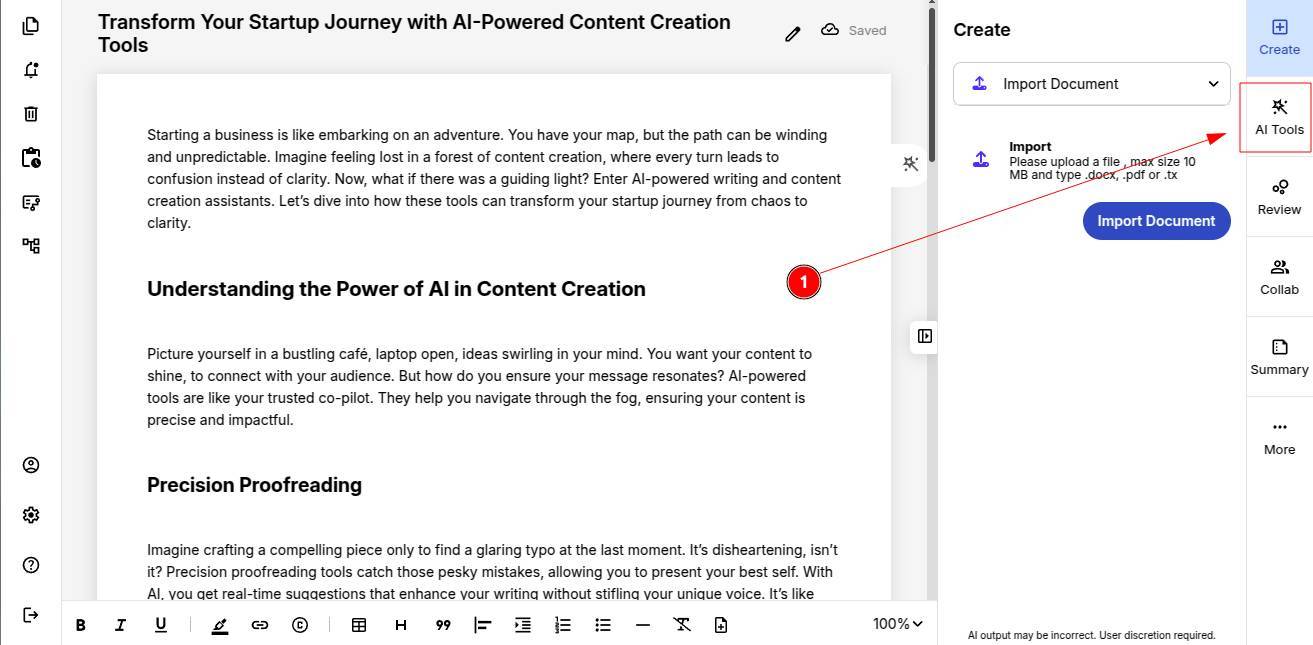
STEP 1: Upload your document into the editor and Navigate to AI Tools.
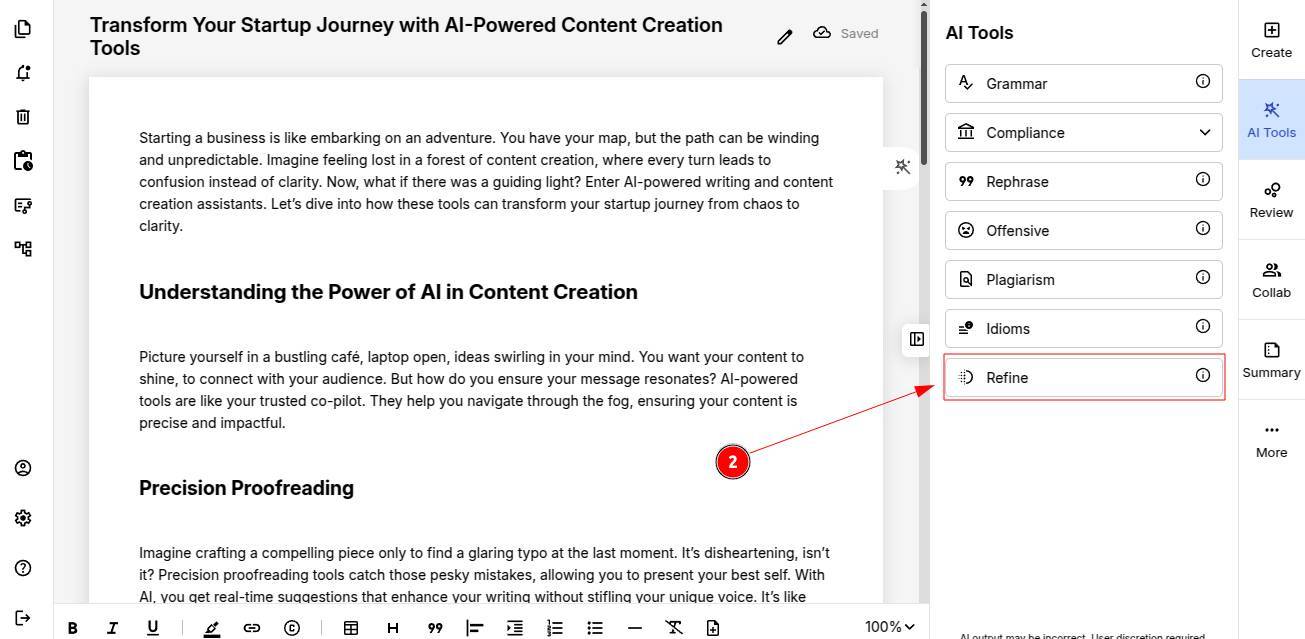
STEP 2: Click Refine to start the check.
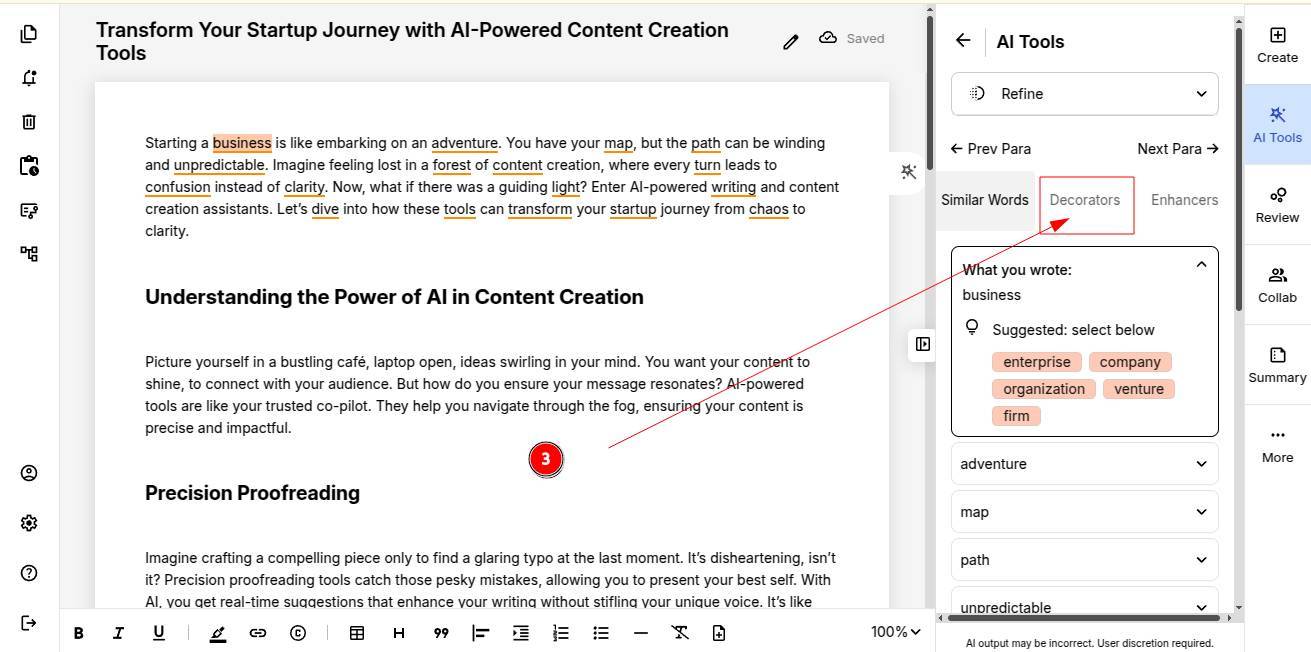
STEP 3: From the panel, choose Decorators.
STEP 4: ProofLex will highlight words where decorators can add more value. Example: transform to radically transform.
NOTE: Refinement in ProofLex works paragraph by paragraph. Make sure you select the specific paragraph you want suggestions for.
STEP 5: Click on a suggestion, and the word will be automatically replaced in your document.
That’s all it takes! A single click helps your writing sound stronger and more professional.
How to Use Enhancers in ProofLex
If you want to refine your sentences for enhancers, follow the steps below:
STEP 1: Click on Enhancers, located next to Decorators.
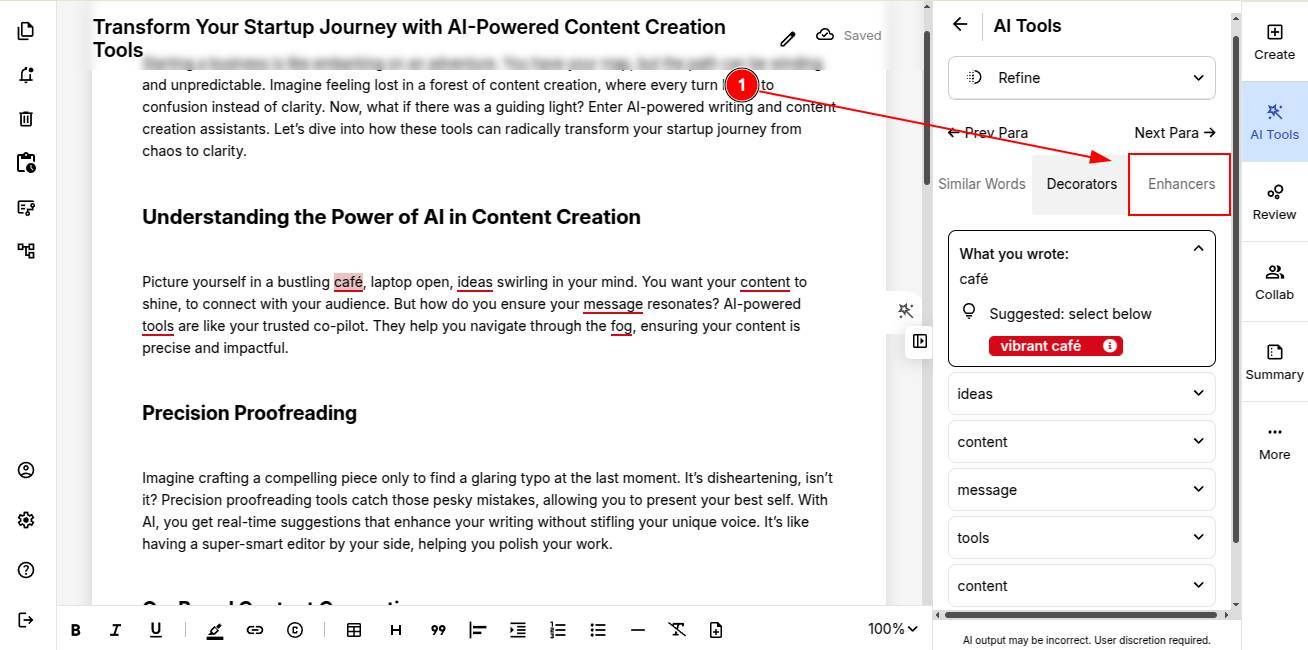
STEP 2: ProofLex will automatically suggest enhanced versions of your words. Example: ideas → ideas and achievements.
NOTE: Refinement in ProofLex works paragraph by paragraph. Make sure you select the specific paragraph you want suggestions for.
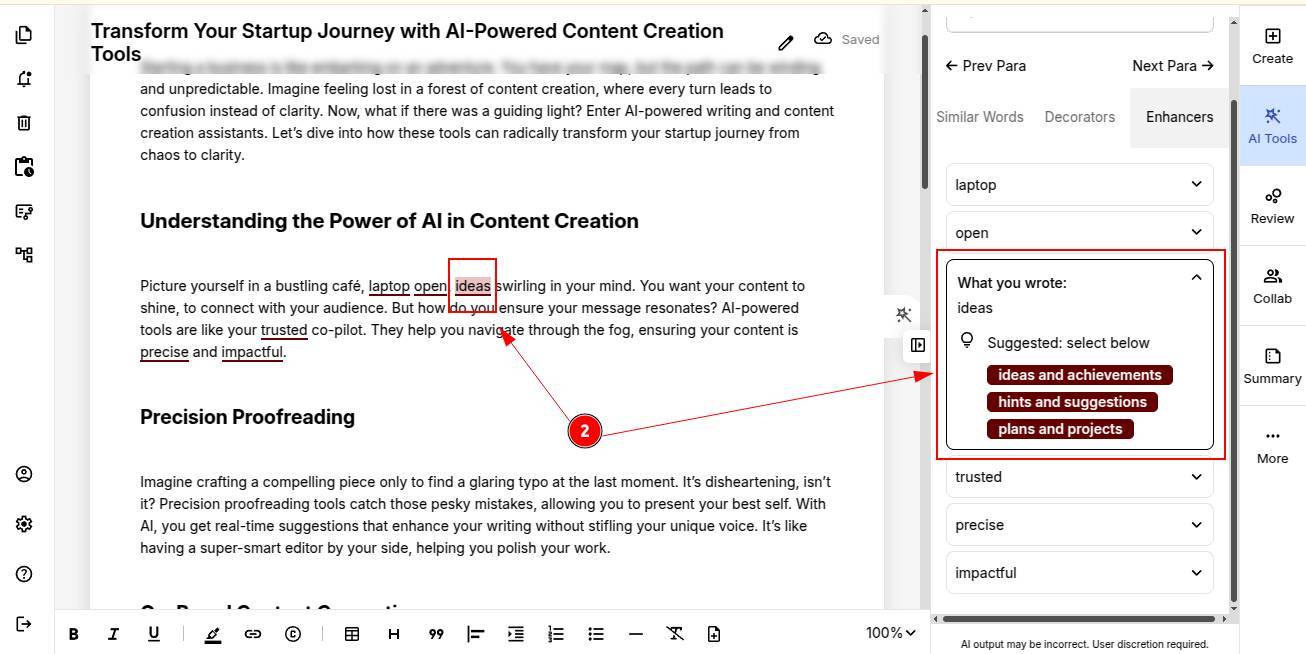
STEP 3: Click on the suggestion to replace the word instantly in your document.
Once you’re done refining your sentences, you can proceed to analyze the document for any offensive words.