
ProofLex
Open Appi-Resonate Help Center
ProofLex Help
Document Creation
Proofreading
Doc Insights
Team Management / WorkFlows
ContentCraft Help
MindWrite Help
Removing team members from ProofLex Enterprise Account
If you need to replace a team member assigned under your Purchase Order (PO), ProofLex gives you two simple options depending on your requirement.
Option 1: Delete the Member from the Team
To delete a member from the team, follow these steps under Manage Teams:
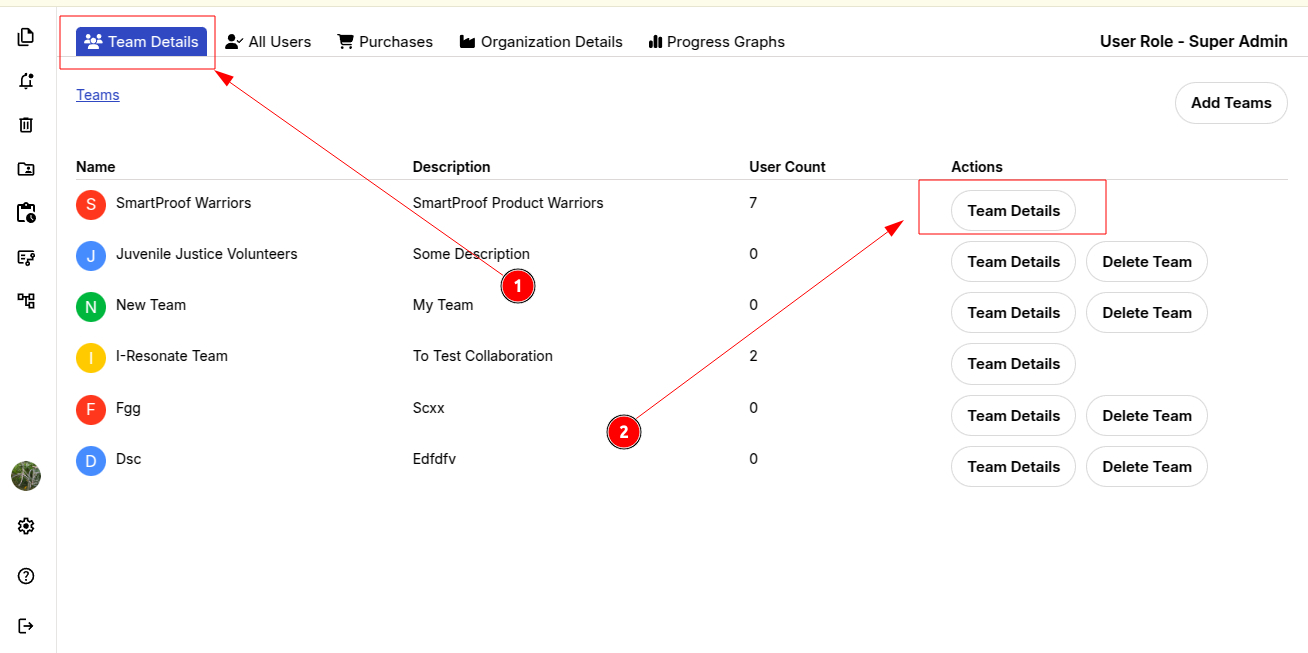
STEP 1: Go to Team Details.
STEP 2: Open the relevant team.
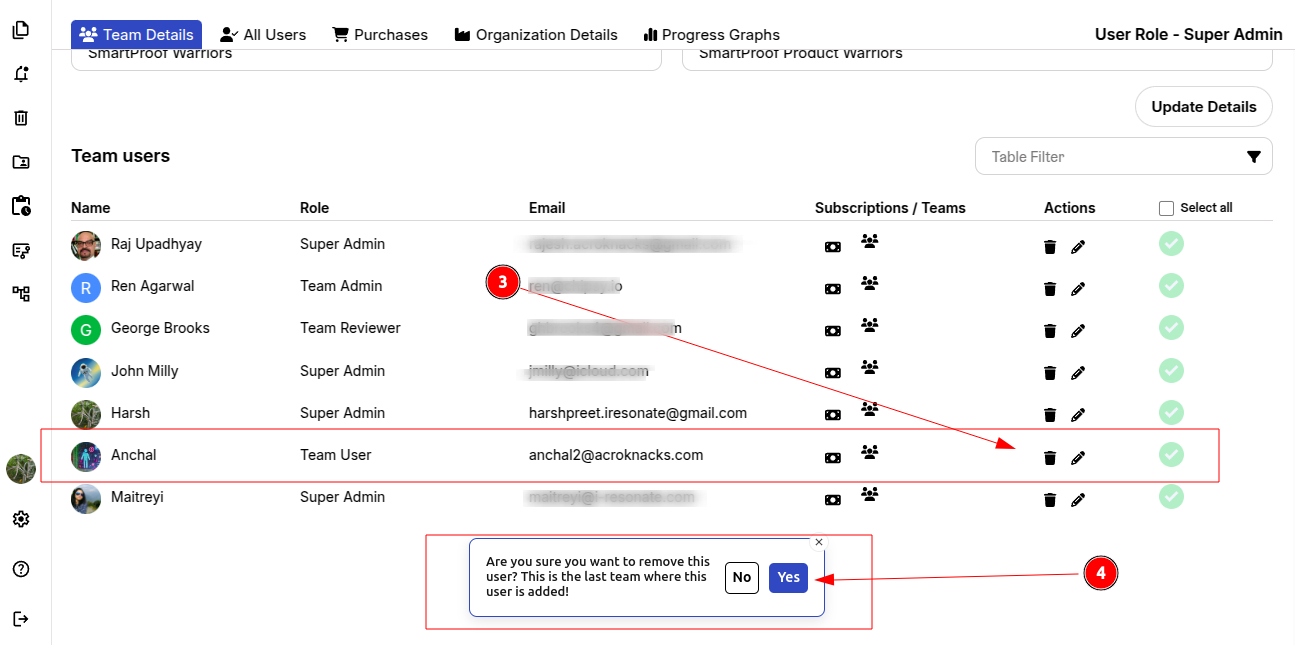
STEP 3: A list of all team members will appear. Select the member you want to remove and click the Delete icon.
STEP 4: Confirm by selecting “Yes” to complete the removal.
Option 2: Remove the Member from the Purchase Order (PO).
To remove a user directly from an assigned PO, follow these steps under Manage Teams:
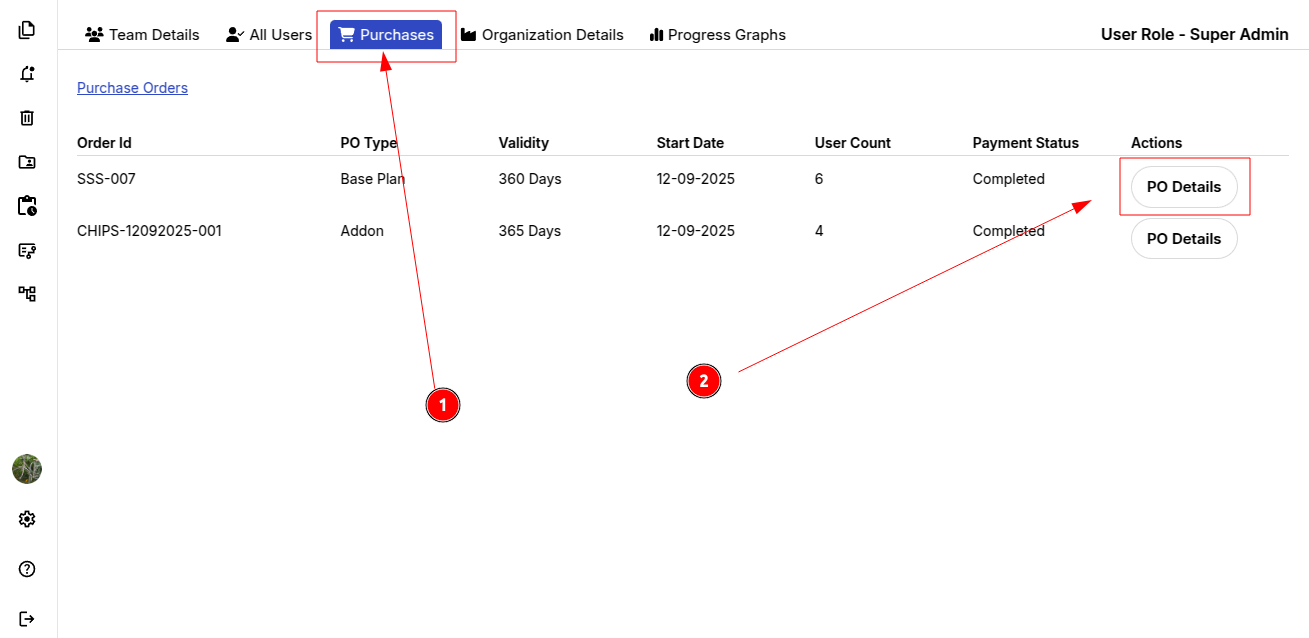
STEP 1: Select “Purchase” from the top menu bar.
STEP 2: Open the relevant PO details.
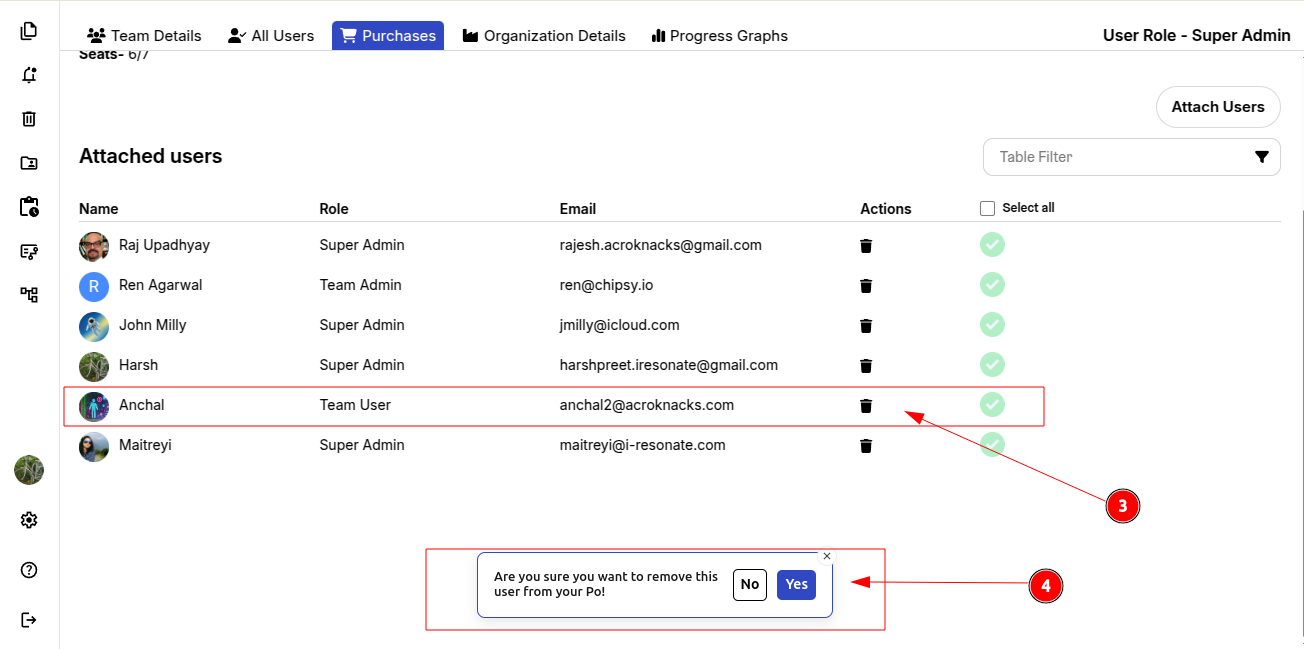
STEP 3: A list of all members assigned to the PO will appear. Select the member you want to remove and click the Delete icon.
STEP 4: Confirm by selecting “Yes” to complete the removal.
Once a member is removed from the PO/team, they will immediately lose access to workflow creation, and their account will be downgraded to the ContentCraft Trail plan.