
ProofLex
Open Appi-Resonate Help Center
ProofLex Help
Document Creation
Proofreading
Doc Insights
Team Management / WorkFlows
Microsoft Word Plugin
Microsoft Outlook Plugin
ContentCraft Help
MindWrite Help
How to add ProofLex to Microsoft Outlook web (Microsoft 365)
The ProofLex Outlook Plugin brings your proofreading and compliance tools directly into Microsoft Outlook Web (Office 365), so that you can review and refine your emails without ever leaving your inbox.
As you write, ProofLex checks your language, tone, and compliance in real time, helping you send emails that are accurate and on-brand every time.
Please Note: Some advanced ProofLex features are only available in the full web application. The Outlook plugin covers all essential proofreading and compliance tools for your day-to-day email writing.
STEP 1: Start by downloading the ProofLex plugin manifest file using the link here.
Once downloaded, save it somewhere easy to find, your desktop is a good choice.
STEP 2: Open your browser and log in to your Outlook account (Office 365). Make sure you're using the web version of Outlook, not the desktop app.
STEP 3: Once you're logged in, open a new email. In the top menu of the compose window, look for the Apps icon, it looks similar to the image shown below.
Click on it to continue.
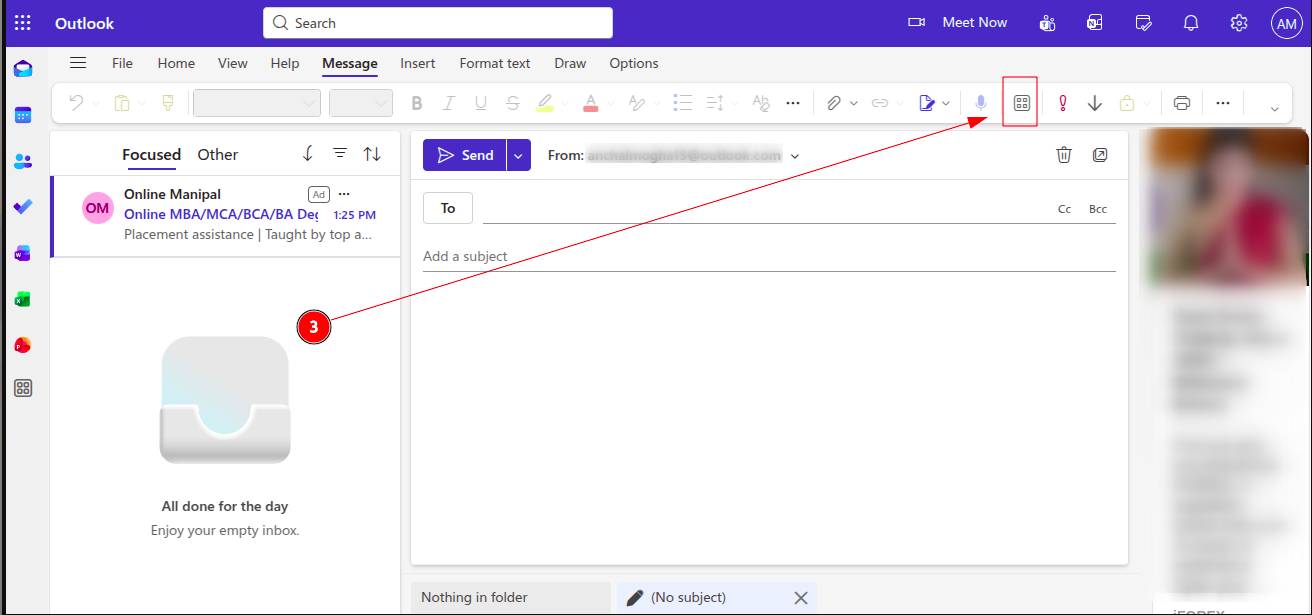
STEP 4: In the Apps section, select “Get Add-ins.”
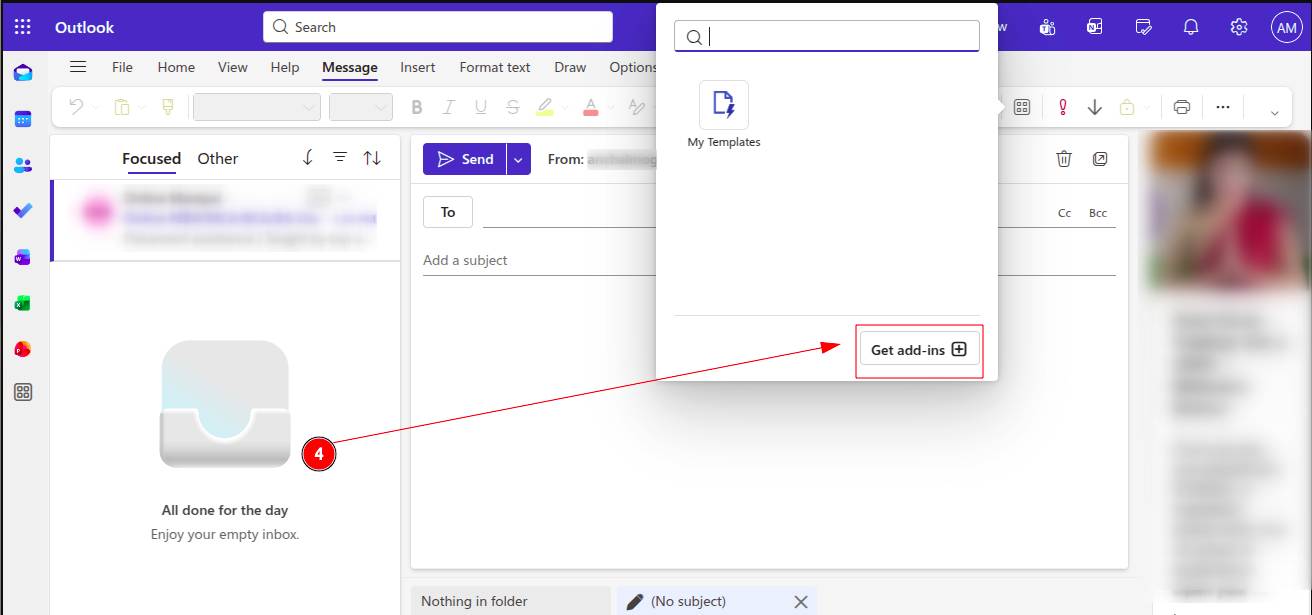
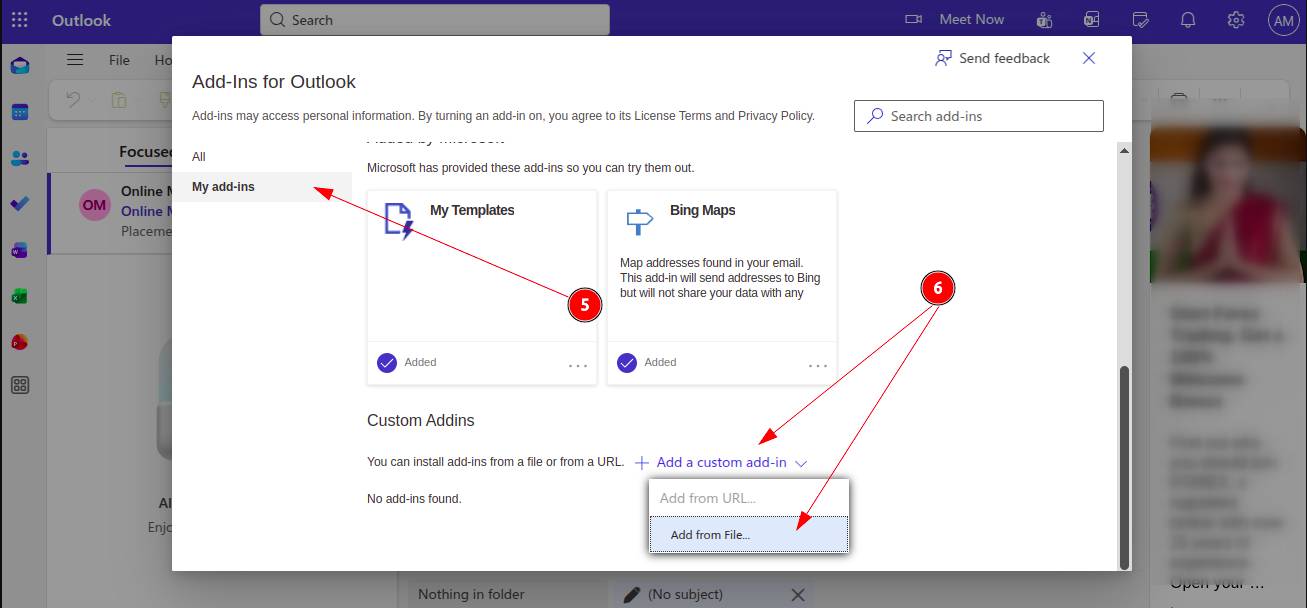
STEP 5: Inside the Add-ins window, click on “My Add-ins.”
STEP 6: Now, Click on “Add a custom add-in.”
-
Browse and select the downloaded ProofLex manifest file from your desktop.
STEP 7: Once you click Install, ProofLex is now installed in your Outlook Online account.
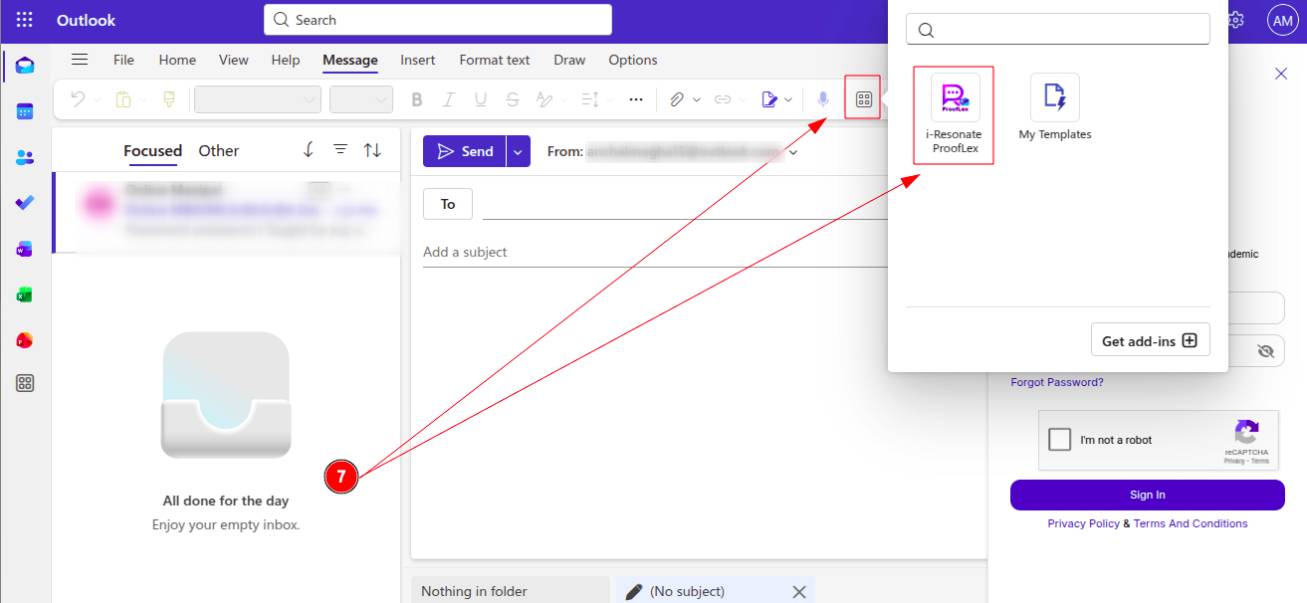
STEP 8: You can now proceed to login your ProofLex account by clicking on it.
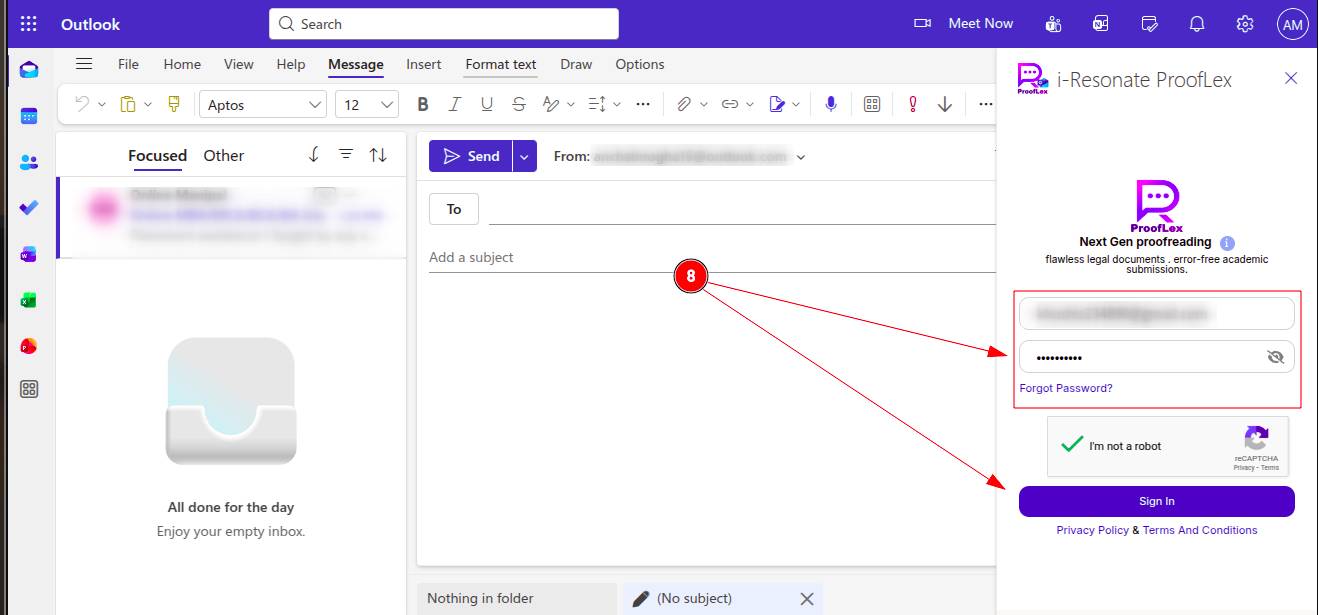
STEP 9; You're all set! Once logged in, the ProofLex panel is ready to use, right inside Outlook.
Browse the available AI tools and select the one you need.
For example: Select Privacy under the Compliance AI Tools section to scan your email for any sensitive or personally identifiable information before hitting send.
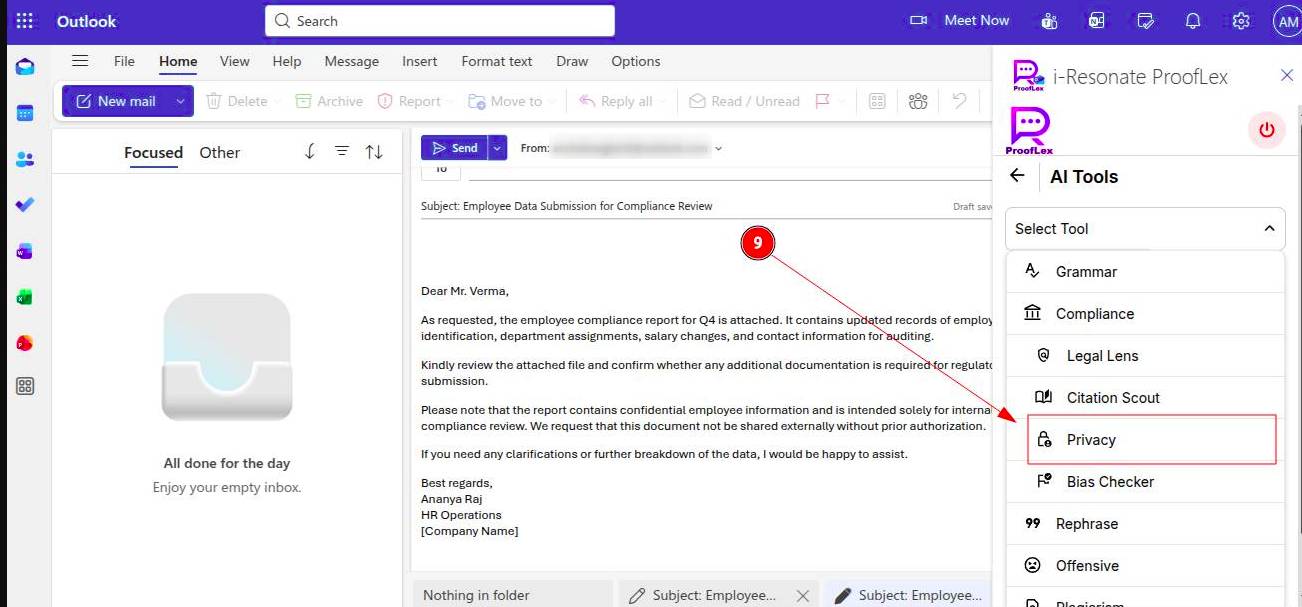
ProofLex will automatically scan your email and highlight any detected personally identifiable information (PII), each flagged item appears with a comment and a sensitivity classification. You can learn more about how Privacy Check works in ProofLex here.
When you're ready to act on a suggestion, click Redact to instantly mask the sensitive content before your email goes out.
You can also explore the in-app ProofLex plugin for Microsoft Outlook to enhance your document proofreading experience.