
ProofLex
Open Appi-Resonate Help Center
ProofLex Help
Document Creation
Proofreading
Doc Insights
Team Management / WorkFlows
Microsoft Word Plugin
Microsoft Outlook Plugin
ContentCraft Help
MindWrite Help
How to add ProofLex to Microsoft Word Web( Microsoft 365)
ProofLex plugin integrates directly inside Microsoft Word Online (Office 365) to help you spot grammar amd spelling slips, language compliance issues, unwanted biases and awkward phrasing as you type.
While the plugin offers most of the important proofreading features, some features are only available in the ProofLex web application.
This lets you use Prooflex with your existing online word documents, fix issues quickly and keep your writing professional, in real time.
Steps to Install the ProofLex word web Plugin:
STEP 1: Download the ProofLex manifest file by clicking the link here.
Once downloaded, save it somewhere easy to find, your desktop is a good choice.
STEP 2: Log in to your Microsoft 365 account and open Word Online at https://word.cloud.microsoft/
STEP 3: You will need a document open before you can install the plugin. You can either:
- Start a new blank document or
- Upload an existing file from your device.
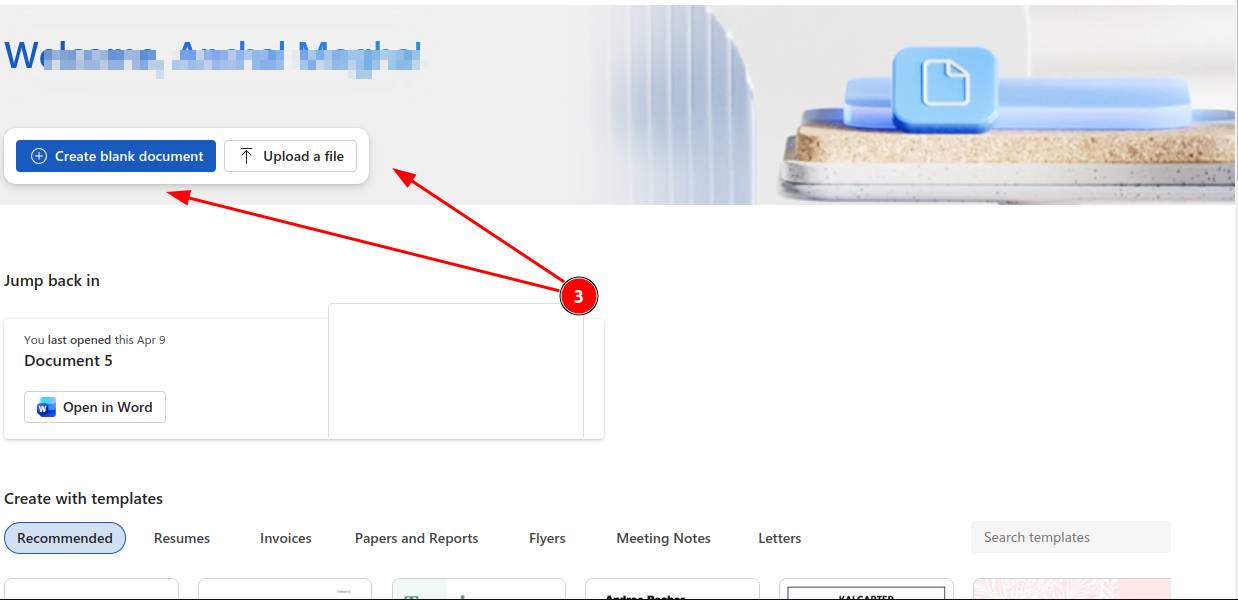
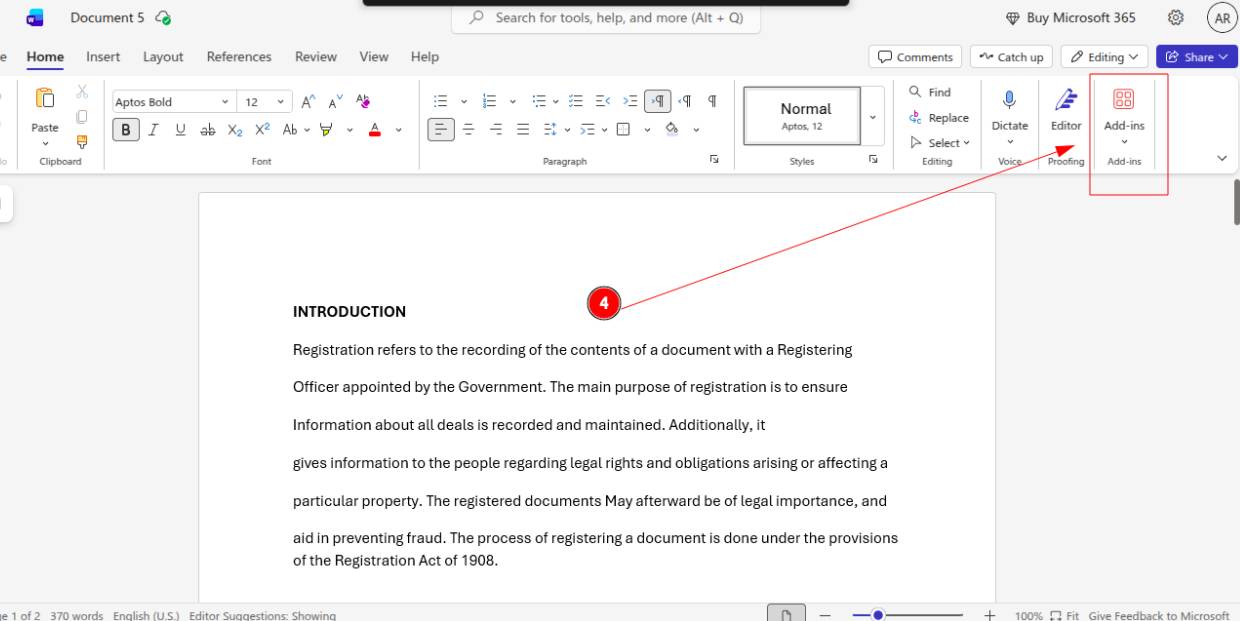
STEP 4: Once loaded, open "Add-ins" from the top menu bar.
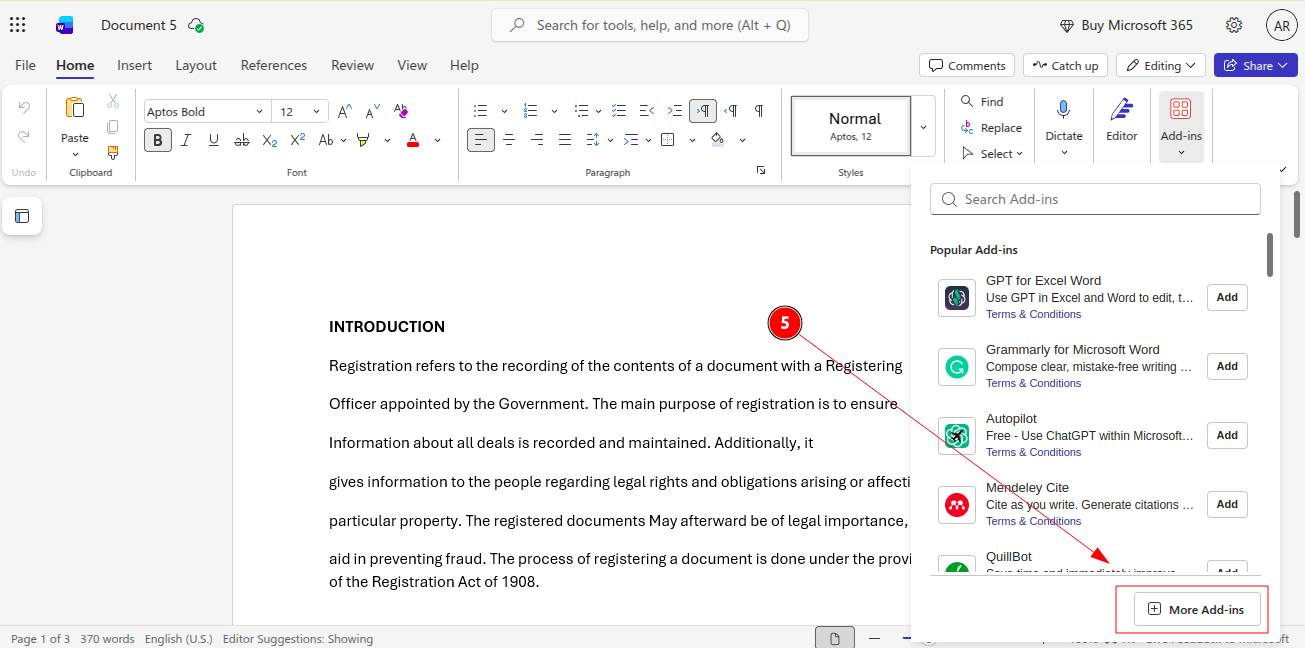
STEP 5: Click on “More Add-ins.” from the side screen opened to install plugin through downloaded Manifest file.
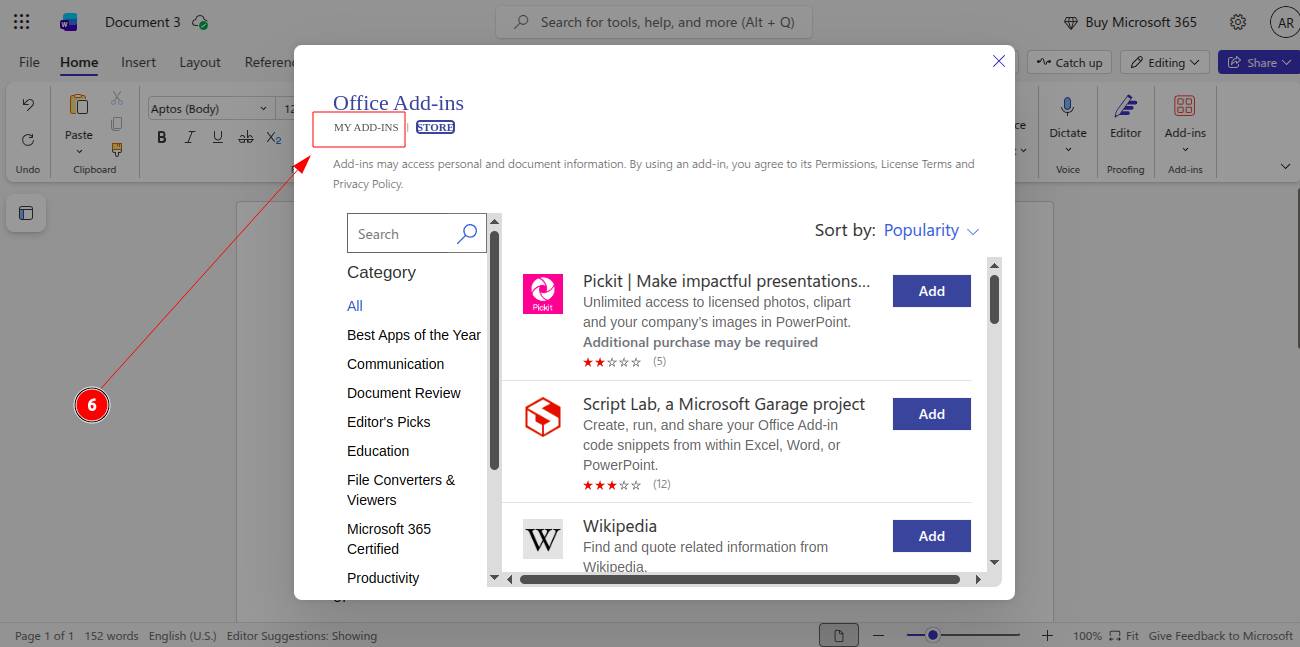
STEP 6: Now, Select “My Add-ins” inside the Add-ins window.
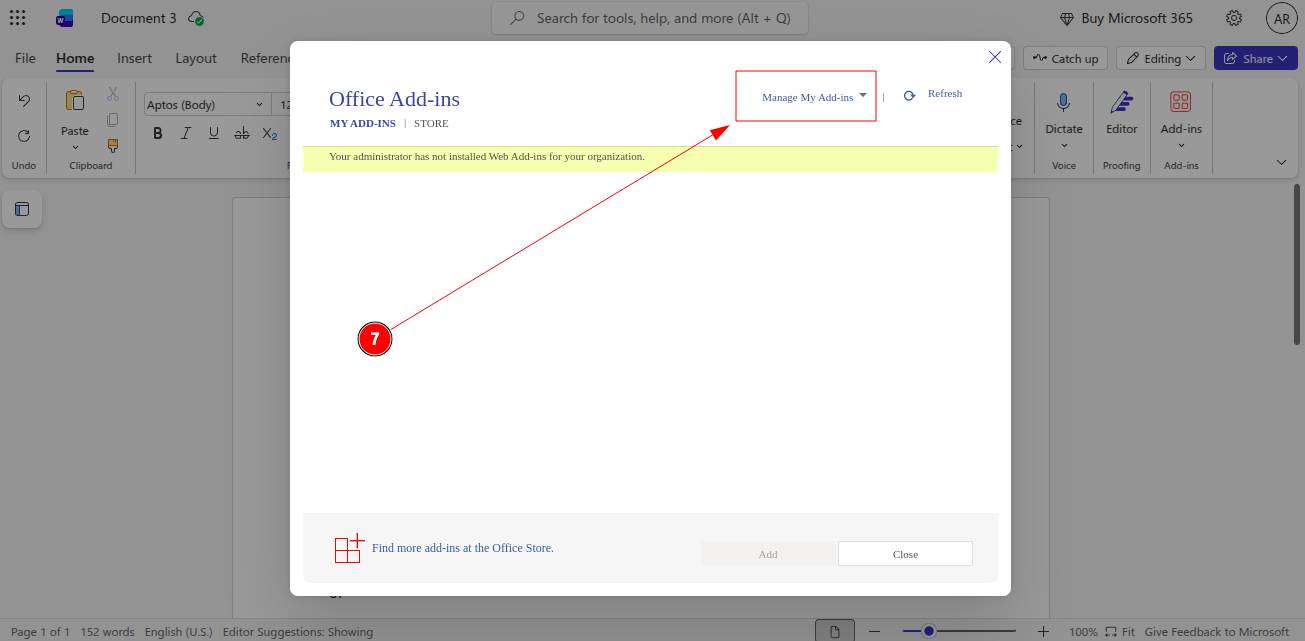
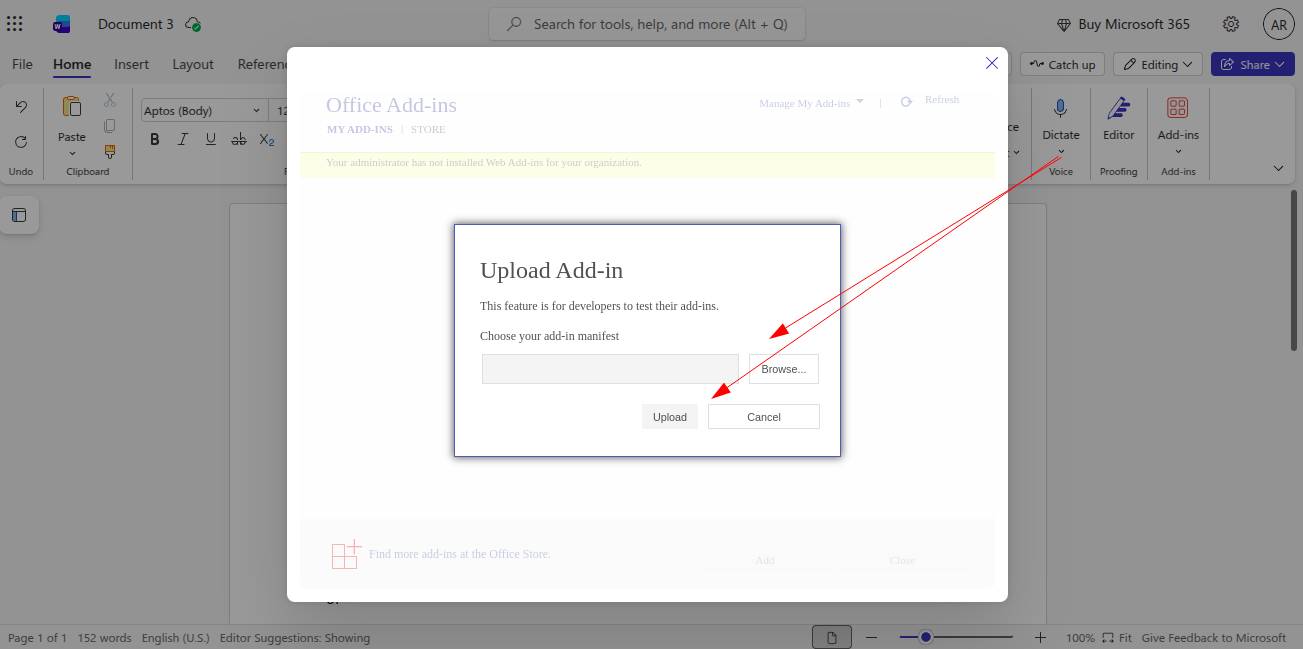
STEP 7: Proceed to click on "Manage My Add-ins” and select “Upload my add-in”.
-
Upload the downloaded ProofLex manifest file from your desktop.
-
And then Click Upload.
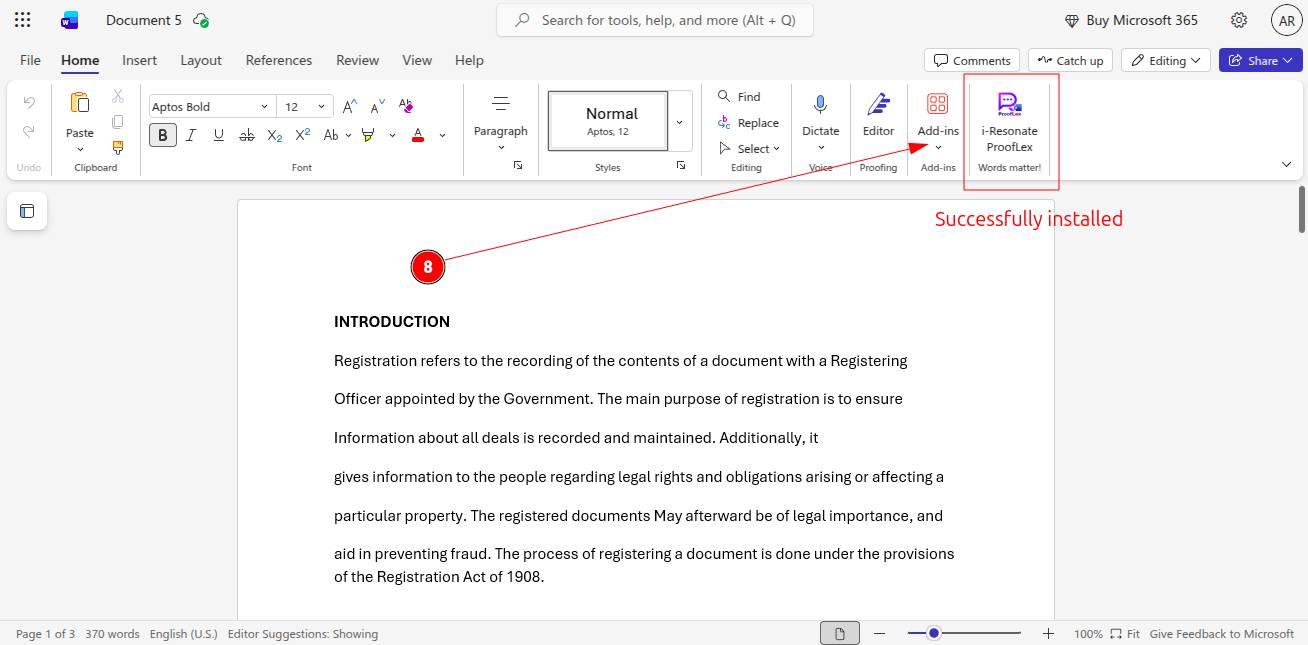
STEP 8: ProofLex is now installed in your Microsoft Word Online.
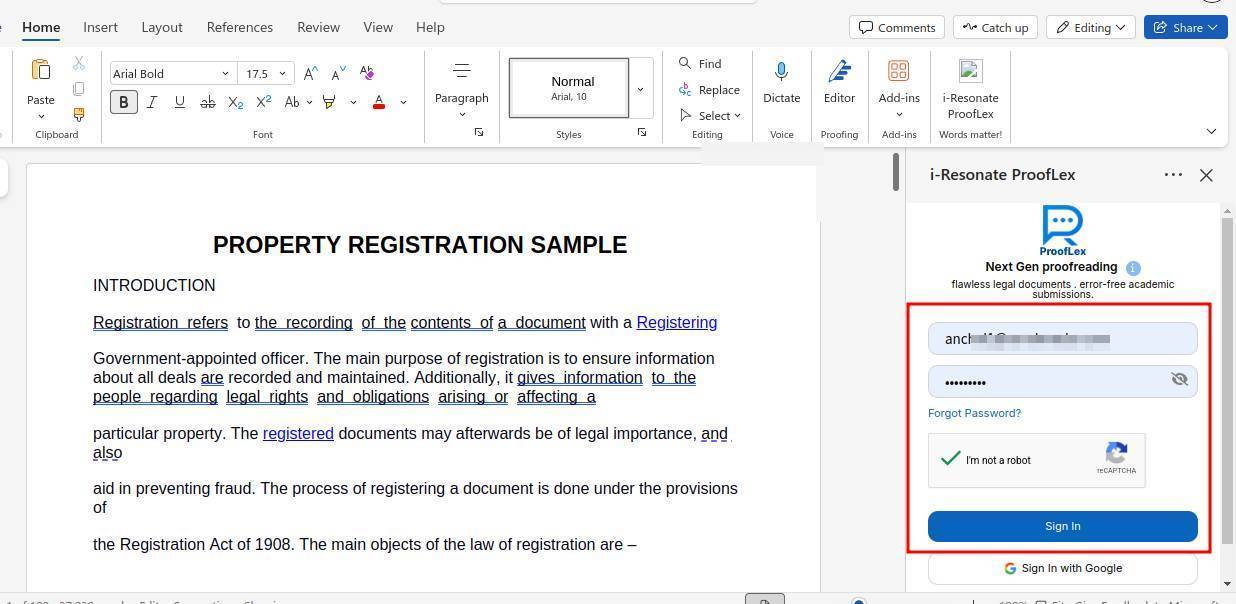
STEP 9: Click on the ProofLex panel to log in to your ProofLex account.
Once logged in, you are ready to start using the tools directly inside your Word Online document.
STEP 10: From the ProofLex panel, select the tool you would like to use.
For this example, select Legal Lens under the Compliance AI Tools section to check your document for legal and compliance issues.
To learn more about how Legal Lens works, read here.
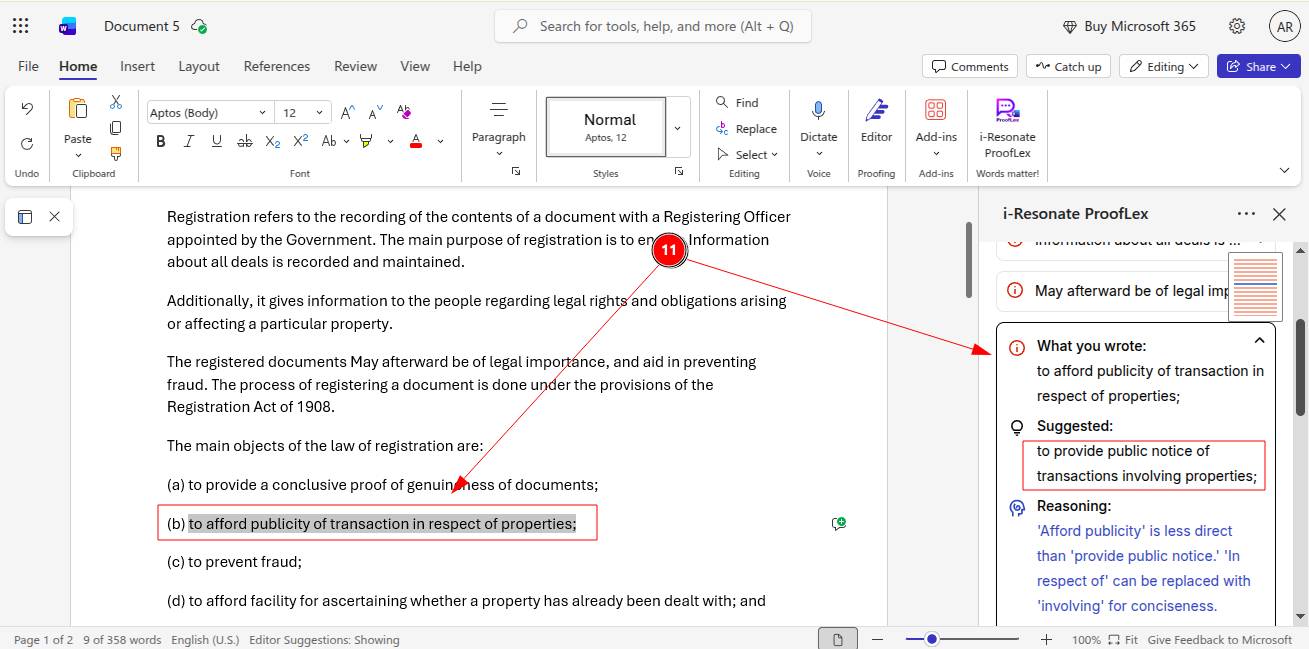
STEP 11: ProofLex will scan your document and highlight any sentences that need attention.
Click on any highlighted sentence to open a suggestion card. Once you accept a suggestion, the correction is applied to your document automatically.
ProofLex Scrolling tool
ProofLex includes a smart navigation tool inside the plugin that lets you instantly jump to the exact paragraph you need to proofread.
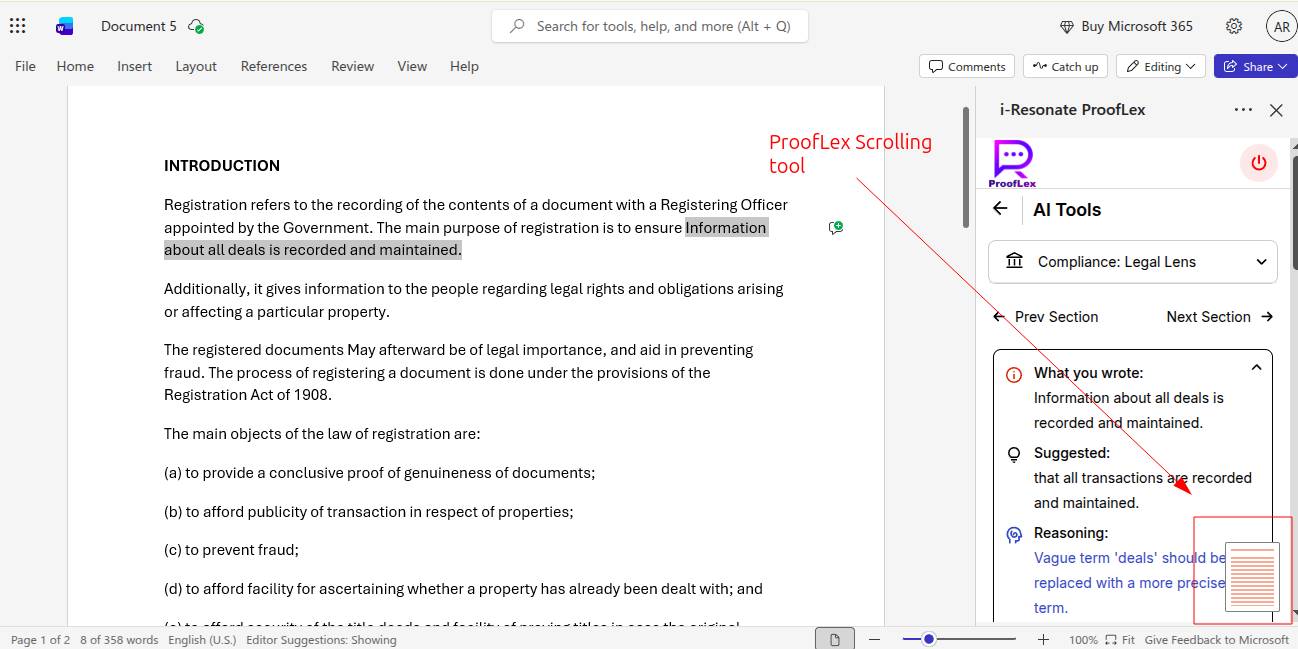
For better usability, the navigation tool can be positioned in four different corners of the pulgin screen. You can place it to Top-left, Top-right, Bottom-left or Bottom-right.
This flexibility allows you to position the tool wherever it feels most comfortable while reviewing your document.
You can also now further explore the ProofLex Word in-app plugin for seamless proofreading of your emails.