
ProofLex
Open Appi-Resonate Help Center
ProofLex Help
Document Creation
Proofreading
Doc Insights
Team Management / WorkFlows
Microsoft Word Plugin
Microsoft Outlook Plugin
ContentCraft Help
MindWrite Help
How to install ProofLex Add-in to your word desktop
The ProofLex Desktop Plugin for Microsoft Word is an AI-powered add-in that works directly inside the Word application. It allows you to proofread, improve language and run compliance checks without leaving your document.
If you regularly work on documents in Microsoft Word (Desktop), installing the ProofLex plugin helps you edit and review content in daily basis.
Follow these Steps to install ProofLex Plugin on your Desktop:
STEP 1: Download the Word Manifest File
Download the Word Manifest file from the link here.
STEP 2: Create and Share a Folder
You must store the manifest file in a shared folder on your computer.
Follow these steps carefully to create shared folder on your desktop:
1.Create a new folder on your desktop. Rename it. For example: WordManifestFile and move the downloaded Word Manifest file into this folder.
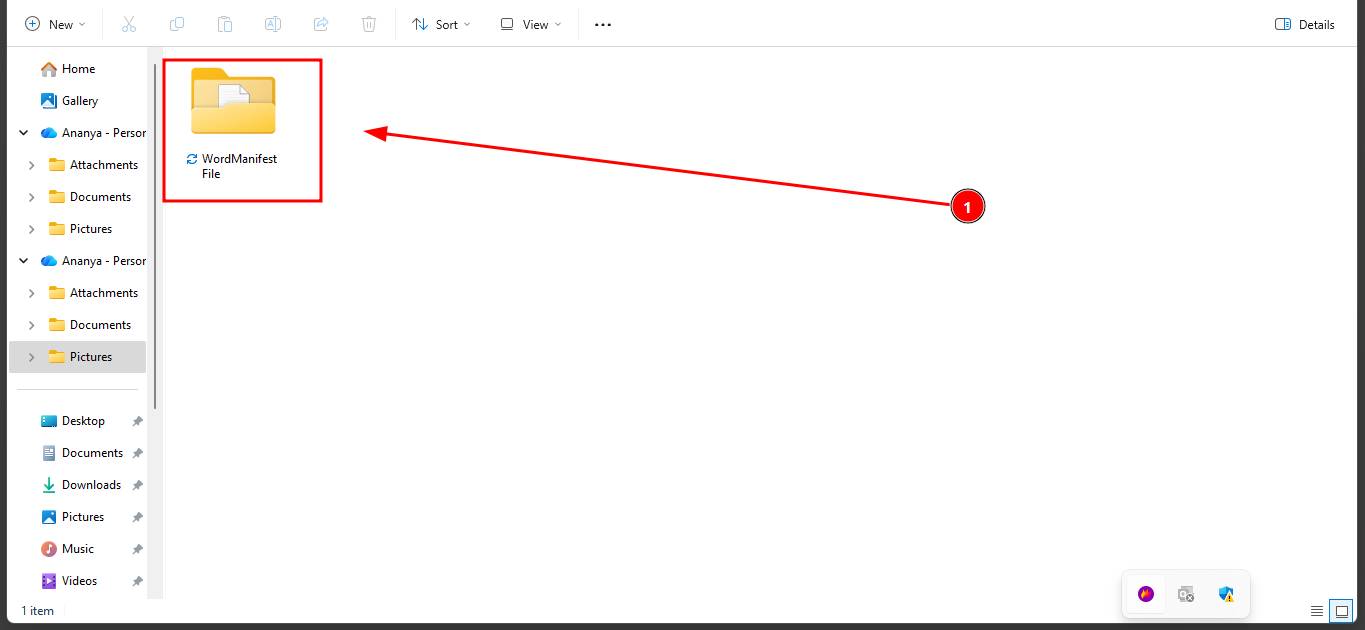
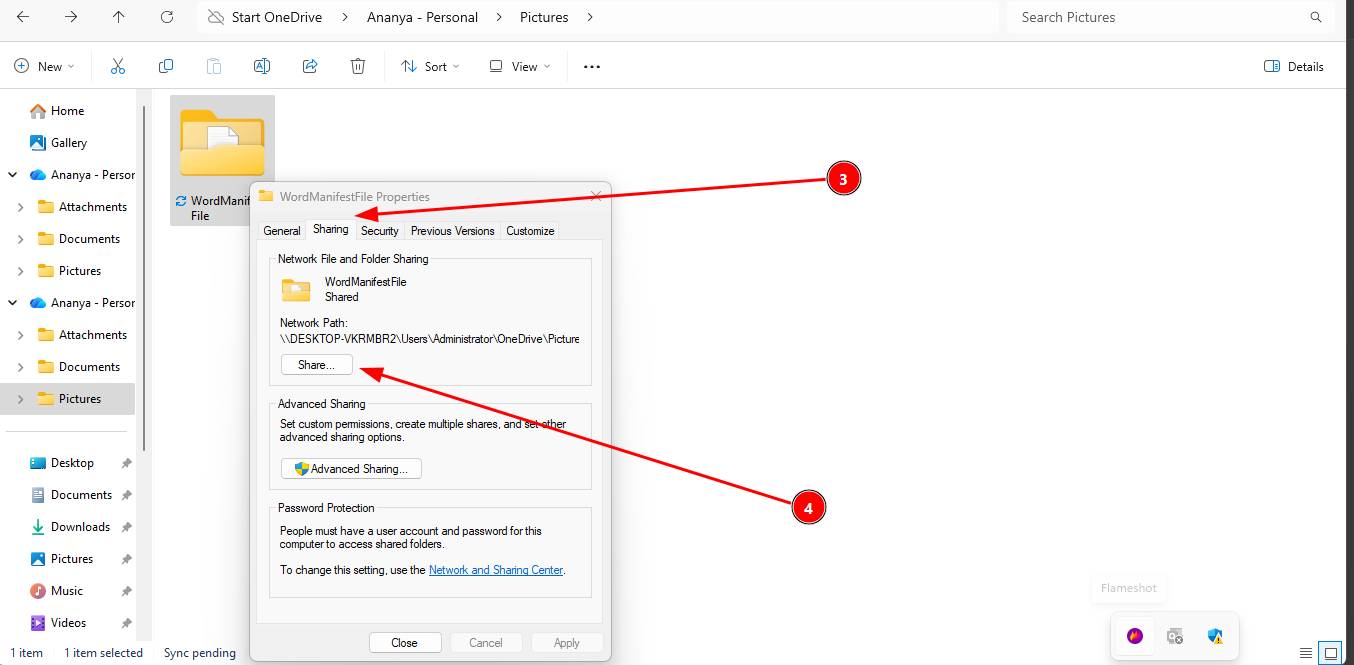
2. Right-click the WordManifestFile folder and select Properties.
3. Open the Sharing tab now.
4. Inside it, click on Share.
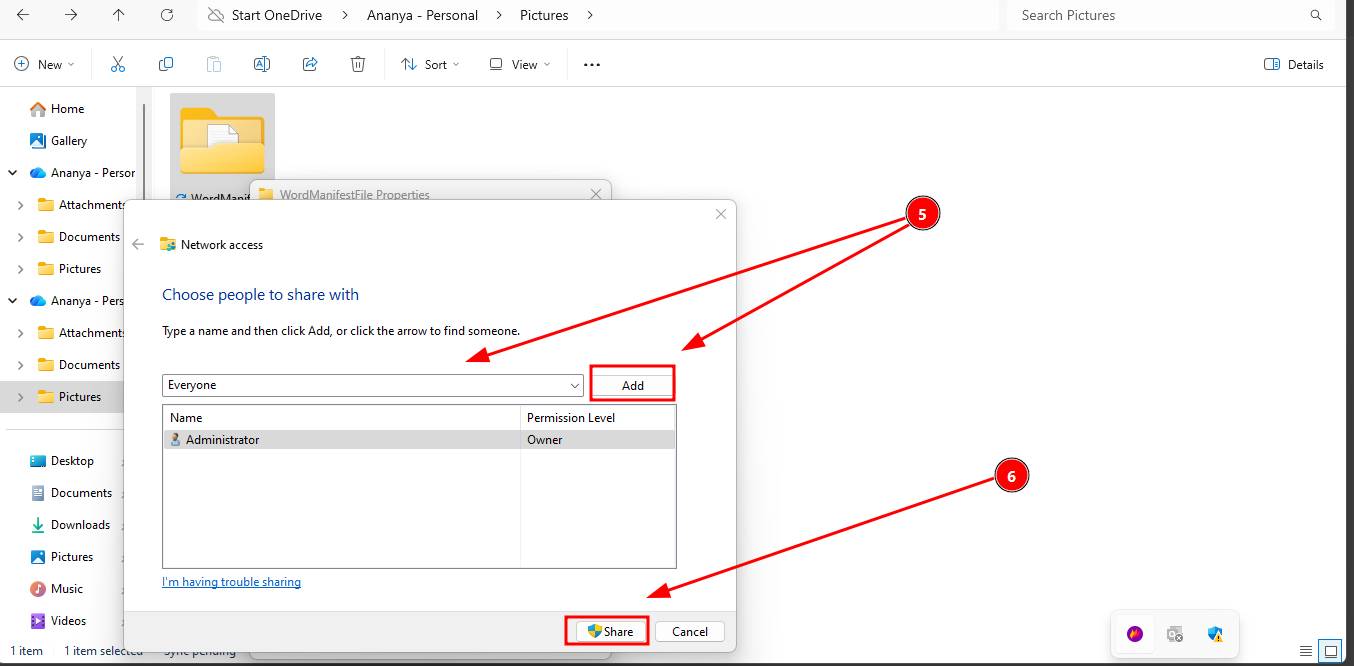
5. From the dropdown menu, select "Everyone" and click Add.
6. Now just click Share.
7. Once sharing is enabled, navigate to click Done.
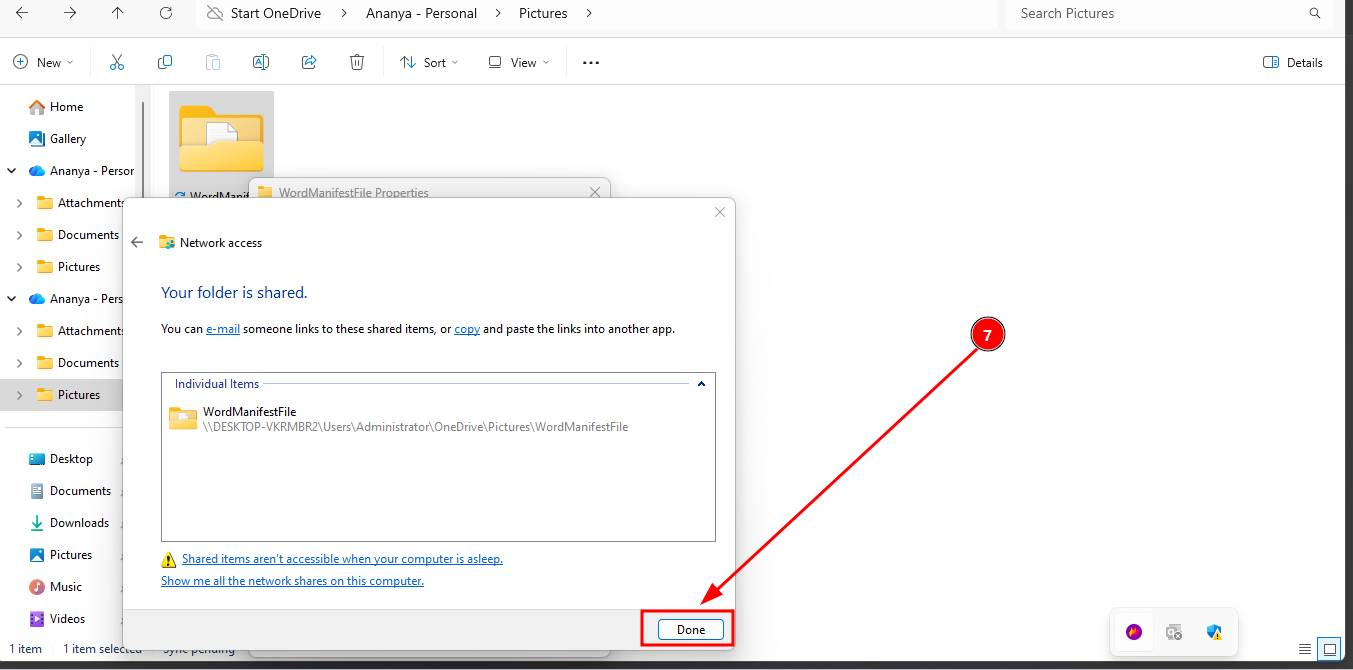
8. Now, Copy and save the Network Path URL shown in the sharing window.
(You will need this in the next step.)
Once logged in, the AI tools will appear in the plugin panel. You can now safely use them to proofread your document.
STEP 3: Add the Manifest to Microsoft Word:
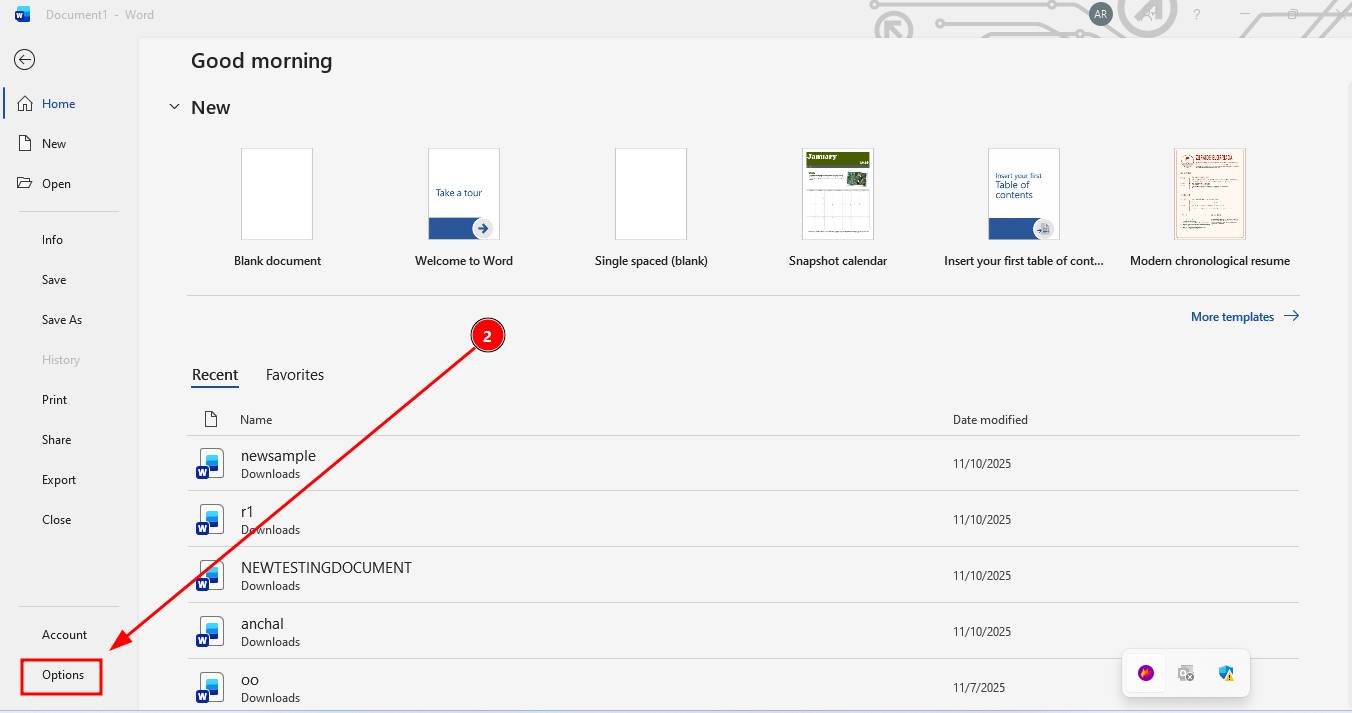
1.Open Microsoft Word (Desktop version).
2.Click on Options from the left navigation menu.
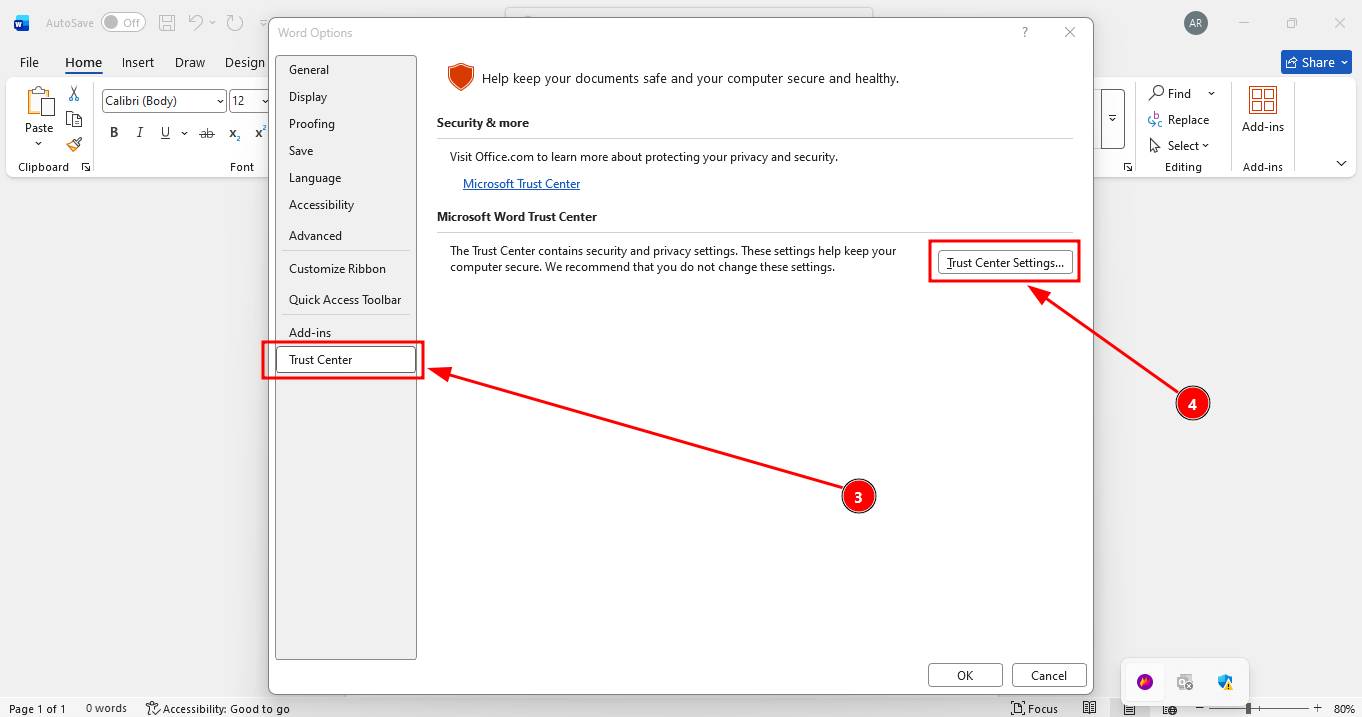
3. Now, Select Trust Center.
4. Click on Trust Center Settings, under trust center.
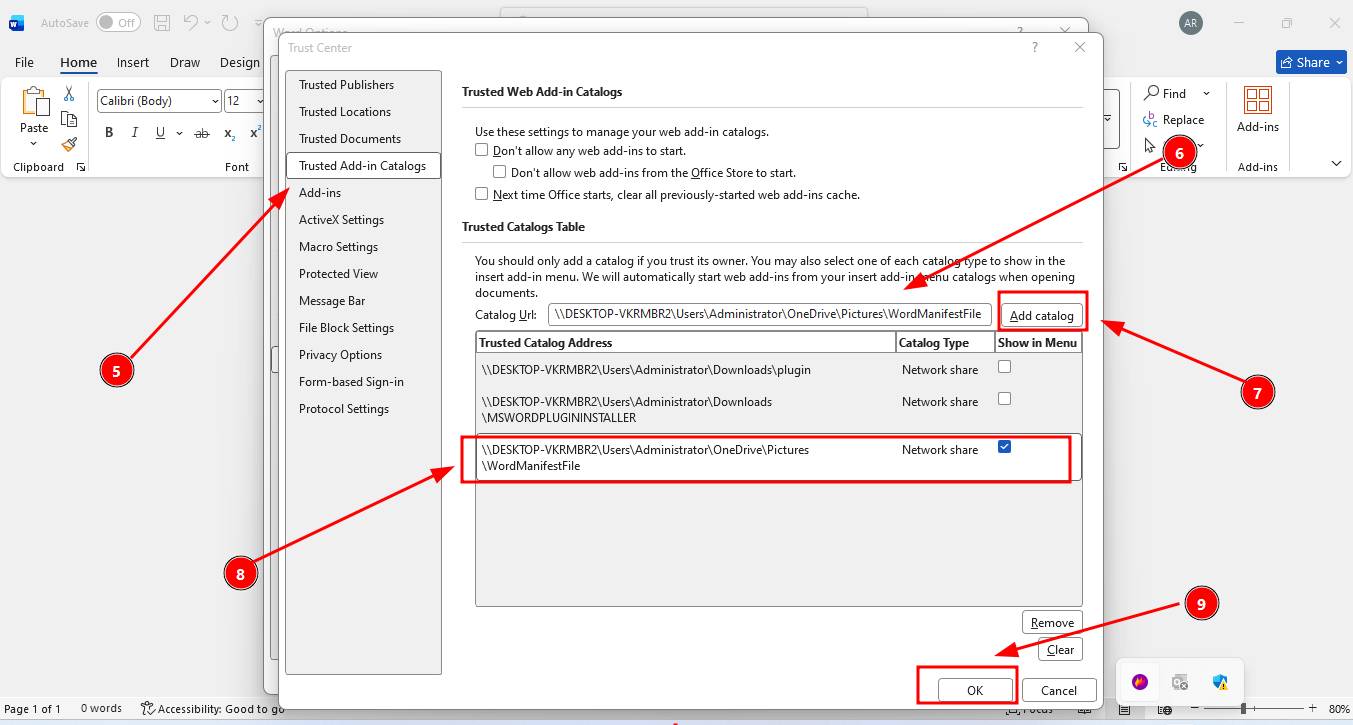
5. Go to Trusted Add-in Catalogs.
6. Paste the copied Network Path URL in the placeholder provided here.
7. Now proceed to click "Add Catalog."
8. Tick the checkbox to "Show in Menu".
9. Click OK.
Now the changes will be saved. You need to restart and open your Microsoft Word now.
STEP 4: Set up your ProofLex Add-in
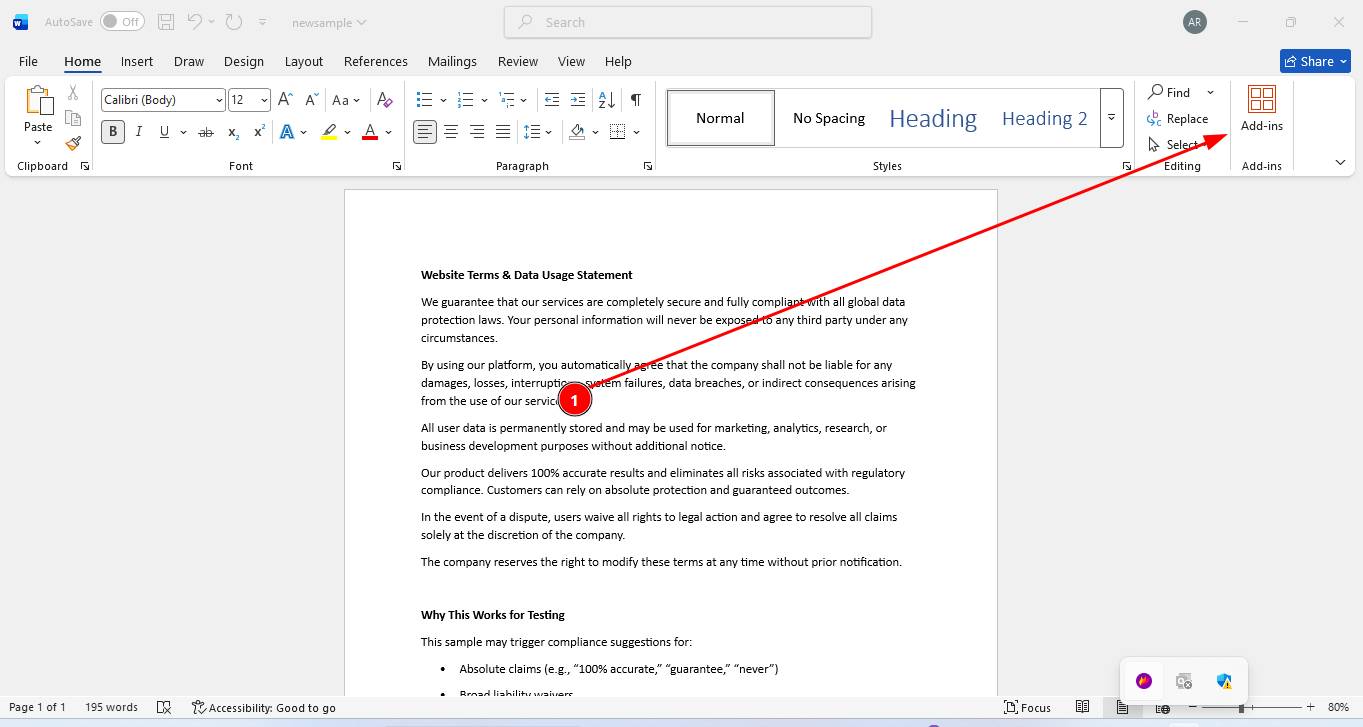
1.Click on "Add-in" icons from the top word menu and Go to "More add-ins"
2. Open Shared folder here. You will here see the ProofLex word plugin.
Click "add" to install it.
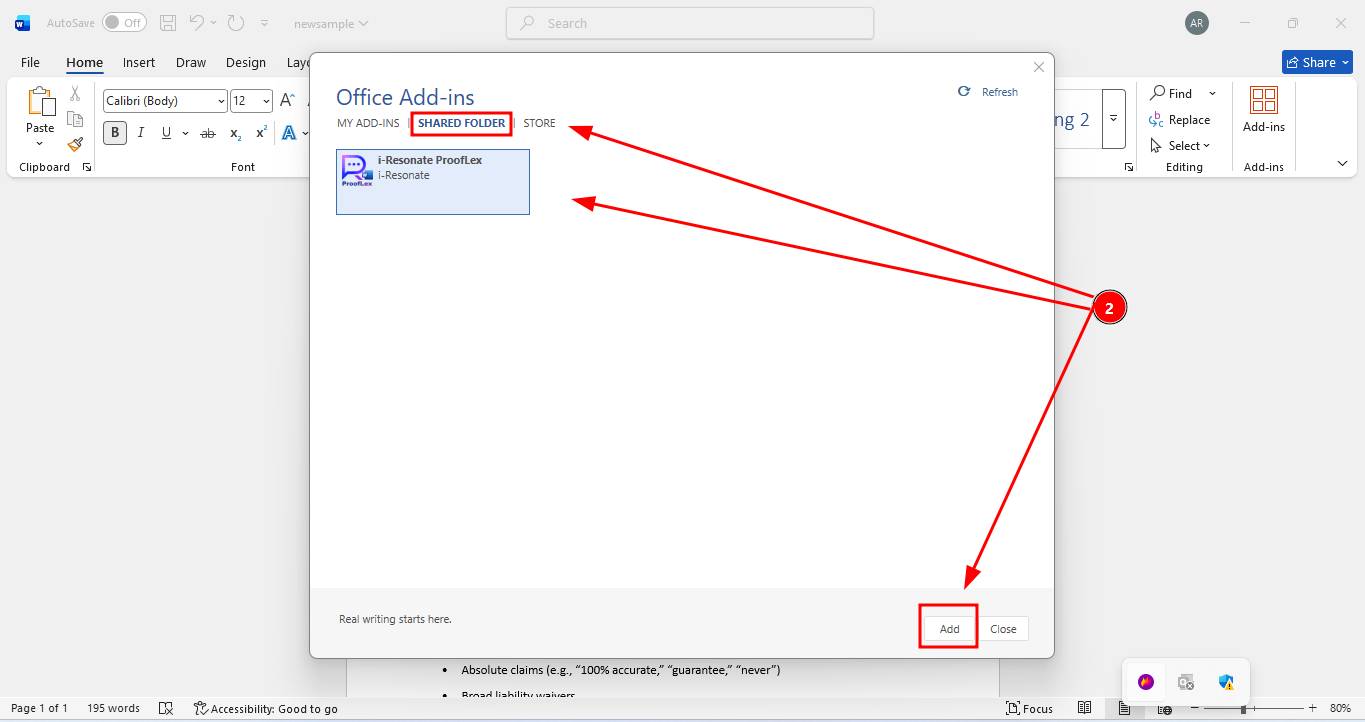
Congratulations! Your ProofLex plugin is now installed.
STEP 5: Log in to ProofLex
1.Open the ProofLex plugin inside Word.
2.Log in using your ProofLex account credentials.
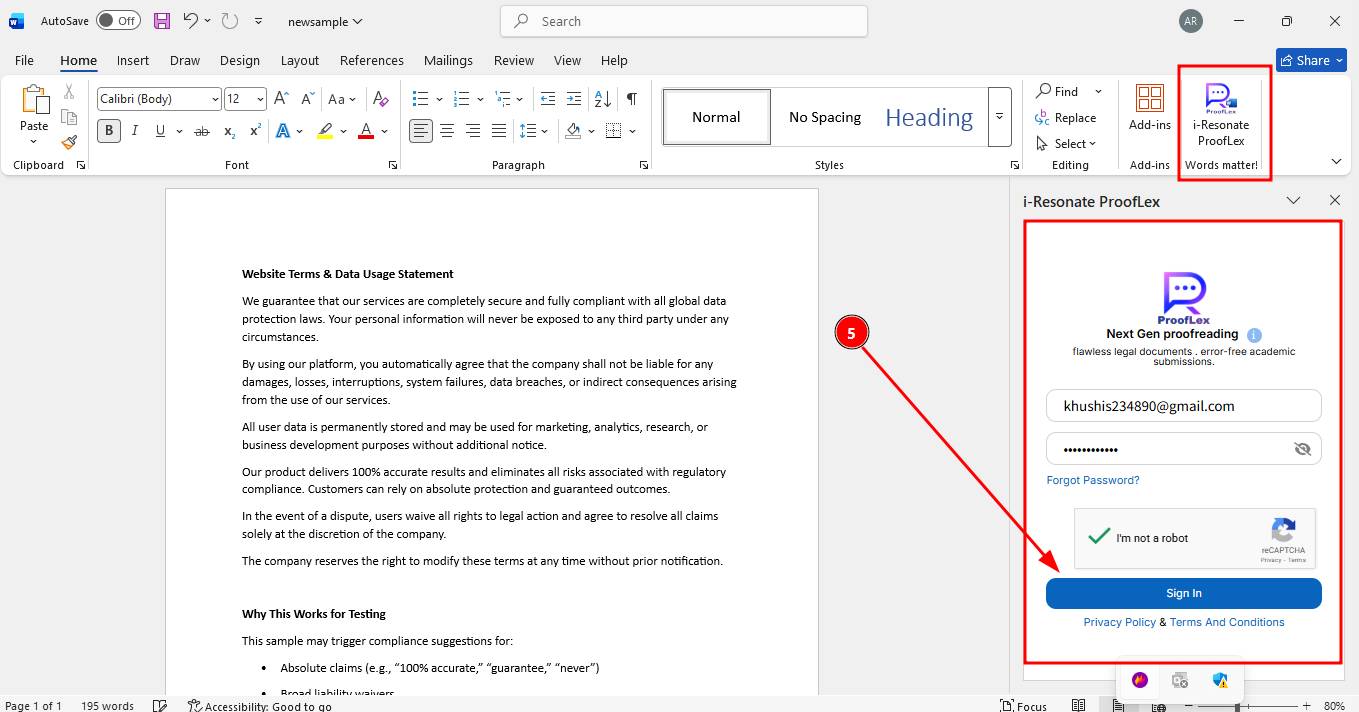
Once logged in, the AI tools will appear in the plugin panel. You can now safely use them to proofread your document.
STEP 6: Run any AI tool
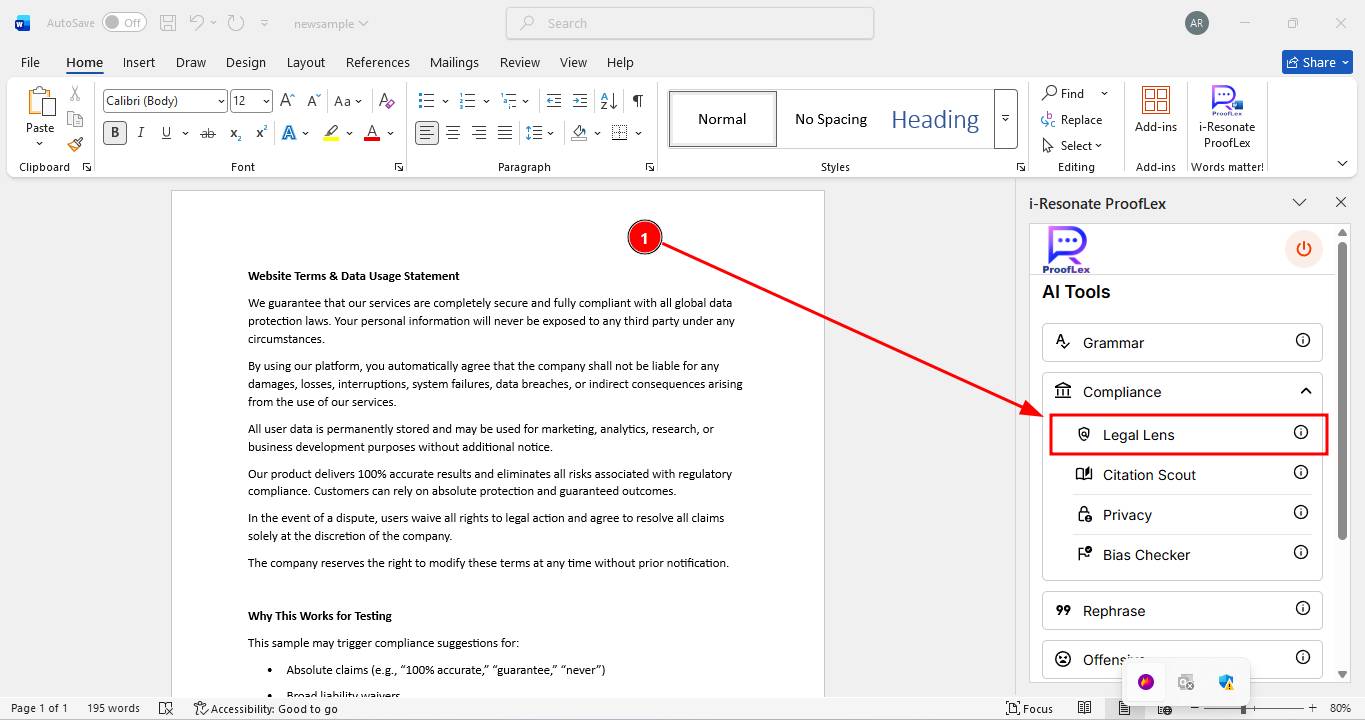
Lets suppose you want to compliance check your document,
1.Select "Legal Lens", under coompliance tools and let ProofLex analyze your document. To know more about legal lens, you can read here.
2. ProofLex will now highlight sentences that may require compliance review. It opens a detailed suggestion card showing: what you wrote and the suggested correction.
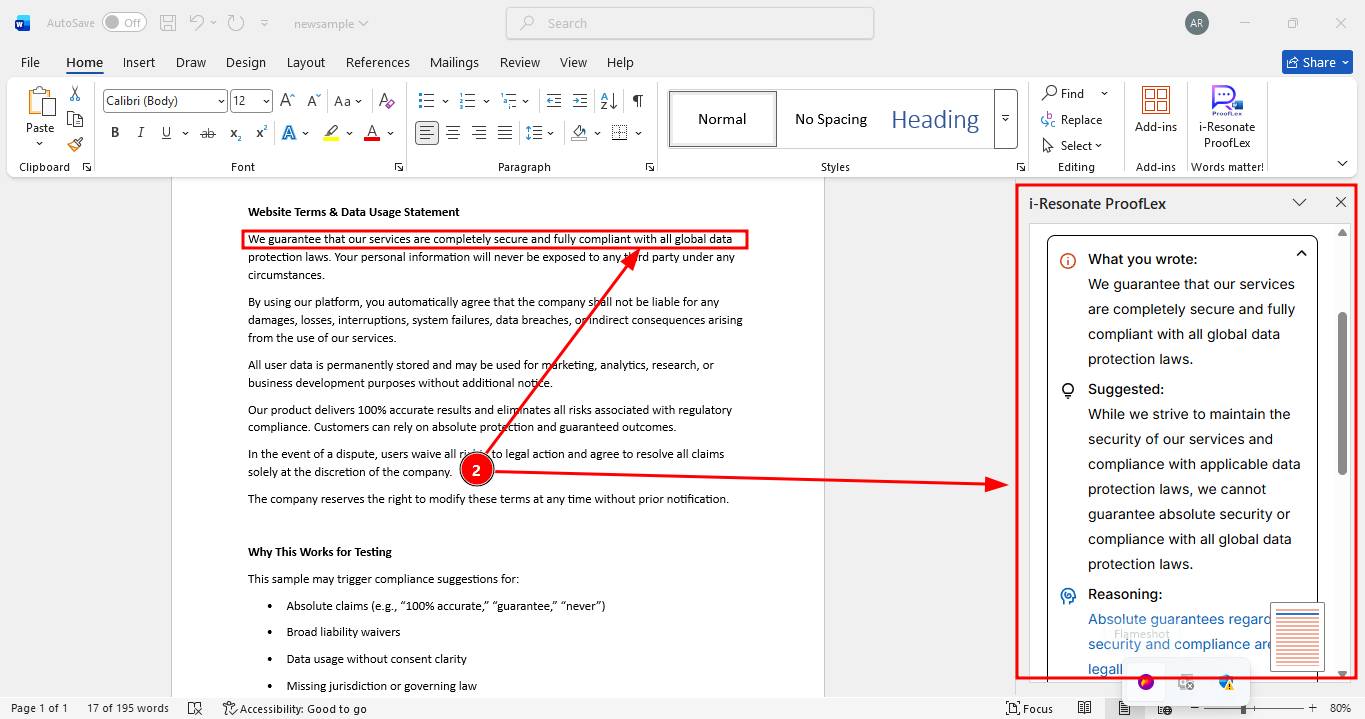
3. When you accept a suggestion, the legal compliance update is automatically applied to your document.
ProofLex Scrolling tool
ProofLex includes a smart navigation tool inside the plugin that lets you instantly jump to the exact paragraph you need to proofread.
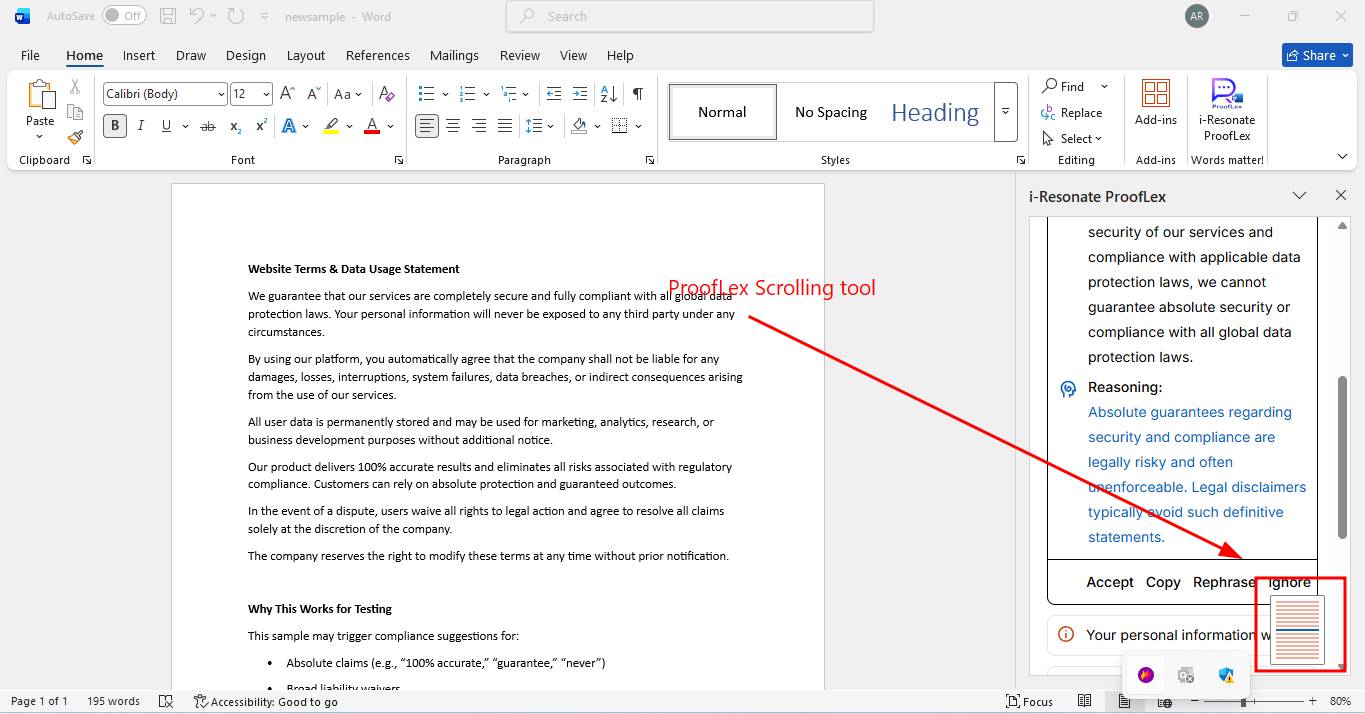
For better usability, the navigation tool can be positioned in four different corners of the pulgin screen. You can place it to Top-left, Top-right, Bottom-left or Bottom-right.
This flexibility allows you to position the tool wherever it feels most comfortable while reviewing your document.
Process to remove ProofLex Add-in:
OPTION 1:
1.Open Microsoft Word or Microsoft Outlook (Desktop) and navigate to ProofLex add-in inside "My Add-ins."
2.Locate the ProofLex add-in and Click the three-dot menu (⋯) on the top right corner.
3.Select Remove.
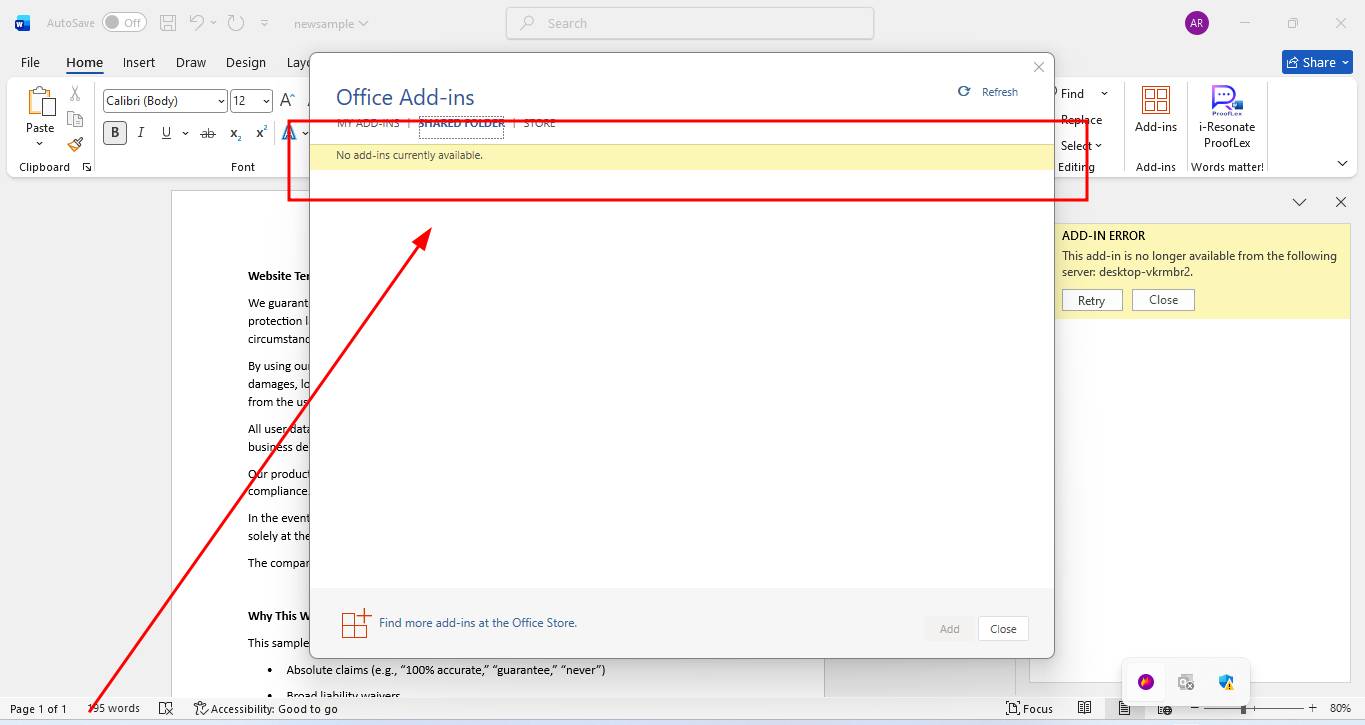
OPTION-2
If the add-in was loaded using a shared manifest file:
1.Go to the shared folder where the Manifest File is stored.
2.Delete the Manifest file.
3.Restart Microsoft Word / Outlook.
This should remove the add-in.
You can also understand team reports analysis in ProofLex.